10
PG 11
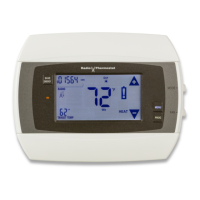
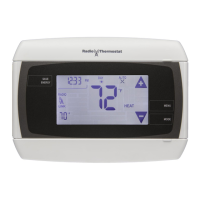
Communicating Thermostat
The CT100 has a built in Z-Wave radio. This allows your thermostat to
communicate with other systems.
Network INCLUSION
1. Set your primary controller to INCLUDE mode to add the thermostat as a node on your network
2. Press and release the MENU button on the thermostat.
3. Press the MATE button. This will bring you to the network screen and a large r1 will be displayed.
4. Press the MATE button again. This will initiate the mating process. When a device has joined a
network the word LINK will appear under the radio tower.
controllers User Manual for details).
Network EXCLUSION
1. Set your primary controller to EXCLUDE mode to remove the thermostat as a node on your
2. Press and release the MENU button on the thermostat.
3. Press the MATE button - This will bring you to the network screen and a large r1 will be displayed.
4. Press the MATE button, this will initiate the mating process. When a device has been removed
from a network, the word LINK below the radio tower will disappear.
Your controller will indicate the thermostat was successfully removed from its network (see your


 To Next Page
 Loading...