
 Need help?
Do you have a question about the Radsone EarStudio and is the answer not in the manual?
Manages power on/off, play/pause, hands-free call actions, and incoming call rejection.
Guides on pairing the device with a smartphone via Bluetooth.
Steps to connect the device to the companion application.
Instructions for resetting the device to its original factory settings.
Step-by-step guide for updating firmware on Windows PCs.
Instructions for updating firmware on macOS systems using Homebrew.
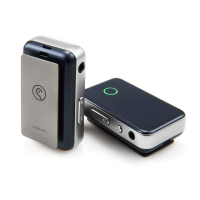
The EarStudio is a versatile audio device designed to enhance your listening experience through various connectivity options and customizable features. It serves as a portable DAC (Digital-to-Analog Converter) and headphone amplifier, offering high-quality audio streaming and playback control.
The EarStudio primarily functions as a high-fidelity audio device that connects wirelessly via Bluetooth or wired via USB to your smartphone, computer, or other audio sources. It processes digital audio signals and converts them into analog sound for your headphones, aiming to deliver superior sound quality compared to direct connections. The device also supports hands-free calling with integrated microphone controls.
Power On/Off: To power on the EarStudio, press and hold the power button for more than 2 seconds. A blue LED will blink once, and a "power-on sound" will play. The device will automatically attempt to connect to a previously paired device, indicated by a green LED blinking once every 3 seconds. If no device is found, it enters Discoverable/Pairing Mode, with the green LED blinking twice every 0.5 seconds. To power off, press and hold the power button for more than 4 seconds. A red LED will blink once, and a "power-off sound" will play before the device shuts down.
Playback Control: For play/pause functionality, simply press the power button once. During Bluetooth or USB playback, a green LED will slowly blink once every 3 seconds.
Hands-free Calling: When an incoming call is received, the blue LED will slowly blink once every 3 seconds, accompanied by a "call-receiving sound." Press the power button once to answer the call. To reject an incoming call, press and hold the power button for more than 2 seconds; a "call-rejection sound" will confirm the action. To end an active call, press the power button once, and a "call-end sound" will play.
Track Navigation: The device features dedicated buttons for track control. Press the "Next Track" button once to skip to the next song. Press the "Previous Track" button once to go back to the previous track.
Pairing Mode: To manually enter Discoverable/Pairing Mode, press and hold the "Previous Track" button for more than 2 seconds. The green LED will blink twice every 0.5 seconds after an "enter pairing-mode sound," and the device will disconnect from any currently connected device.
Volume Control: The EarStudio has separate volume up and down buttons. Pressing the "Volume Up" button once increases the volume by 0.5dB. Pressing it multiple times or holding it down will consistently increase the volume up to 6dB. Similarly, pressing the "Volume Down" button once decreases the volume by 0.5dB. Holding it down will consistently decrease the volume down to -60dB. Pressing the "Volume Down" button at the minimum volume level will mute the sound.
LED Indicators: The device uses LED lights to indicate its status:
App Connection and Features: The EarStudio can be controlled via a dedicated smartphone app. To connect, turn on the EarStudio, and it will automatically enter pairing mode. Select "EarStudio" from your smartphone's Bluetooth settings. Once connected, the app provides extensive control over the device's settings.
Tone Volume: Within the app, you can adjust the volume of local playback sounds such as power on/off, pairing, connected, and low-battery alarms. A "Test Tone Play" button allows you to hear the currently set tone volume.
LED Option: The app allows customization of the LED color. Options include Red/Green/Blue (default, based on device status), White (white LED only for all statuses), or Off (LED off in all statuses).
Bluetooth Option: This setting allows you to manage Bluetooth performance.
USB Connection Option: This feature allows you to configure how the EarStudio interacts when connected via USB.
Battery Care: This feature helps maximize battery life by charging the battery only up to 80-90%, depending on conditions.
Charger Mode:
Power Mode: The USB Power Mode can be set to Self-Powered Mode, useful when a USB Host requires it (e.g., connecting to an iPhone with an Apple Camera Kit). In this mode, the EarStudio will not charge. If the battery is low, Self-Powered mode is automatically released when the USB cable is connected.
Output Mode: This setting configures the audio output. The EarStudio supports 3.5mm and 2.5mm output modes. The 2.5mm port is a full-differential balanced output.
Analog Volume: The app provides a slider to control the analog volume. This volume can be set separately for calls and music playback. Audio volume during a call can only be controlled while a call is active.
Device Volume Control: This feature allows control over the device's internal volume.
Channel Trim Volume: Allows adjustment of the left/right channel trim volume.
Output Level Estimation: The app can monitor the ES100's output voltage in dBu and dBV formats. When used as a headphone amplifier, it can estimate the sound pressure level (dB SPL). For precise estimation, the source volume should be at maximum.
Source Volume: When USB streaming, this displays the USB Host's volume. Otherwise, it shows the smartphone's volume. USB Source Volume cannot be controlled via the app. Keeping the source volume at maximum is recommended for optimal audio performance.
Microphone Volume (during a call): Allows control of the microphone volume during a call. When on a call with EarStudio, the Source Volume automatically switches to control Microphone Volume. Enabling "Preamp" increases the volume by 21dB.
Microphone Loopback (during a call): Controls the amount of sound from the microphone that is directly fed to the audio output during a voice call.
Equalizer Tab: The equalizer offers 12 basic presets (e.g., Flat, Classical, Jazz, Pop, Rock, Dance, R&B, Hip-Hop, Bass Booster, Bass Reducer, Treble Booster, Treble Reducer) and 4 user-definable presets. Users can adjust sliders to desired values and save them to a user preset by pressing the preset button for 3 seconds or more. Preset names can be customized.
Sound Control Tab:
Ambient Sound Tab:
Factory Reset: To perform a factory reset, press and hold the "Volume Up," "Volume Down," "Previous Track," and "Next Track" buttons simultaneously. While holding these buttons, connect the EarStudio to a USB power source. Unlike a normal reset, the green LED will blink first. After the reset, disconnect and reconnect the EarStudio via USB; the blue LED will come on first, followed by the green LED blinking.
Device Firmware Upgrade (DFU): The EarStudio's firmware can be updated to incorporate new features and improvements. The latest firmware and a detailed "DFU user's guide" are available on the Radsone website.
 General
| Output | 3.5mm Single-ended, 2.5mm Balanced |
|---|---|
| Audio Codec | AAC, SBC |
| Bluetooth Chip | CSR8675 |
| THD+N | 0.001% |
| Frequency Response | 20Hz - 20kHz |
| Balanced Output | 2.5mm |
| Bluetooth Profiles | HSP, HFP, A2DP, AVRCP |
| Operating Range | 10m |

 To Next Page