Installation and
Operation
3.2 Configuration
Instalación y
operación
3.2 Configuración
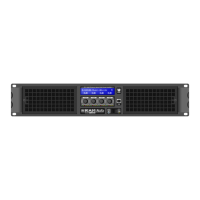
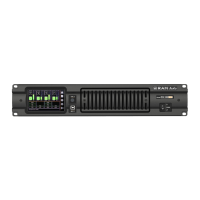
By means of the display, user can con-
figure amplifier and DSP parameters
and moritoring them.
There are six different screens as fol-
lows:
1. Default Screen:
Device Name: asigned by user via RAM_OCS
Lock Button: to lock touch screen
Home Button: to acess to Home screen
System Input Signal: shines green with signal presence
System Preset, Mode and Way names of current process
Level Control for amplifier channel output
Output Mute / Signal: shines green with output signal presence
Snapshot: shows the name of current Snapshot (if loaded one)
2. Home Screen:
Way Output Signal: shines green with signal presence
Mute Button: mutes the amplifier channel output
Output Channel Level
ICL Indicator: shines when clip limiter system is working
LIM: shows RMS/Peak limiters compression level
T: shows the channel temperature (percentage)
System Preset/Mode/Way/User ID Out names of current process
S
napshot: shows the name of current Snapshot (if loaded one)
Default Screen Icon: button to access to the Default screen
3. DSP Edit Screen:
Source Input: to select the analog/digital source input
System Input: to select the input of each system
User ID Input Label: shows the name assigned by the user
User EQ: to select the input EQ User Memory
Group Values: shows the control groups values (green if present)
JOIN (optional): to join different outputs to a single input
System Preset Selector
M: to select the Mode EQ
Way: to optionally select the output way
Desde la pantalla el usuario puede
configurar los parámetros del amplifi-
cador y del DSP y monitorizar estos.
Hay seis pantallas diferentes que son
como sigue:
10


 To Next Page
 Loading...