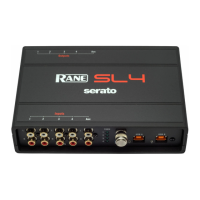
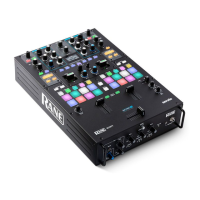
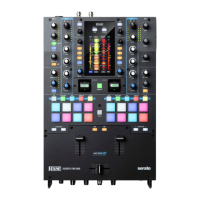
RANE SL2 FOR SERATO SCRATCH LIVE • OPERATOR’S MANUAL 2.4.4
Display
Modes
Library
Views
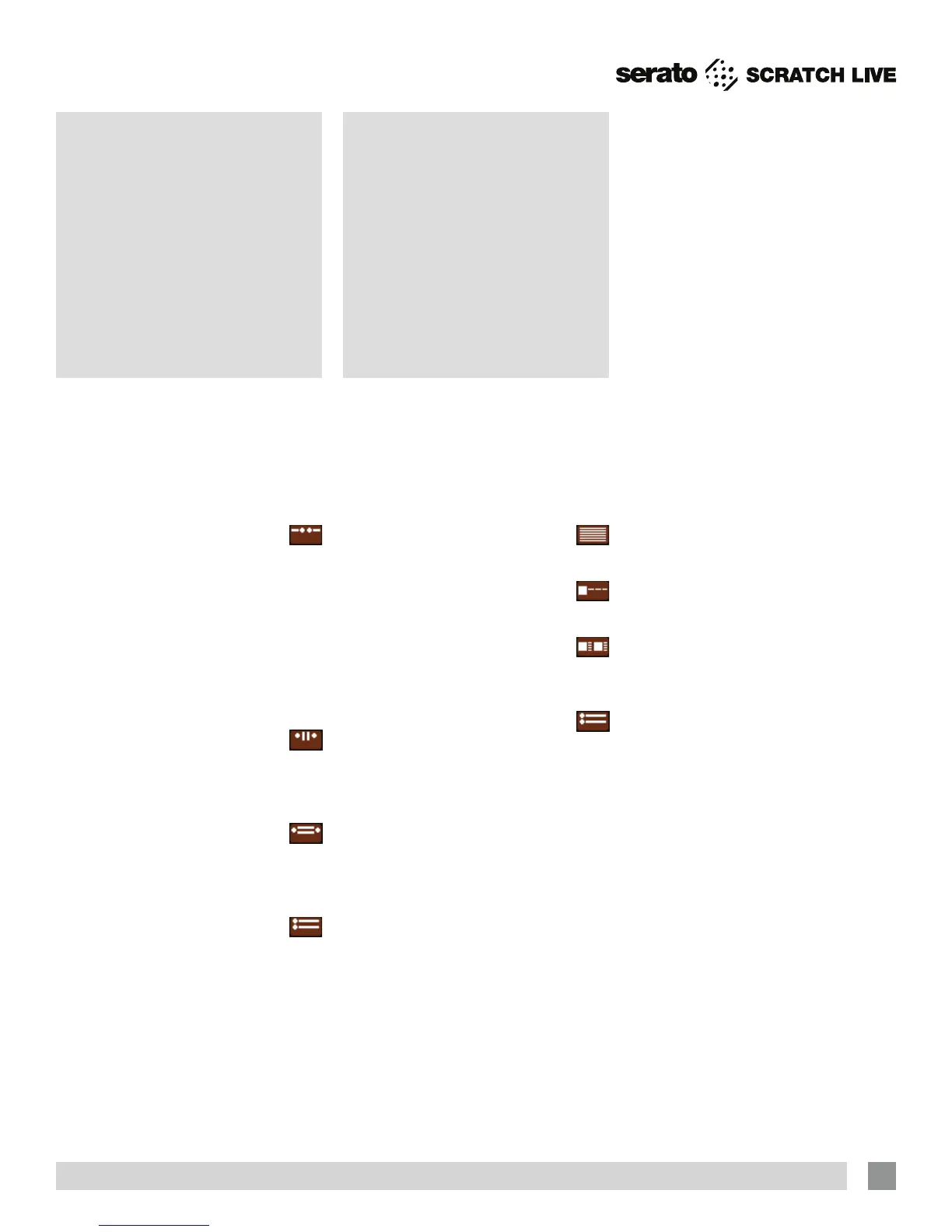
Scratch Live gives you the option of
four different display modes to suit your
style of performance. The Display Mode
buttons are located in the top left of the
Main Screen. The available display modes
are:
Library Mode: Maximizes your
library space by minimizing the
Virtual Deck information displayed. In
Library Mode only the track information,
Virtual Deck, mode, track overview display
and meter are displayed.
TIP: Use the space bar to toggle
between Library Mode and your current
display mode.
Classic Vertical Mode: The two
Decks are displayed on the left
and right sides of the screen with vertical
waveforms in the middle.
Classic Horizontal Mode: The
two Decks are displayed on the
left and right sides of the screen with
horizontal waveforms in the middle.
Stack Mode: The Decks are
stacked on top of each other in a
horizontal fashion. Stack Mode aligns the
waveforms on top of each other, while
maximizing waveform space. The controls
for all Decks can be shown or hidden by
pressing the Show Deck Controls Button
on any deck.
You can choose between four different
library views which allow for visual
browsing using text and album art. Select
your Library View by using the buttons in
the bottom left area of the main screen.
The available Library Views are:
Simple List: Displays the track
information in a text list.
Album Art List: Adds an album art
column to the Simple List mode.
Album Art Grid 1: Displays the
album art as a grid with the track
information text to the right.
Album Art Grid 2: Displays the
album art as a grid with the track
information text below.
NOTE: Your files must have album
art added for it to be displayed. See
“Adding Album Art” on page 27.
TIP: For all views you can adjust the
font size by using the Font Size slider in
the Library tab on the Setup screen. For
all Album Art views you can adjust the
album art size using the Album Art Size
slider in the same area.
15


 To Next Page