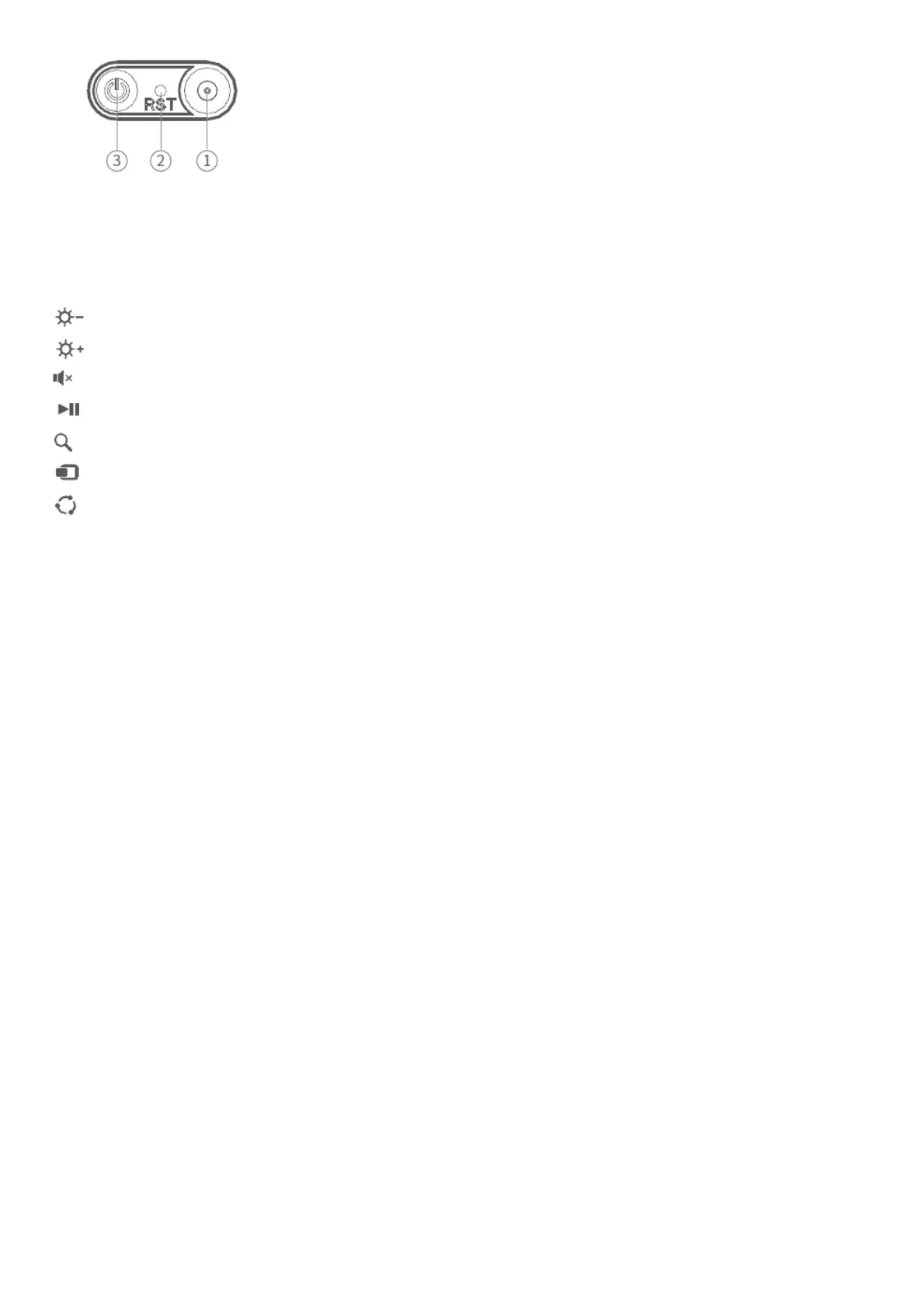
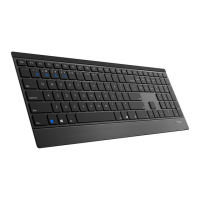
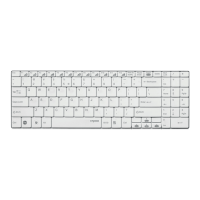
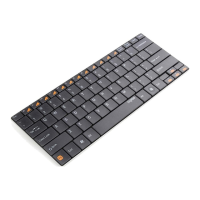
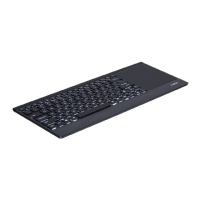
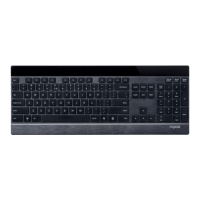
1. Charging Dock: Automatically absorbs and charges after USB cable is close
2. Reset Key: When there is no response when pressing any button, please press this key
3. Power & Bluetooth pairing button: Long press to turn on or off the device and short press to enter pairing mode
1 USB
Brightness-
Brightness+
Mute
Play/Pause
Search
Sharing
Device
Instruction
1. Hold the power button for more than 3 seconds to boot.
2. Press the power button so that the keyboard is searchable in 300 seconds.
3. Finish Bluetooth pairing on your device.
Bluetooth pairing
Windows®7 and 8:
1. Click the “Start” button, then select Control Panel > Add a device
2. Select the RAPOO BT3.0 KB from the list.*
3. Click Next and follow any other instructions that may appear on the screen.
Windows®10:
1. Click the “Start” button, then select Settings > Devices > Bluetooth.
2. Select the RAPOO BT3.0 KB from the list.*
3. Click Pair and follow any other instructions that may appear on the screen.
Booting/shutdown/Bluetooth pairing indication
1. Hold the power button for 3 seconds, and the blue indicator light is on for 3 seconds and off after the connection
is finished
2. Hold the shutdown button for 3 seconds, and the blue indicator light flashes 3 times before shutdown
3. Press the power button to enter the Bluetooth pairing mode lasting for 300 seconds, and the blue indicator light
flashes
Windows®78 1.””””>”” 2.”RAPOO BT3.0 KB 3.”” Windows®10 1.””””>””>”” 2.”RAPOO BT3.0 KB” 3.””
1. 2.300 3.
Windows®78 1.> 2.”RAPOO BT3.0 KB” 3. Windows®10 1.>> 2.”RAPOO BT3.0 KB”* 3.
Letter case indication
The blue indicator light is on when the keyboard is in the capital letter status
Low power indication



 To Next Page