EasyManua.ls Logo

Raymarine T400 - User Manual

Raymarine T400
44 pages
Print Icon
To Next Page IconTo Next Page
Loading...
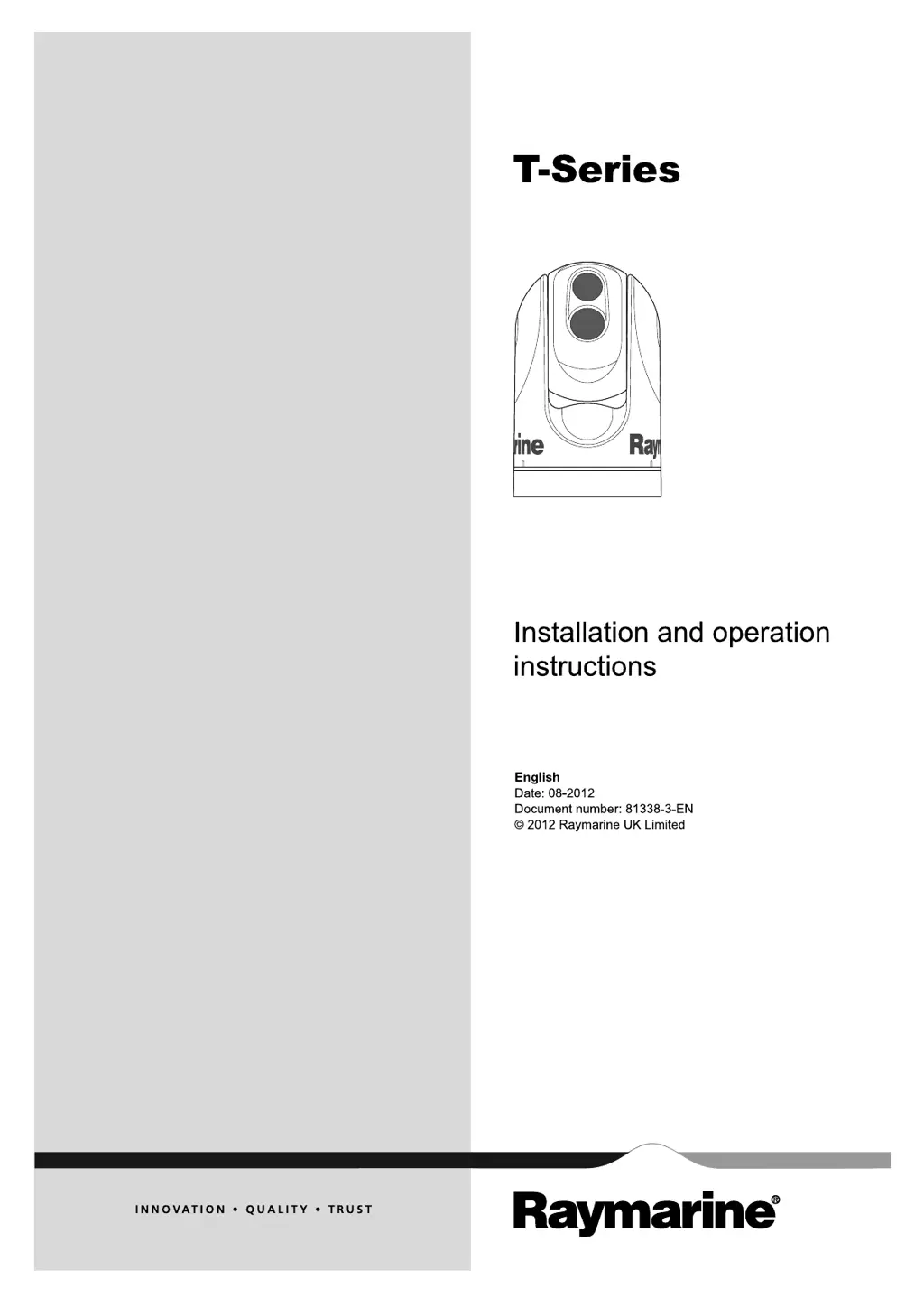
T
-S e r ie s
Installation and ope ra tion
instructions
Englis h
Date: 08-2012
Document numbe r: 81338-3-EN
© 2012 Raymarine UK Limite d
T-Series

Other manuals for Raymarine T400

Questions and Answers

  • A
    amyalexanderAug 13, 2025
    What to do if Raymarine Thermal camera video is not displayed?
    • W
      Wayne ParrishAug 13, 2025
      If your Raymarine thermal camera isn't displaying video, there might be a few reasons: * The camera could be in Standby mode. To fix this, use the camera controls (either the thermal camera application or JCU) to wake the camera from standby. * There might be a problem with the video connections. Check that the video cables are properly connected, ensure the video is connected to video input 1 at the multifunction display or GVM, and verify the correct video input is selected on the display. * There could be a power supply issue. Check the power connections to the camera and JCU / PoE injector (if used), ensure the power switch/breaker is on, and check the fuse/breaker state.
  • J
    Joshua CraneAug 17, 2025
    Why is my Raymarine Thermal camera image too dark or too light?
    • S
      Sara ReedAug 17, 2025
      If your Raymarine thermal camera image appears too dark or too light, consider the following: 1. The display brightness might be set too low. Adjust the brightness using the controls on the display. 2. The contrast or brightness settings in the thermal camera application could be improperly set. Use the softkeys in the application to adjust these settings. 3. The Scene Mode might not be suitable for the current conditions. Try using the SCENE button to select a more appropriate mode.
  • S
    Shane MurphyAug 21, 2025
    What causes a noisy image on Raymarine Thermal cameras?
    • T
      thayesAug 21, 2025
      A noisy image on your Raymarine thermal camera can be caused by: * A poor quality or faulty video cable. Ensure the video cable is as short as possible, use a high-quality shielded cable suitable for marine environments. * Electromagnetic interference (EMI) from another device. Use a high-quality shielded cable and ensure proper cable separation between data and power cables.
  • K
    Krista HartAug 25, 2025
    What to do if Raymarine display or keyboard cannot control thermal camera?
    • T
      tina06Aug 25, 2025
      If you cannot control the thermal camera from the Raymarine display or keyboard, the thermal camera application may not be running. Ensure the thermal camera application is running on the multifunction display, rather than the video application.
  • R
    Ryan RobbinsAug 28, 2025
    Why can't I switch between thermal and visible (VIS / IR) video image on Raymarine?
    • W
      Wendy KennedyAug 28, 2025
      If you cannot switch between thermal and visible (VIS / IR) video images on your Raymarine thermal camera, it could be due to the following reasons: * The camera may not be a dual payload model. Only dual payload (dual lens) thermal cameras support VIS / IR switching. * The VIS / IR cable may not be connected. Ensure that the VIS / IR cable is connected from the camera to the Raymarine system. Note that the IR-only cable does not support switching.
  • A
    Anthony AguirreSep 1, 2025
    What causes erratic or unresponsive controls on Raymarine T400?
    • M
      Melanie MooreSep 1, 2025
      Erratic or unresponsive controls on your Raymarine thermal camera can be caused by: * A SeaTalkhs problem. Check that the controller and thermal camera are correctly connected to the SeaTalkhs network, either directly or via a SeaTalkhs switch. * A control conflict, such as multiple users at different stations using controllers simultaneously. Ensure that no other controllers are in use at the same time. * A problem with the controller. Check the power/SeaTalkhs cabling to the controller and PoE injector (PoE only used with optional Joystick Control Unit).
  • J
    Jeremy WilliamsSep 4, 2025
    Why does my Raymarine Thermal camera image freeze momentarily?
    • S
      Samuel CampbellSep 5, 2025
      The image on your Raymarine thermal camera may pause momentarily due to the Flat Field Correction (FFC) cycle. Just before the FFC, a small green square will appear in the upper left corner of the screen.
  • D
    Daniel BeltranSep 8, 2025
    How to correct an inverted image on a Raymarine Thermal camera?
    • M
      Meagan KennedySep 8, 2025
      If the image on your Raymarine thermal camera is inverted (upside down), the camera’s “Ball down” setting is likely incorrect. Ensure that the Ball down setting within the thermal camera system setup menu is set correctly.

Summary

Important Information and Warnings

Product Installation and Operation Warnings

Collection of warnings regarding product installation, operation, and safety.

Cleaning the Thermal Camera

Instructions for cleaning the thermal camera lens and housing.

Water Ingress and Disclaimers

Disclaimer on waterproof rating and navigation aid usage.

EMC Installation and Compliance

EMC Installation Guidelines

Recommendations for optimal EMC performance during installation.

Suppression Ferrites and Connections

Guidance on ferrites for EMC and connecting to other equipment.

Product Disposal and Warranty Information

Product Disposal

Guidance on disposing of the product according to WEEE Directive.

Warranty Registration

Instructions for registering product ownership for warranty benefits.

Regulatory and Accuracy Information

IMO and SOLAS Compliance

Disclaimer on intended use for leisure marine boats and workboats.

Technical Accuracy Disclaimer

Information regarding the accuracy of document content.

Handbook Information

Handbook Information Overview

Details on the handbook's scope and content.

T-Series Thermal Imaging Cameras

Introduction to T-Series thermal imaging cameras and their features.

Planning the Installation

Thermal Camera System Overview

Components of a typical thermal camera system.

Installation Checklist

Steps required for installing the thermal camera system.

Typical System Configurations

Diagrams of typical thermal camera system setups.

Supplied Parts and Tools

List of thermal camera parts, JCU parts, and required tools.

Cables and Connections

General Cabling Guidance

Best practices for routing and securing cables.

Connection Overview

Diagram and description of system connections.

Power Connection Details

Requirements and procedures for connecting power to the camera.

JCU Connection Procedures

How to connect the Joystick Control Unit (JCU).

Installation

Camera Mounting Requirements

Location requirements and methods for mounting the thermal camera.

JCU Mounting Procedures

Instructions for flush and panel mounting the JCU.

System Operation and Setup

Thermal Camera Image Display

Understanding the thermal camera video feed and status icons.

JCU Controls Overview

Explanation of JCU buttons and their functions for camera control.

Power Up, Standby, and Camera Control

Procedures for powering the system, standby mode, and pan/tilt/zoom.

Image Adjustments and Modes

Using scene presets, color modes, and reverse video.

System Reset and Rearview Mode

Resetting the JCU/camera and enabling rearview mode.

Setup Menus and Configuration

Navigating and using setup menus for configuration.

Troubleshooting and Support

Thermal Camera Troubleshooting Guide

Common problems, causes, and solutions for the thermal camera.

Raymarine Customer Support

Contact information and resources for customer support.

Technical Specification

Technical Specifications Summary

Key technical details including voltage, current, environment, dimensions, and weight.

Raymarine T400 Specifications

General IconGeneral
BrandRaymarine
ModelT400
CategoryThermal cameras
LanguageEnglish

Related product manuals