MOUSE TAB
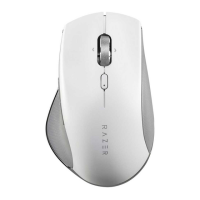
The Mouse tab is the main tab for your Razer Basilisk Pro. From here, you can change your
device's settings, such as button assignment, DPI sensitivity, and lighting. Changes made under
this tab are automatically saved to your system and cloud storage.
Customize
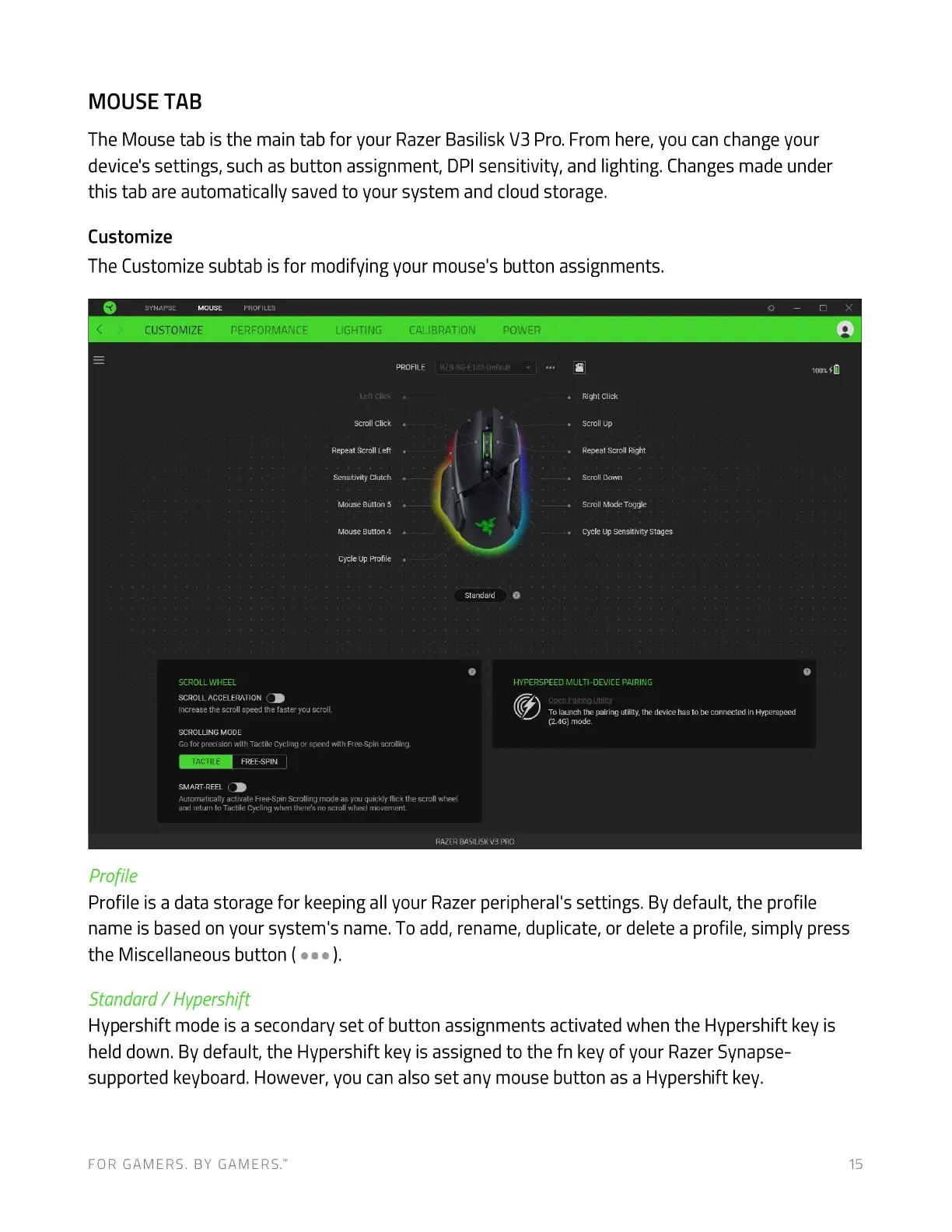
The Customize subtab is for modifying your mouse's button assignments.
APSE
CUSTOMIZE
PROFILES
PERFORMANCE LIGHTING CALIBRATION POWER
PROFILE
Scroll Click
RepeatScroll Left
Sensitivity Clutch
Mouse Button 5
Mouse Bunton 4
Cycle Up Profile
100%
Standard
ALSII
Right Click
Scroll Up
Repeat Scroll Right
Scroll Down
Scr611 uode
Cyck Jp Sensitivity Stages
HYPERSPEED MULTI-DEVICE PAIRING
Caen Pairino IJtihtv
To launch the pairing utility. the device has to be conrected in Hyperspeed
(2.4G) mode.
SCROLL WHEEL
SCROLL ACCELERATION
Increase the scroll speed træ taster you scroll.
SCROLLING MODE
Go for precision with Tactile Cycling or speed with Free-Spinscrolling.
r At: rilE FREE-SPIN
SMART-REEL
Automatically activate Free-SpinScrolling mode as you quickly fick the scroll wheel
and return to Tactile Cycling when therds no scroll wheel movement
Profile is a data storage for keeping all your Razer peripheral's settings. By default, the profile
name is based on your system's name. To add, rename, duplicate, or delete a profile, simply press
the Miscellaneous button (
Standard / Hvpershift
Hypershift mode is a secondary set of button assignments activated when the Hypershift key is
held down. By default, the Hypershift key is assigned to the fn key of your Razer Synapse-
supported keyboard. However, you can also set any mouse button as a Hypershift key.
FOR GAMERS. BY GAMERS.W 15



 To Next Page