Product Updates
View and install security updates for your Razer Blade systems >
Common Questions
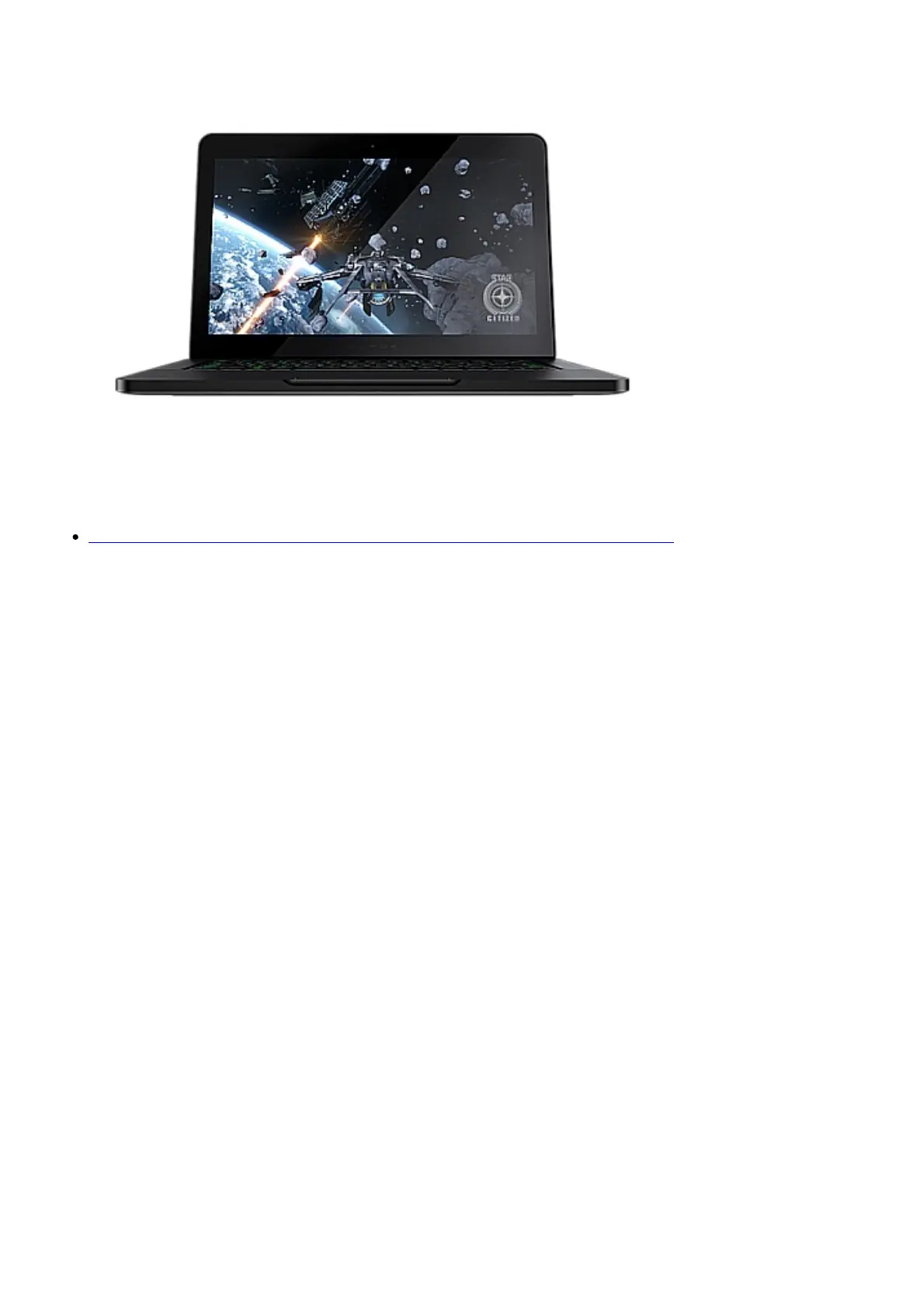
Can I overclock my Razer Blade 14″ (2015)?
Razer laptops are carefully crafted and its components are tuned to give the best performance under
the most demanding gaming conditions. We do not recommend over-clocking your CPU, GPU, and/or
RAM as these alter the delicate balance of performance and reliability of the system. There is
associated risk of damage to crucial components if unauthorized changes are made, which will result
in voiding manufacturer’s warranty.
How do I use the additional functions indicated on my Razer Blade’s keyboard?
To take advantage of the additional functions on the Razer Blade, hold the “Fn” key and press the
specified function key.
Troubleshooting
When my Razer Blade 14” (2015) comes out of the sleep or standby mode, the
trackpad does not work. How can I fix this?
If you experience this problem, wait for the dialog box titled “Synaptics Touchpad Enhancements” to
appear. Press and hold the Alt key and then press the Tab key to activate the dialog box.
My internet or WiFi connection indicates that I am connected to a network, but I
am unable to connect to the internet. What should I do?
Most modems have an indicator that shows if it is connected to the internet. Check if your modem is
connected to the internet. If your modem does indicate that you are connected to the internet, try
restarting your modem.
If the issue persists, contact your local internet provider to ensure that the connection is stable.



 To Next Page