ACCESSORY TAB
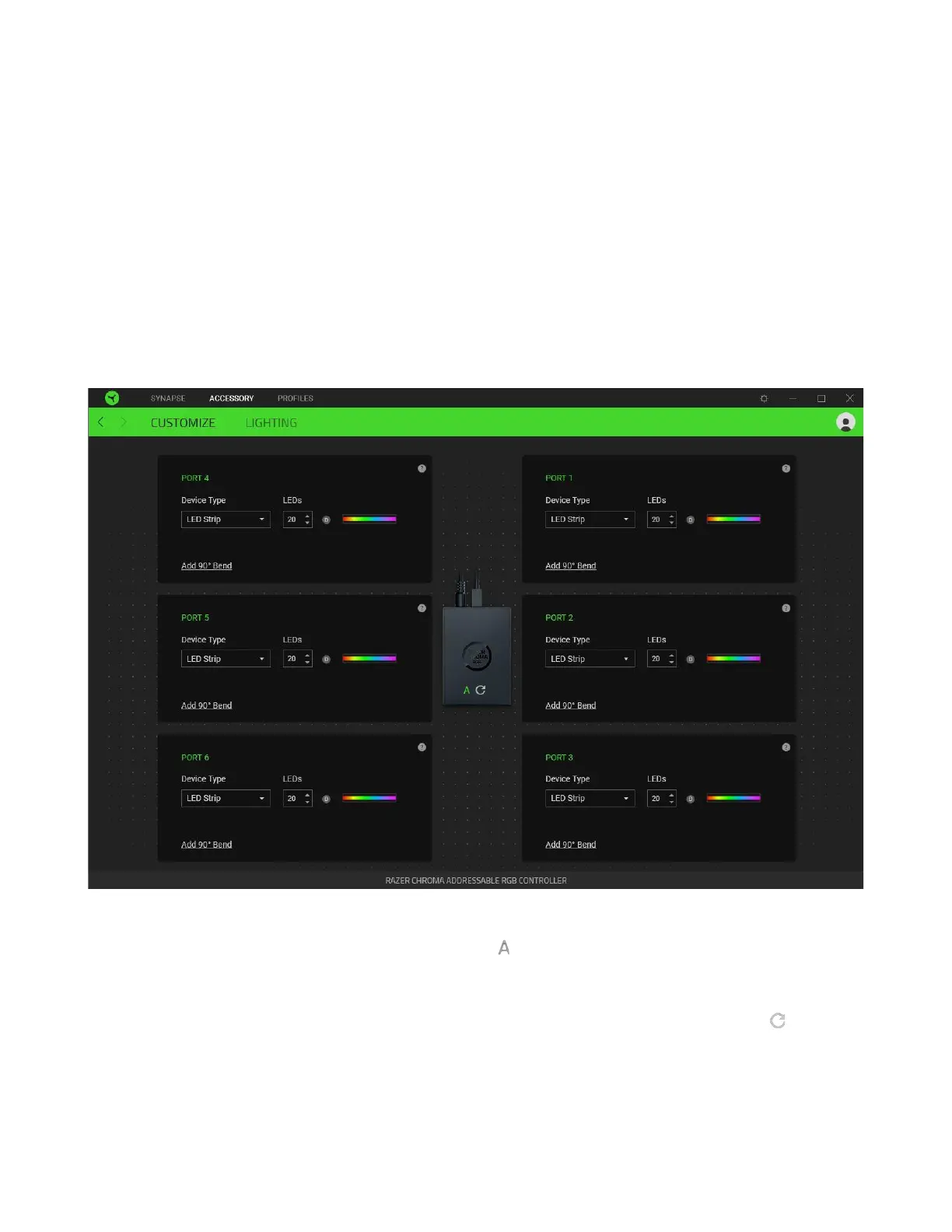
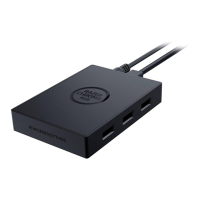
The Accessory tab is the main tab for your Razer Chroma ARGB Controller. From here, you’d be able
to configure the properties of connected ARGB strips or devices, customize ARGB LED strip bends (if
applicable) and the lighting effect of any or all connected devices. Changes made under this tab are
automatically saved to your system and cloud storage.
Customize
The Customize subtab displays all ports with connected ARGB strips or devices. You may also use this
subtab in determining the type of ARGB strip or device connected to each port and identifying the
number of LEDs on each connected ARGB device.
Auto-Detect / Manual Detection
By default, the ARGB controller is set to Auto-detect ( ). This allows Razer Synapse to automatically
detect all ports with connected ARGB devices on startup.
Upon connecting and/or removing devices from any port, clicking on the Refresh button ( ) will
allow you to manually trigger device detection on all ports. Active ports will then be re-displayed
while all inactive ports will immediately be removed.


 To Next Page