The Razer Chroma Light Strip Set is designed to immerse users in a full Razer Chroma RGB experience, allowing for customizable lighting setups. It features a controller powered by Razer HyperSpeed Wireless, enabling instant synchronization with gaming setups.
Important Technical Specifications
Razer Chroma Wireless ARGB Controller:
- Connectivity: Wireless via Razer HyperSpeed Dongle or Bluetooth.
- ARGB Headers: 3 Addressable RGB headers (3-pin, 5V).
- LED Support: Supports WS2812b or equivalent LEDs (up to 120 LEDs per port, 240 LEDs total).
- Lighting: Powered by Razer Chroma RGB for customizable lighting.
- Software Support: Supported by Razer Synapse 3 for streamlined control and Razer Chroma RGB app for Android and iOS (Bluetooth control only).
- On-device Controls: 3 buttons for lighting effect/brightness control.
- Mounting: Double-sided adhesive for secure mounting.
- Dongle: Razer HyperSpeed 2.4GHz Dongle (USB-A).
- Power Adapter: AC to DC Wall adapter (12V 5A).
- Power Output: Single LED channel port: 5V 4.5A; Total from all three LED channel ports: 5V 9A.
LED Light Strips:
- 100cm Light Strip: 1 strip with 60 LEDs.
- 50cm Light Strips: 2 strips with 30 LEDs each.
- LED Type: 5V 3-pin Addressable RGB LED.
- Features: Supports daisy-chaining.
- Mounting: Easy mounting using included brackets and double-sided adhesive.
Product Requirements:
- USB-A port or Bluetooth 5.1 connectivity.
Razer Synapse Requirements:
- Windows 8 64-bit (or higher).
- Internet connection for software installation.
Razer Chroma RGB App Requirements:
- iOS 12 / Android 8.1 Oreo (or higher) device with Bluetooth 5.1 connectivity.
- Internet connection for app installation.
Usage Features
Setting Up the ARGB Controller:
- Connecting LED Strips: Insert the controller to LED strip connector cables into the 3-pin 5V ports of the ARGB controller, ensuring pins are properly aligned. Plug the LED strips into each cable.
- Securing Connections: Enclose all LED strip connections using the included protector clips to prevent accidental unplugging or damage from undue pressure.
- Power Connection: Select the appropriate AC plug for your region and attach it to the power adapter. Connect the power adapter to the ARGB controller and plug it into a power outlet. This connection also enables Standalone mode.
- Mounting the Controller: Use the double-sided adhesive tapes to fasten the ARGB controller to a clean, dry, and flat surface.
- Mounting LED Strips: Insert LED strips into mounting brackets and attach them to surfaces using bracket adhesive tape.
Personalizing Lighting Setup:
A. Via 2.4 GHz Mode (Razer Synapse app):
- USB Transceiver: Insert the wireless USB transceiver into any USB port on your PC.
- Power On: Press and hold the power button on the ARGB controller to turn it on.
- Install Synapse: Install Razer Synapse when prompted or download it from razer.com/synapse.
B. Via Bluetooth Mode (Razer Synapse app):
- Power On: Press and hold the power button on the ARGB controller to turn it on.
- Pairing Mode: Press and hold the power and brightness control buttons simultaneously for 3 seconds. The first LED of each connected strip will blink blue, indicating pairing mode.
- Connect: Activate Bluetooth on your device and select "Razer ARGB" from the list.
- Pairing Completion: Wait for the ARGB controller to pair; LED strips will display a default spectrum of colors. Once paired, the controller will automatically reconnect when in Bluetooth mode and within range. Note: Limited functionality and effects are available in Bluetooth mode via Razer Synapse.
C. Via Razer Chroma RGB App (Mobile):
- Download App: Download the Razer Chroma RGB app on your mobile device.
- Add Device: Launch the app, tap "Add Device," and follow the onscreen instructions to customize lighting with 16.8 million colors and various effects.
Using the ARGB Controller (On-device):
- Brightness Control: Press the "+" or "-" brightness control buttons to increase or decrease the brightness of all connected LED strips.
- Power Button: Press and hold the power button to power on or off the ARGB controller.
- Changing Lighting (Standalone/Bluetooth Mode): Pressing the power button cycles through Chroma lighting effects. The "-" and "+" brightness control buttons configure active lighting effect settings.
- Spectrum Cycling: Cycles through a spectrum of colors. "+" button changes speed.
- Breathing: Fades in and out of a selected color. "-" button cycles colors, "+" button changes speed.
- Starlight: Each LED fades in and out using active or random colors. "-" button cycles/randomizes colors, "+" button changes frequency and speed.
- Wave: Scrolls across LEDs using a color pattern. "-" button cycles color patterns, "+" button changes speed.
- Static: LEDs remain lit in a selected color. "-" button cycles colors.
- Note: A 5-second interval is required to change color for Breathing, Starlight, or Static effects after pressing the power button.
Configuring with Razer Synapse (2.4 GHz Mode):
- Synapse Tab: Default tab upon launching Razer Synapse, providing access to the Dashboard.
- Dashboard: Overview of Razer Synapse, accessing devices, modules, and online services.
- Modules: Displays installed and available modules (e.g., Alexa, Chroma Connect, Chroma Studio, Chroma Visualizer, Macro, Philips Hue).
- Global Shortcuts: Bind operations or Razer Synapse functions to custom key-combinations from Synapse-enabled device inputs.
- Accessory Tab: Main tab for the Razer Chroma Wireless ARGB Controller.
- Customize Subtab: Displays all ports with connected ARGB devices, allowing configuration of device type and number of LEDs.
- Auto-Detect / Manual Detection: Automatically detects ARGB devices on startup. A "Refresh" button allows manual detection.
- Power On/Off: Turn the ARGB controller on or off via the power button icon.
- Port Settings: For each active port:
- Device Type: Displays the connected device type.
- No. of LEDs: Sets the number of LEDs (Synapse detects by default).
- Add 90° bend (for LED Strips only): Mimics physical LED strip bends (up to four per strip) for specific section customization (best with Chroma Studio).
* Lighting Subtab: Customize lighting for any or all connected ARGB devices.
- Profile: Data storage for device settings. Add, import, rename, duplicate, export, or delete profiles. Link profiles to games/applications for automatic activation.
- Brightness: Toggle Brightness option to turn off lighting, or adjust luminance with a slider. Enable Global Brightness for a single setting across all ports.
- Quick Effects: Select and apply preset effects to all connected ARGB devices.
- Ambient awareness: LEDs reflect screen color. Select/customize screen region.
- Audio meter: LEDs light up according to audio level. Select Color Boost level.
- Breathing: Fades in and out of selected colors. Select up to 2 colors or randomize.
- Spectrum cycling: Cycles through colors. No further customization needed.
- Starlight: LEDs fade in and out randomly. Select up to 2 colors or randomize, and duration.
- Static: LEDs remain lit in selected color. Select a color.
- Wave: Scrolls across LEDs in a selected direction. Select a wave direction.
- Chroma Sync: Synchronize quick effects with other supported Razer Chroma-enabled devices.
- Advanced Effects: Access Chroma Studio to create custom Chroma Effects.
- Switch Off Lighting: Power saving tool to disable all lighting when the system's display turns off.
- Profiles Tab: Manage profiles and link them to games and applications.
- Devices Subtab: View games linked to device profiles or Chroma Effects.
- Linked Games Subtab: Add games, view linked devices, sort games. Link games to Razer devices or Chroma Effects for automatic launch during gameplay.
- Settings Window: Configure Synapse startup behavior, display language, view master guides, or perform factory resets.
- General Tab: Change display language, startup behavior, theme, notifications. Manually sync profiles to cloud, view master guides.
- Reset Tab: Perform factory reset on Razer devices with on-board memory and/or reset Synapse tutorials. Warning: Resets erase all stored profiles.
- About Tab: Displays software info, copyright, terms of use links, and quick access to social communities.
Maintenance Features
- Minimum Maintenance: The Razer Chroma Light Strip Set requires minimum maintenance.
- Cleaning: Once a month, unplug the device from the computer, unplug all connected components, and clean it using a soft cloth or cotton swab to prevent dirt buildup.
- Cleaning Agents: Do not use soap or harsh cleaning agents.
Safety Guidelines
- Troubleshooting: If the device malfunctions, unplug it and contact Razer support (support.razer.com). Do not attempt to service or fix it yourself.
- Disassembly: Do not take apart the device or operate it under abnormal current loads, as this may void the warranty.
- Accessories: Only use accessories provided with the device or those made/approved by Razer.
- Relocation/Modification: Power off and unplug the device before any relocation, modifications, or connecting/disconnecting components.
- Handling: Always handle accessories with care, gripping the plug/connector when plugging or unplugging.
- LED Strip Connection: Power off and unplug the device before connecting LED strips to avoid electric shocks.
- Environmental Conditions: Do not use or install the device near water, moisture, solvents, or other wet surfaces. Do not expose components to high temperatures or direct sunlight.
- Temperature Range: Operate the device and its components only within 0°C (32°F) to 40°C (104°F). If the temperature exceeds this range, unplug and switch off the device to allow it to stabilize to an optimal level.

 Need help?
 General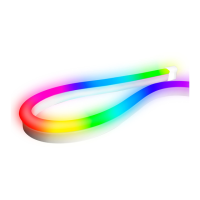

 To Next Page
