Quick Effects
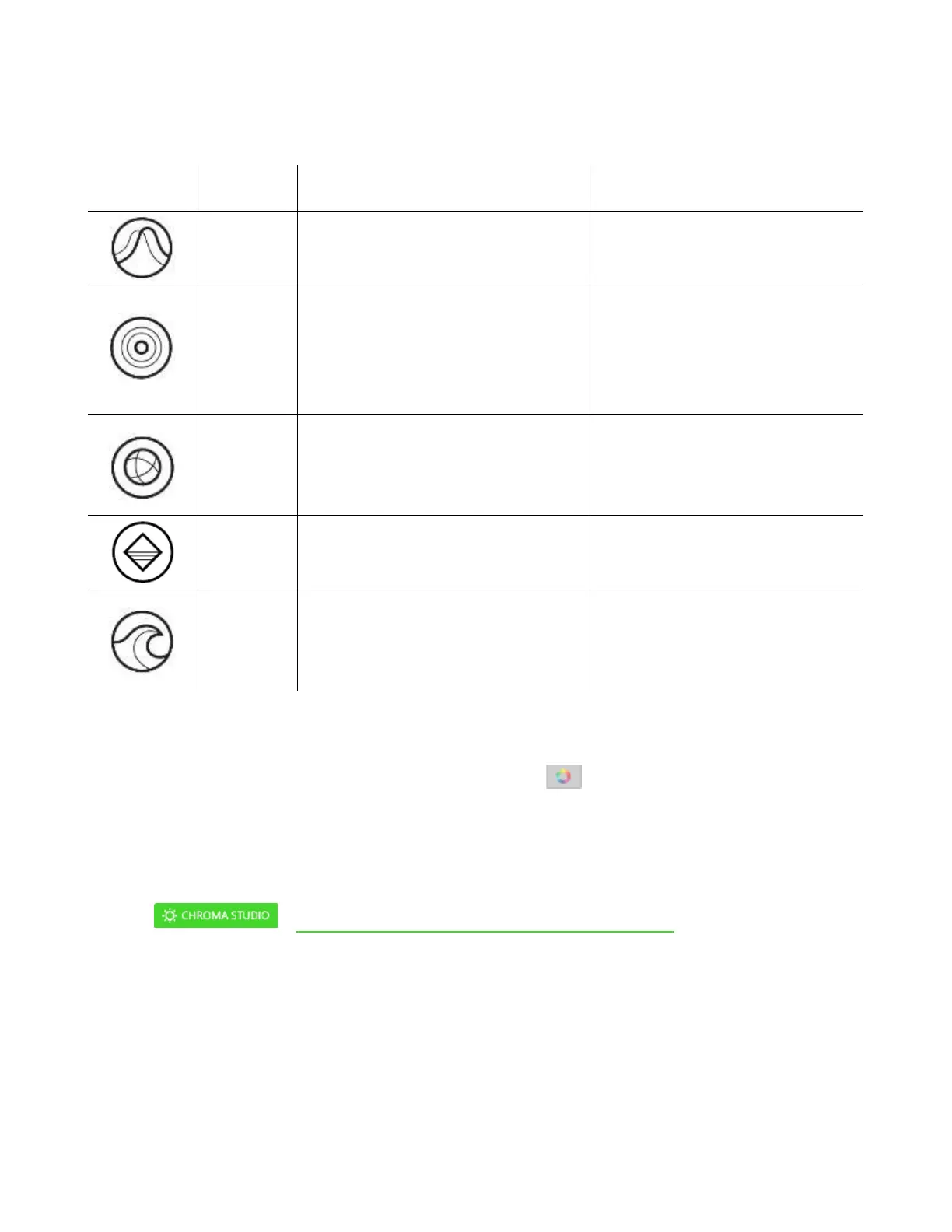
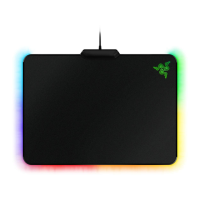
A number of quick effects can be selected and applied to your mouse mat’s lighting, as listed here:
The mouse mat lighting fades in and
out of the selected color(s)
Select up to 2 colors for this
setting
The mouse mat will light up when
you click your mouse. Note that this
is only supported when using a
Razer mouse
Select either the desired lighting
color or choose to use the same
color as the Razer mouse’s LED
The lighting on the mouse mat will
cycle between 16.8 million colors
indefinitely
No further customization is
required
The mouse mat will remain lit in the
selected color
Select the desired lighting color
The mouse mat lighting will scroll in
the direction selected with a default
spectrum of colors
Select either left-to-right or right-
to-left wave direction
If you have other supported Razer Chroma-enabled devices, you can synchronize their quick effects
with your Razer device by clicking the Chroma Sync button ( ).
Advanced Effects
The Advanced Effects option allows you to choose a Chroma Effect you want to use on your Razer
Chroma-enabled peripheral. To start making your own Chroma Effect, simply press the Chroma Studio
button ( ). Click here to learn more about the Chroma Studio


 To Next Page