Camera
Displays the camera's real time preview. Here you'll also be able to modify the following:
Disable Preview. Disable the camera preview. This is useful if you want other applications
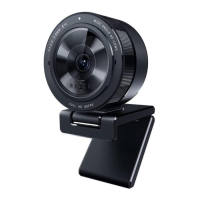
to begin using your Razer Kiyo Pro.
O Whenthecamerapreviewisdisabled,allcamerasettingswillbecomeunchangeable.
Dynamic Range. Enable or disable High Dynamic Range (HDR).
Field of View (FOV). Change how much area is captured by the camera. Simply click to
switch between Wide, Medium, and Narrow field of view.
Automatic Focus (AF) / Manual Focus (MF). Switch between Automatic and Manual focus.
When Manual Focus is active, you'll be able to manually adjust the camera's focus through
the focus slider.
Reset. Resets all camera settings to their default properties.
Image
Fine tune the camera's image settings using any of the available image presets or by adjusting
each setting's corresponding slider as preferred.
Brightness. Control the overall brightness of the camera preview.
Contrast. Highlight the separation of tones within the camera's preview.
Saturation. Change the intensity of the camera preview's color.
White Balance. Control the color temperature of the camera's light source.
Alternatively, you may also click on Advanced Settings to open your operating system's camera
properties window and individually customize color corrections and camera controls.
O RazerSynapsewillpromptyoutoselectwhichsettingyouwanttokeepwhenmakingchangeson
the Advanced Settings or other camera apps Tokeep changesmade from the Advanced Settings or
other camera apps, make sure to select 'Camera'when prompted.
FOR GAMERS. BY GAMERS.W 11


 To Next Page
 Loading...