STATS & HEATMAPS
Note: Theimages shown here are for referenceonly and may differ from the actual device.
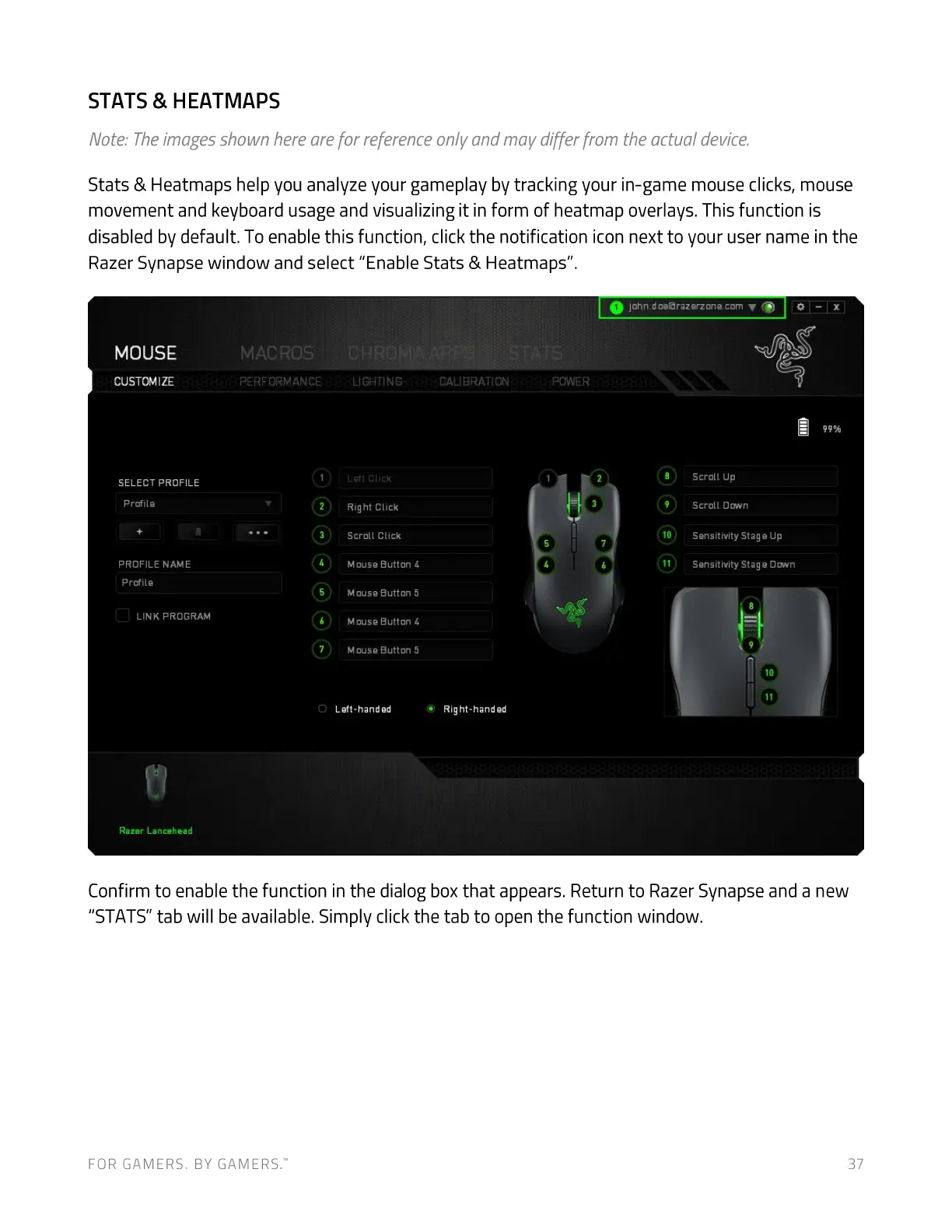
Stats & Heatmaps help you analyze your gameplay by tracking your in-game mouse clicks, mouse
movement and keyboard usage and visualizing it in form of heatmap overlays. This function is
disabled by default. To enable this function, click the notification icon next to your user name in the
Razer Synapse window and select "Enable Stats & Heatmaps".
john.doerarazerzone.com v
MOUSE
CUSTOMIZE
SELECT PROFILE
Profile
PROFILE NAME
Profile
LINK PROGRAM
Razer Lancehead
MACROS
PERFORMANCE
S
6
7
U GATING
Lett Click
Right Click
Scroll Click
Mouse Button 4
Mouse Button 5
Mouse Button
Mouse Button 5
Left-handed
CALIBRATION
@ Right-handed
POWER
99%
10
11
Scroll up
Scroll Dmyn
Sensitivity Stag e up
Sensitivity Stag e Dcv•n
10
Confirm to enable the function in the dialog box that appears. Return to Razer Synapse and a new
"STATS"tab will be available. Simply click the tab to open the function window.
FOR GAMERS. BY GAMERS:
37


 To Next Page