7. USING YOUR TRON GAMING KEYBOARD
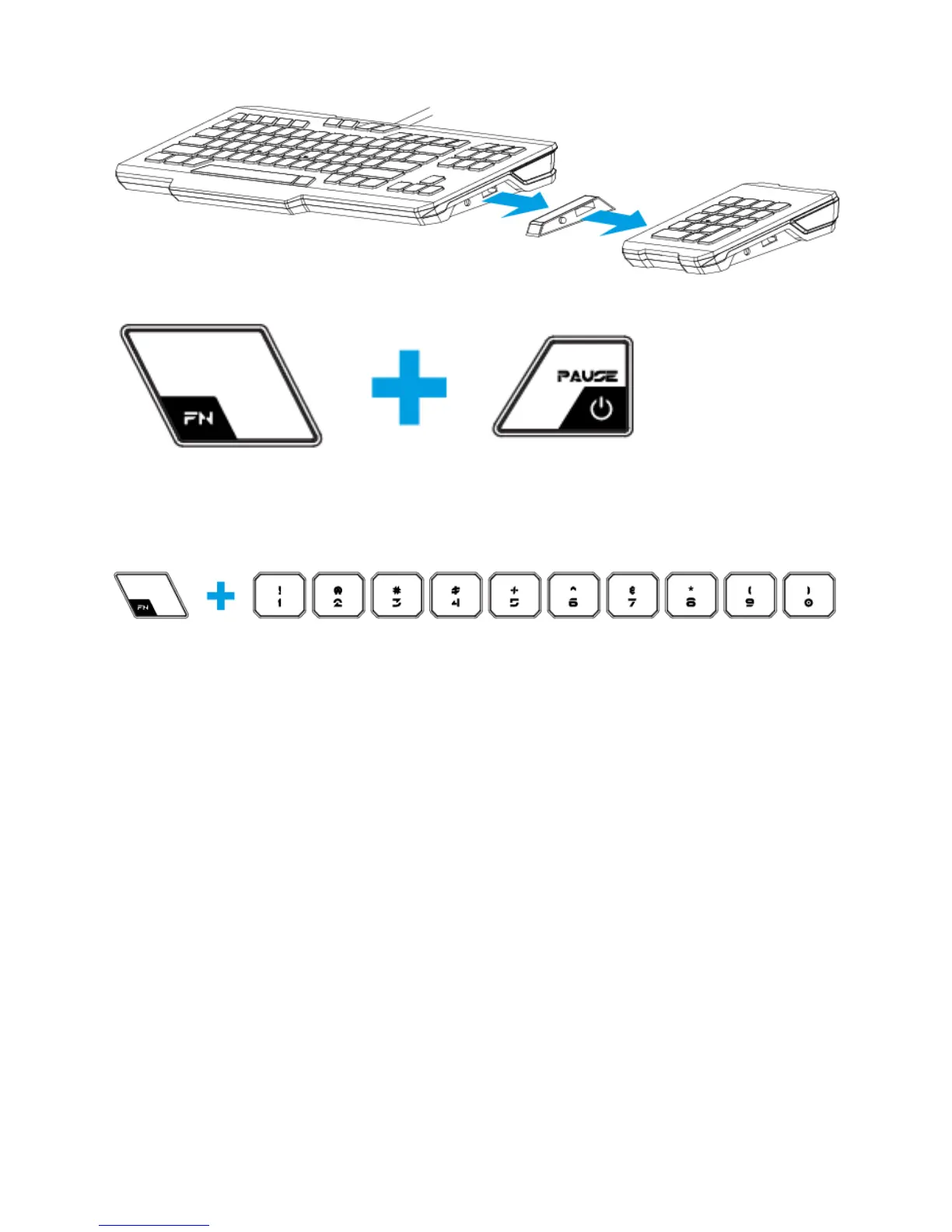
USING THE NUMBER PAD (Attachable on the right or left)
POWERING DOWN (Derez Lighting Effect)
You can switch off your PC by holding the FN button and pressing the power button.
SWITCHING PROFILES
You can switch between profiles in five ways:
a. By pressing the ‘FN’ button + Number key (1 – 9 & 0).
Example:
To select Profile 4, hold on to ‘FN’ button and press ‘4’. Up to 10 profiles may be preconfigured.
Note: The profile switching does not work using the NumKeys.
b. By changing the Current Profile in the TRON Gaming Keyboard Configurator.
Example:
1. Open up the TRON Gaming Keyboard Configurator.
2. Click on the Current Profile name on the Assign Keys tab.
3. Choose the profile you will like to change to from the dropdown list.
4. Click OK.
c. By selecting the Current Profile radio button in the Manage Profiles tab in the TRON Gaming Keyboard
Configurator.
Example:
1. Open up the TRON Gaming Keyboard Configurator.
2. Click on the Manage Profiles tab.
3. Click on the Current Profile radio button you will like to activate or right click and choose “Set Active”
to switch profile.
4. Click OK.
d. By activating auto-switching profile in the TRON Gaming Keyboard Configurator.
Example:
Selecting Profile 6 to be activated upon loading of Program A
1. Open up the TRON Gaming Keyboard Configurator.
2. Click on the Manage Profiles tab.







 To Next Page