This document is a Quick Start Guide for the RCA RCT6973W43 MDN Aura 7 tablet. It provides essential information for setting up, using, and maintaining the device, along with important safety and warranty details.
Function Description:
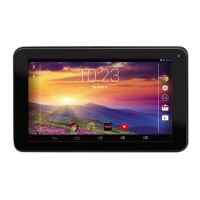
The RCA Aura 7 (RCT6973W43 MDN) is a tablet designed for general use, including browsing the internet, accessing applications, and consuming media. It operates on an Android platform, indicated by the mention of Google, Android, Google Play, and YouTube as trademarks. The tablet supports Wi-Fi connectivity for internet access and Bluetooth for wireless peripheral connections. It features a microphone and camera, suggesting capabilities for video calls, voice recording, and photography. The device is powered by a DC 5V input, typically through an AC adaptor, and includes a rechargeable battery.
Important Technical Specifications:
- Model: RCT6973W43 MDN (Aura 7)
- SAR Limit (Europe): 2.0 W/kg (Body-worn SAR: 1.506 W/kg at 0 cm separation)
- Power Input: DC IN 5V (operates with AC adaptor)
- Connectivity: Wi-Fi (Wi-Fi CERTIFIED, Wi-Fi Protected Setup), Bluetooth®
- Ports: Micro-USB / Charging port, DC jack, MicroSD card slot, Headphones jack
- Controls: Power button, Volume +/- buttons, Reset button
- Operating System: Android (implied by Google services)
Usage Features:
- Initial Setup:
- Charging: Before first use, the tablet must be charged using the supplied AC adaptor connected to the DC 5V port. The Micro-USB port can also be used for charging in OFF or Standby mode. Full charging from 0% takes approximately 4-5 hours. It is recommended to fully charge the tablet before first use and to connect the AC adaptor when the battery falls below 20%.
- Power On: Press and hold the Power button for 4-5 seconds.
- First-time Setup Wizard: Users will be guided to select a language, tap "START," and set up Wi-Fi.
- Screen Interaction:
- ALL APPs Menu: Swipe up from the bottom of the screen or tap the UP arrow to access the ALL APPs menu.
- Standby Mode: Press the Power button to turn off the tablet screen and enter sleep/standby mode.
- Waking from Standby: Press the Power button to turn on the screen, then swipe up to unlock.
- Auto-rotate Screen:
- Quick Settings: Swipe down from the top edge of the screen to open "Quick Settings." Tap the auto-rotate icon to toggle the feature.
- Settings Menu: Alternatively, navigate to Settings -> Accessibility -> Auto-rotate screen to enable or disable it.
- Wi-Fi Connectivity:
- Enabling Wi-Fi: Go to Settings -> Network & Internet, tap Wi-Fi, then tap Off to turn it on.
- Connecting to a Network: The device scans for available Wi-Fi networks. Tap a network name and enter the password if required.
- WPS Push Button: For routers supporting Wi-Fi Protected Setup, go to Advanced Wi-Fi settings (Wi-Fi preferences -> Advanced) and select WPS Push Button, then press the WPS button on the router.
- Adding Hidden Networks: Tap "+ Add network" to manually enter the Network SSID and configure security details.
- Automatic Reconnection: The tablet will automatically connect to previously connected networks if found.
- Power Off: Press and hold the Power button until "Power off" appears on the screen, then tap it to completely shut down the tablet.
- Storage: Includes a MicroSD card slot for expandable storage.
Maintenance Features:
- Cleaning: The device should be cleaned only with a dry cloth.
- Ventilation: Do not block any ventilation openings. Ensure sufficient space around the product for proper airflow. Avoid placing the product on soft surfaces like beds or rugs, or in enclosed spaces like bookcases or cabinets that may obstruct vents.
- Battery Care:
- Use ONLY the included AC adaptor for charging.
- Risk of explosion if the battery is replaced by an incorrect type. Dispose of used batteries according to instructions.
- General Safety:
- Avoid using the apparatus near water.
- Do not install near heat sources (radiators, heat registers, stoves, amplifiers).
- Protect the power cord from being walked on or pinched.
- Use only manufacturer-specified attachments/accessories.
- Unplug during lightning storms or when unused for long periods.
- Refer all servicing to qualified personnel. Do not attempt to disassemble the cabinet as it contains no customer-serviceable components.
- Do not expose to rain or moisture to prevent fire or electric shock.
- Avoid placing liquids (vases) or lighted items (candles, cigarettes) on the apparatus.
- Take care to prevent objects from falling into the product.
- Do not play headsets at high volume for extended periods to protect hearing.
- Environmental Considerations: The crossed-out garbage can symbol indicates that the product is electronic equipment and should not be disposed of in regular trash. It should be collected at distribution points (for similar electronic product purchases) or at local waste disposal centers.
Warranty and Support:
- Limited Warranty: ALCO INTERNATIONAL LTD provides a one-year limited warranty from the original retail purchase date, covering defects in materials or workmanship for non-commercial use. Service will involve new or refurbished parts at Venturer's discretion.
- Technical Support (UK Only):
- Phone: 0345 3073611 (Monday to Friday, 9 AM to 5 PM)
- Email: support@venturer.eu
- Website: www.venturer.com

 Need help?



 To Next Page
 General