Menu System
27
The Parental Control Menu
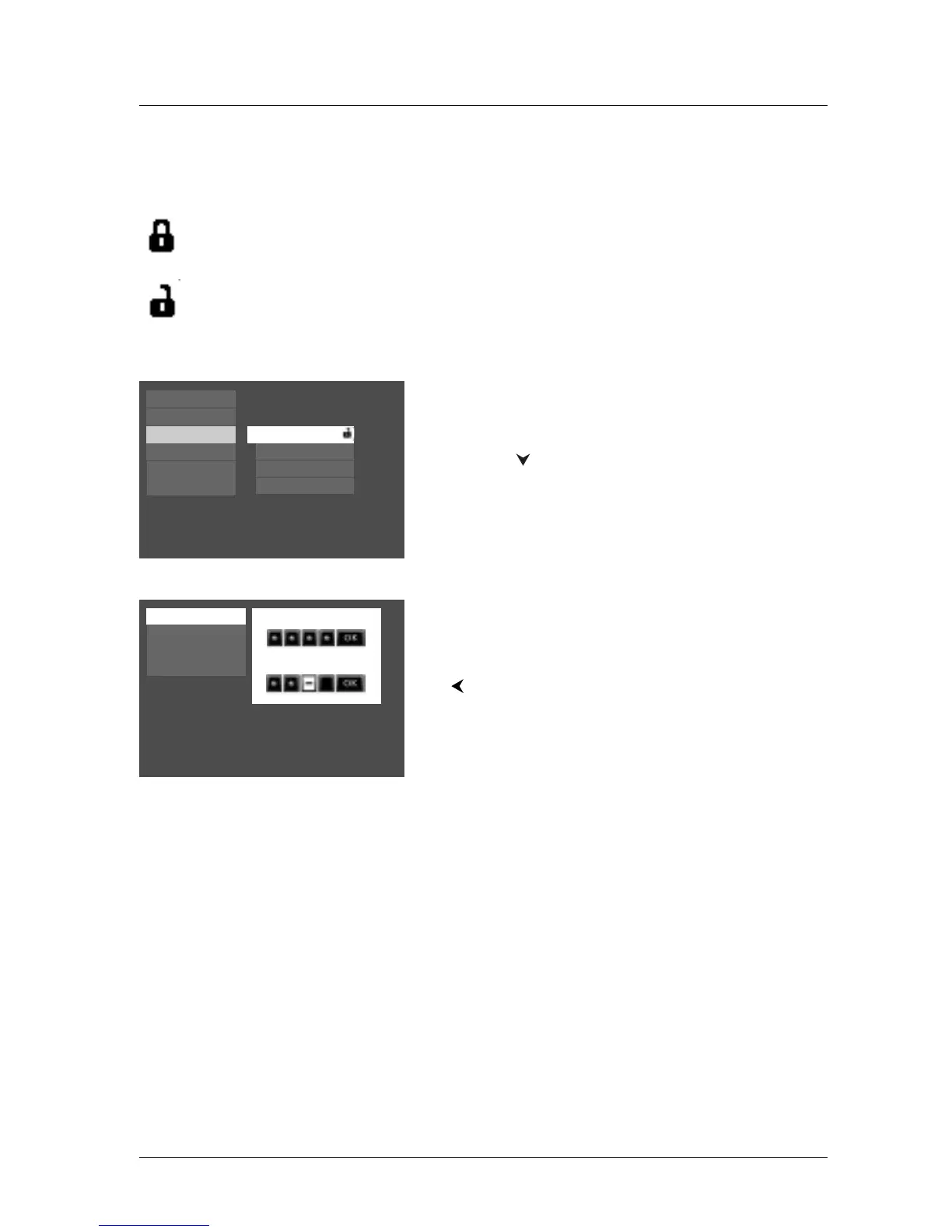
You can set up ratings limits and lock your player in order to control the type of content people
watch on your DVD Player.The padlock icon indicates whether the player is locked or unlocked.
Locked: You need to enter the password in order to play discs that have a higher rating
than what you’ve allowed.When the player is locked, nobody can access the Parental
Control menu without entering the password.
Unlocked: No password required to play discs. Even if you’ve set ratings limits, they won’t
be enforced when the player is unlocked.
Locking your DVD Player
1.
If you’re playing a disc, press STOP (the DVD Player’s
main menu appears).
2. Press the button until Parental Control is
highlighted, and press OK (the
Parental Control menu
items appear).
3. Since Lock is highlighted, just press the OK button on
the remote (the
Enter Password screen appears).
4. Use the number buttons on the remote control to
enter your password and press OK (
Confirm
Password
appears). Enter the same numbers you
entered before and press OK (if necessary, press the
button to return to the previous menu).
Notes:
Once the player is locked, you’ll need to enter the password
every time you access the Parental Control menu.
The player is shipped without any rating limits set.You need to
set Ratings Limits (go to page xx for instructions) in order for
the player to prevent people from playing discs with certain
ratings.
Resume Play
Parental Control
Sound
Display
Play Mode
Languages
Lock
Password
Use a password to lock the player and put into effect any
limits you have set up.
Rating Limits
Unrated Titles
Lock
Password
Rating Limits
Unrated Titles
Enter Password
Confirm Password



 To Next Page