Using the On-Screen Info Displays
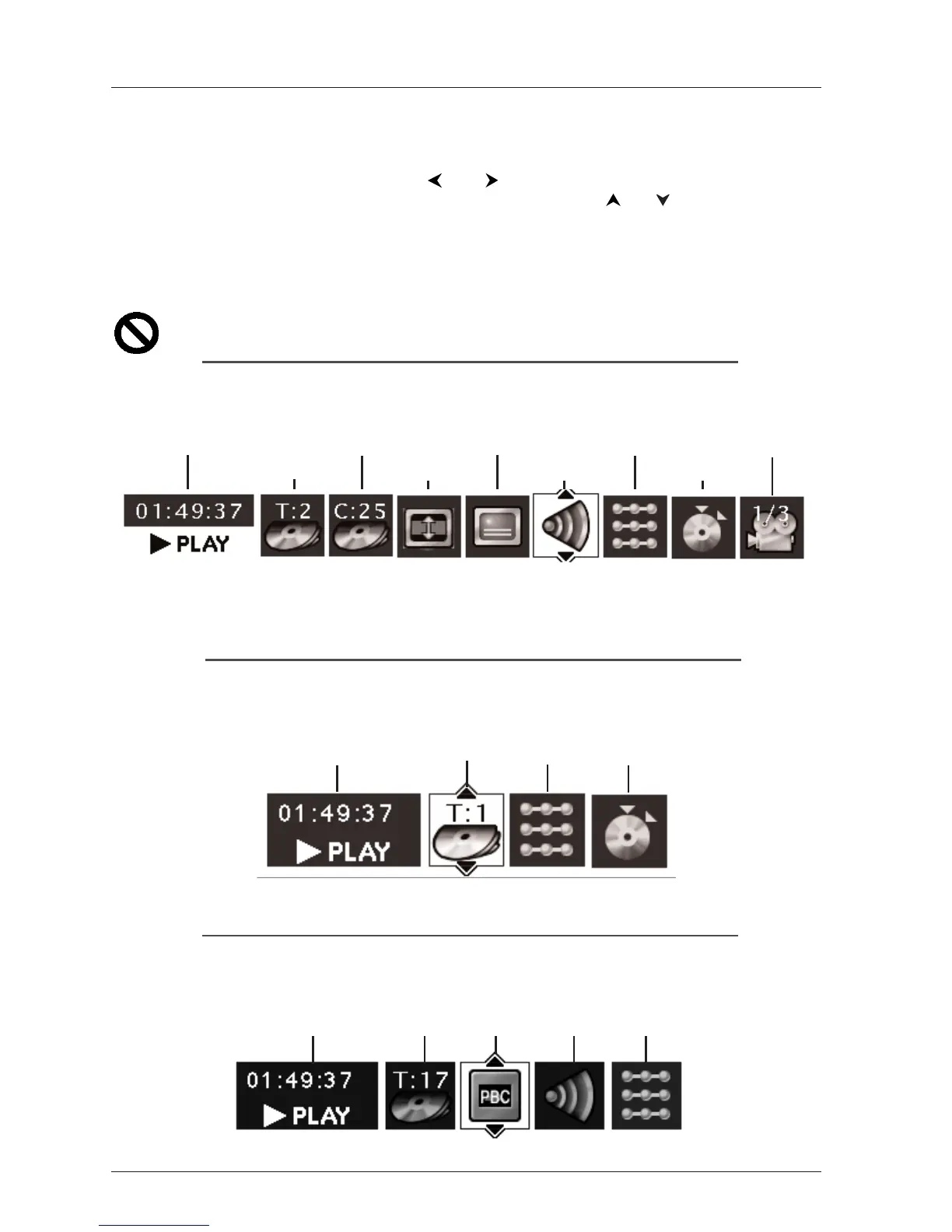
The Info Display appears across the top of the screen when you press the INFO button on the
remote while you’re playing a disc. Use the and buttons to highlight different icons. Once
an icon is highlighted, follow the on-screen instructions, and use the or buttons on the
remote control to scroll through the options.
You can only access the Info Display when you’re playing a disc.Also, the Info Display features are
only available if the disc was created with that particular feature. If one of the icons is “grayed
out,” that feature isn’t available for the disc you’re playing.
The invalid symbol appears on the screen when you press a button that doesn’t have any
function. To make the Info Display disappear from the screen, press INFO on the remote.
DVD Disc Info Display
Time display Chapter Subtitles Play Mode Angle
Title Screen Fit Audio Bookmarks
Audio CD Info Display
Time Display Track Play Mode Bookmarks
Video CD (VCD) Info Display
Time display Track PlayBack Audio Play Mode
Playing Discs
14
Graphics throughout this User’s Guide are for representation only.



 To Next Page