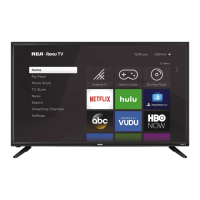
This document is a user manual for a 32-inch RCA Android TV, model RTA3201, manufactured and sold by Curtis International Ltd. It provides comprehensive instructions for setup, operation, maintenance, and troubleshooting.
Function Description
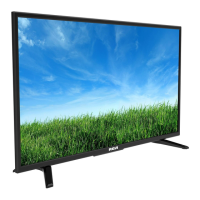
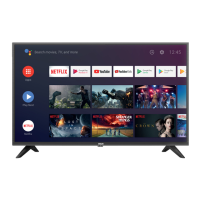
The RCA 32" Android TV is a smart television designed for home entertainment. It integrates traditional TV viewing with smart TV functionalities powered by the Android operating system. Users can access various streaming services, browse the internet, and connect external devices. The TV features a built-in tuner for receiving over-the-air or cable broadcasts and multiple input ports for connecting other media players, gaming consoles, and audio systems. Its Android TV platform allows for a personalized user experience with access to the Google Play Store for apps, Google Assistant for voice commands, and Chromecast built-in for casting content.
Usage Features
Initial Setup:
Upon first use, the TV guides users through an initial setup process, including pairing the Bluetooth remote control. This involves pressing and holding the "HOME" and "LEFT" buttons simultaneously for 5 seconds until "TV_BLE_Remote" appears on the screen, then pressing "OK" to confirm pairing. If pairing fails, users are advised to wait 30 seconds and repeat the process.
Remote Control:
The remote control is a central interface for operating the TV. It includes standard buttons for power, channel navigation (CH+/CH-), volume control (VOL+/VOL-), and menu access. Dedicated buttons for popular streaming services like Netflix, YouTube, Google Play, and VUDU provide quick access. The remote also features an "INFO" button for displaying channel information, "MUTE" for silencing audio, "SOURCE" for selecting input sources, and "COLOR BUTTONS" for accessing specific app functions. Playback controls (reverse, play, fast forward, pause, stop) are available for multimedia content. Additional functions include "MTS" for audio channels, "CC" for closed captions, "P.MODE" for picture modes, and "S.MODE" for sound modes.
Navigation and Menus:
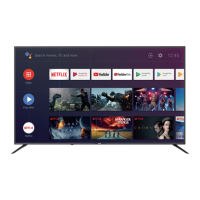
The TV's interface is based on the Android TV home screen. Users can navigate using the directional buttons on the remote. The home screen displays favorite applications, notifications, input source selection, network settings, and general settings.
To access the on-screen menu, users can press the "MENU" button during live TV or select the circular settings icon from the HOME interface.
The TV supports various input sources, including RF antenna/cable, HDMI (HDMI1 ARC, HDMI2, HDMI3), Composite Video, Component Video (YPbPr), and USB. Users can switch between these sources by pressing the "SOURCE" button on the remote or by navigating to the "Inputs" icon on the HOME screen.
Network & Internet:
The TV can connect to Wi-Fi networks or via Ethernet. Users can manage available networks, enable scanning for networks, and configure proxy settings.
Channel Management:
The "Channel" menu allows users to customize their channel list, select the installation mode (Antenna/Cable), and configure multi-audio options.
Parental Controls:
Parental controls enable users to block specific channels, restrict programs based on ratings, and block certain input sources. A PIN can be set and changed to secure these settings.
Date & Time:
Date and time settings can be configured automatically via the network or manually. Options include setting the date, time, time zone, and enabling a 24-hour format.
Timer Functions:
The TV includes "Power On Timer" and "Power Off Timer" functions, allowing users to schedule when the TV turns on or off, with options for ON/OFF/ONCE.
Language:
Users can select their preferred language for the TV interface from the "Language" menu.
Keyboard:
The "Keyboard" settings allow users to manage the current keyboard (Gboard), access Gboard settings, and manage other installed keyboards.
Picture Settings:
The "Picture" menu offers extensive customization for video output. Users can select various picture modes (User, Standard, Vivid, Sport, Movie, Game, Energy saving) and adjust parameters such as backlight, brightness, contrast, saturation, hue, and sharpness. Gamma settings (Dark, middle, Bright) and color temperature can also be fine-tuned. The TV supports HDR (on/off) and offers advanced video settings. A "Reset to Default" option is available to restore factory picture settings.
Sound Settings:
The "Sound" menu provides options for sound style (Standard, Vivid, Sports, Movie, Music, News), balance, bass, and treble. Users can enable "Sound Surround," access "Equalizer Detail," and select speaker output (TV Speaker, External Audio System). Digital audio output can be configured (Auto, Bypass, PCM, Dolby Digital Plus, Dolby Digital), and SPDIF delay can be adjusted. "Auto Volume Control" and "Downmix Mode" (Stereo, Surround) are also available. A "Reset to Default" option restores factory sound settings.
Storage:
The "Storage" menu displays information about internal shared storage and any connected removable storage (e.g., USB flash drives).
Store Mode:
The "Store Mode" setting can be turned on or off.
Google Services:
The "Google" menu allows users to manage accounts, view app permissions, set searchable apps, enable SafeSearch filter, block offensive words, and view open source licenses.
Chromecast Built-in:
Information and settings related to Chromecast built-in are available in this menu.
Location:
Location services can be managed, with options to use Wi-Fi to estimate location.
Usage & Diagnostics:
Users can choose to automatically send diagnostic information to Google.
Accessibility:
Accessibility features include Audio Description, Visually Impaired settings, Hearing Impaired settings, Captions (Antenna/Cable), High contrast text, Text to speech, and Accessibility shortcut.
Reset:
A "Reset" option is available to erase all settings and restore the TV to factory defaults.
The TV includes a Multi Media Player application. Users can add this app to the HOME interface and use it to view video, photo, audio, and text files from a connected USB flash drive.
Maintenance Features
Cleaning the TV:
- Important Safety: Always remove the power cable from the socket before cleaning.
- Chemicals to Avoid: Do not use volatile solvents like alcohol, rosin, or toluene, as these can damage the housing and LED glass.
- Bezel and Remote Control: Use a 100% cotton or micro-fiber cloth. If dry wiping is insufficient, lightly dampen the cloth with clean water. Ensure the cloth is not dripping wet to prevent water from entering the electronics, which could cause malfunction and permanent damage not covered by warranty. Wipe the display with a dry micro-fiber or cotton cloth afterward.
- Screen: The LED screen glass is fragile. Do not scrape it with any material, press, or tap it to avoid cracking. Clean with a 100% cotton or micro-fiber cloth. If necessary, lightly dampen the cloth with clean water (not dripping wet) and wipe gently, then follow with a dry cloth.
Troubleshooting:
The manual provides a troubleshooting guide for common issues such as "Ghost" or double images, no power, no picture, sound problems, poor picture quality, snowy picture, horizontal dotted lines, and remote control unresponsiveness. It also addresses the presence of "Pixels (dots)" as an inherent characteristic of the display technology, not a defect.
Warranty:
The product comes with a 1-year warranty covering defects in material and workmanship from the date of original purchase. For warranty claims, users are instructed to email support@curtiscs.com or call 1-800-968-9853, rather than returning the product to the store. The warranty excludes damage from normal wear, misuse, accident, alteration, or use not in conformity with printed directions. It also specifies that the warranty is void if the product is used for other than single-family household use or subjected to incorrect voltage/waveform. The manual clarifies limitations on implied warranties and consequential damages. For faster service, users should locate the model, type, and serial numbers of their appliance.


 To Next Page
 General