10
Customizing the home screen
Setting the wallpaper
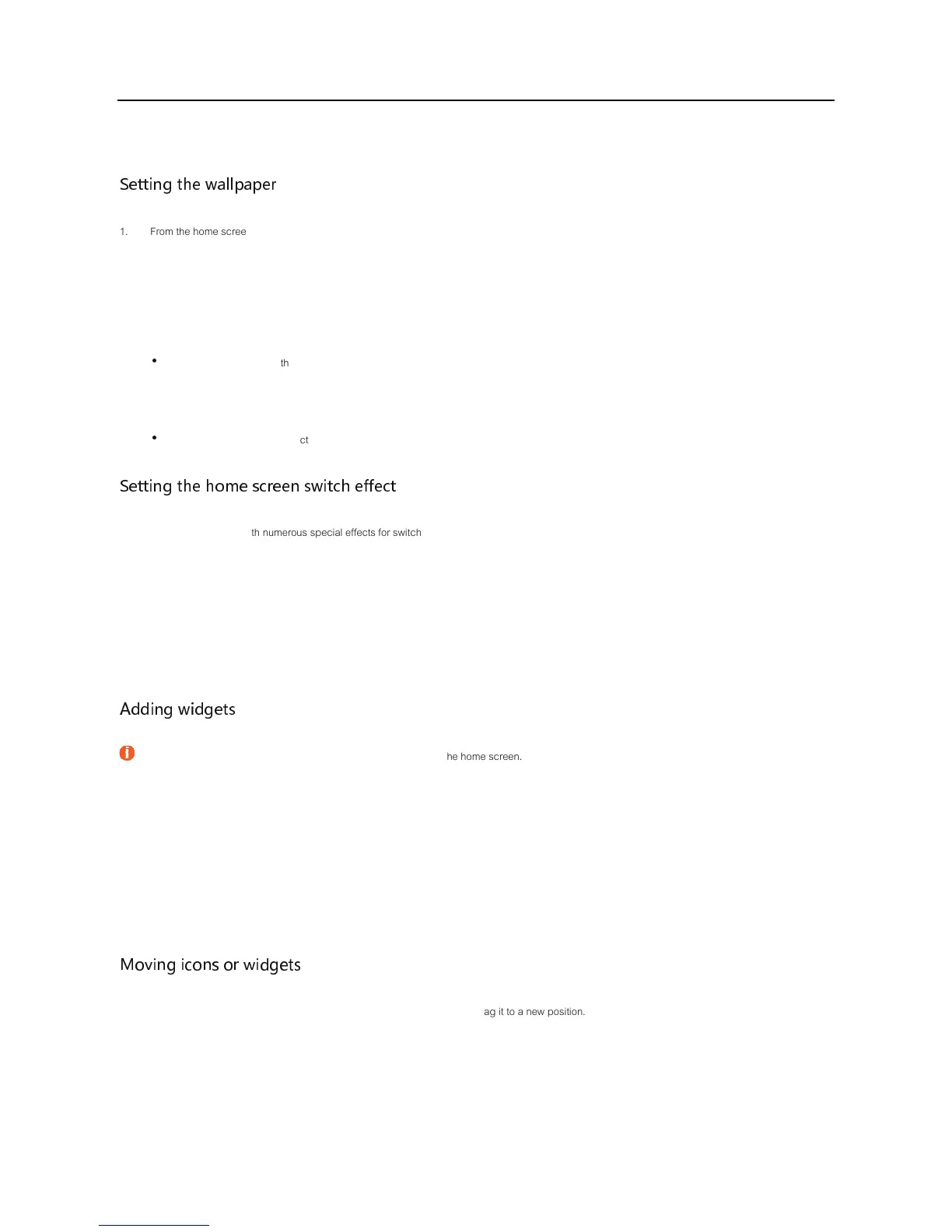
1. From the home screen, swipe up to access app list.
2. Touch Settings.
3. Touch Display > Wallpaper, you can:
•
Select a picture from the gallery or a pre-saved wallpaper, and then click SET WALLPAPER in the top left of the screen. Follow the onscreen
instructions to set the picture as a wallpaper for the home screen or the lock screen, or both.
•
Touch Red Launcher, select a pre-saved wallpaper for lock screen or home screen and then touch Set Wallpaper in the top of the screen.
Setting the home screen switch effect
Your phone comes loaded with numerous special effects for switching between home screens.
1. Touch and hold an empty area on the home screen until the phone vibrates.
2. Touch Transitions.
3. Select a special effect for switching between home screens.
Adding widgets
Widgets cannot be added if there is not enough empty space on the home screen. Please first ensure there’s enough empty space on the current home
screen, or create a new home screen.
1. Touch and hold an empty area on the home screen until the phone vibrates.
2. Touch Widgets.
3. Select a widget and drag it to home screen.
Moving icons or widgets
Touch and hold an icon on the home screen until the phone vibrates, and then drag it to a new position.


 To Next Page