This document provides operating instructions for the Redragon Gainer Wireless Gaming Mouse. It covers setup, connection, power-saving features, button functions, DPI settings, software customization, troubleshooting, and regulatory information.
Function Description
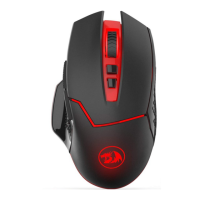
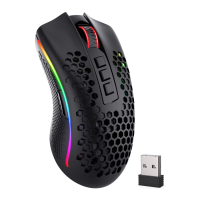
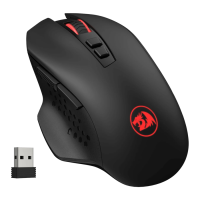
The Redragon Gainer Wireless Gaming Mouse is designed for gamers, offering wireless connectivity and customizable features. It operates wirelessly, connecting to a computer via a nano receiver plugged into a USB port. The mouse features multiple programmable buttons, adjustable DPI settings, and a power-saving mode to conserve battery life. Its design aims to provide a responsive and customizable experience for various gaming needs.
Important Technical Specifications
- OS Support: Windows XP/Vista/Win7/Win8/Win10.
- Connectivity: Wireless, using a nano receiver.
- Power Source: Requires one AA battery (not included).
- DPI Levels: Adjustable DPI settings including 1000, 1500, 2000, 2400, and 4000 DPI.
- Polling Rate: Selectable polling rates of 125Hz, 250Hz, and 500Hz.
- Buttons: 7 customizable mouse buttons, including left, right, scroll wheel (middle click), two side keys (forward/backward), and DPI+ / DPI- buttons.
- Indicators: Red light working mode indicator inside the scroll wheel key to show current DPI level.
- Switch: ON/Eco/Off switch on the bottom for power management.
- Foot Pads: Teflon foot pads for smooth movement.
Usage Features
Connecting the Mouse:
- Remove the nano receiver from the package and plug it into an available USB port on your computer.
- Insert one AA battery into the mouse, ensuring correct polarity.
- Set the switch on the bottom of the mouse to "ON" or "Eco".
- The mouse will be ready for use. The LOGO backlight will illuminate if the switch is set to "ON".
Power-Saving Mode:
The mouse automatically enters sleep mode with the backlight off after 1 minute of inactivity. To wake the mouse, simply swipe or click it.
Reconnecting the Mouse:
If the mouse loses connection due to factors like high temperature, strong magnetic fields, or vibrations, follow these steps to reconnect:
- Unplug and re-plug the nano receiver.
- Keep the mouse within approximately 30cm of the receiver.
- Re-mount the batteries in the mouse.
- Turn the switch on the bottom of the mouse to "ON".
- Press and hold the right key, scroll wheel, and the right key simultaneously to establish connection.
Button Instructions:
- 1. Left mouse button: Standard left-click function.
- 2. Right mouse button: Standard right-click function.
- 3. Scroll wheel: Functions as a middle mouse button when clicked.
- 4. Side key (Forward): Defaulted to the FORWARD key on the keyboard.
- 5. Side key (Backward): Defaulted to the BACKWARD key on the keyboard.
- 6. DPI+ button: Increases the DPI value.
- 7. DPI- button: Decreases the DPI value.
- 8. ON(Eco)/Off Switch: Controls power and backlight. "ON" activates the mouse with backlight, "Eco" activates the mouse without backlight, and "Off" powers down the mouse.
- 9. Teflon foot pads: Provide smooth gliding on surfaces.
DPI Level Indication:
The red light inside the scroll wheel indicates the current DPI setting:
- 1000 DPI: Flashes once.
- 1500 DPI: Flashes twice.
- 2000 DPI: Flashes three times.
- 2400 DPI: Flashes four times.
- 4000 DPI: Flashes five times.
Software Instructions:
The mouse's functionality can be customized using associated software, allowing users to:
- Select DPI values (1000, 1500, 2000, 2400, 4000).
- Choose polling rates (125Hz, 250Hz, 500Hz).
- Set continuous keystroke functions, including the number of clicks and delay time.
- Customize the functions of all 7 mouse buttons.
Maintenance Features
Troubleshooting (FAQ):
- Mouse not responding:
- Check if the mouse is correctly plugged into the computer's USB port.
- Try plugging the receiver into a different USB port.
- Cursor moving slowly, jumping, or intermittently:
- Try using the mouse on a different surface.
- Avoid dark, dirty, non-flat, or bright surfaces, as these can affect performance.
- A mouse pad is recommended for optimal performance.
Battery Management:
- Batteries are not included in the package.
- For long-term storage, it is recommended to remove the batteries from the mouse to prevent leakage or damage.
Warranty Information:
- The warranty covers failures due to electrical circuit problems within the guaranty period.
- Man-made damages are not covered, including:
- Disassembly.
- Hard impacts.
- Submersion into water.
- Plugging into improper current or voltage.
- Damage caused by natural disasters (fire, flood, earthquake).
- Consumable parts (e.g., foot stick) and spare parts replacements are not included in the warranty.
Regulatory Compliance:
- FCC Statement: The device complies with Part 15 of the FCC Rules. Users are advised that changes or modifications not expressly approved by the responsible party could void their authority to operate the equipment. The device is designed to provide reasonable protection against harmful interference in a residential installation. If interference occurs, users are encouraged to reorient the receiving antenna, increase separation between equipment and receiver, connect equipment to a different circuit, or consult a dealer/technician.
- California Proposition 65: A warning is provided regarding the risk of cancer and reproductive harm from chemicals, directing users to www.P65Warnings.ca.gov for more information.

 Need help?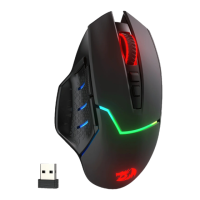

 To Next Page
 General