49
When you are ready to surf, tap the “Surf Left” or
“Surf Right’’ icons to create a wave on the port
or starboard side of the boat respectively. You
cannot access Surf Left and Surf Right without
Surf Control engaged.
Before taking off, lights on the back of the boat will
indicate to the rider which surf side is active.
Set MPH
After filling the ballast and customizing your wake,
set your speed using the ‘plus’ and ‘minus’ icons
on the far right side of the screen. You can manually
control the speed using the throttle until you reach
the speed set in the system. Once you push the
throttle past the set speed, the system will limit the
boat to that speed.
The Water Sport Control System will maintain
speed, as long as Surf Control is engaged, until
you pull the throttle back toward neutral. The boat
will slow once the throttle passes the set speed.
Rider Profiles
Once your riders have found their preferred surf
settings, you can save the settings as a ‘rider
profile’ and recall them with one touch. Tap on the
“Rider Profile” icon in the upper right hand corner.
This will open a drop down list of saved rider
profiles. Tap a profile and the system will recall
your saved settings and adjust components as
necessary.
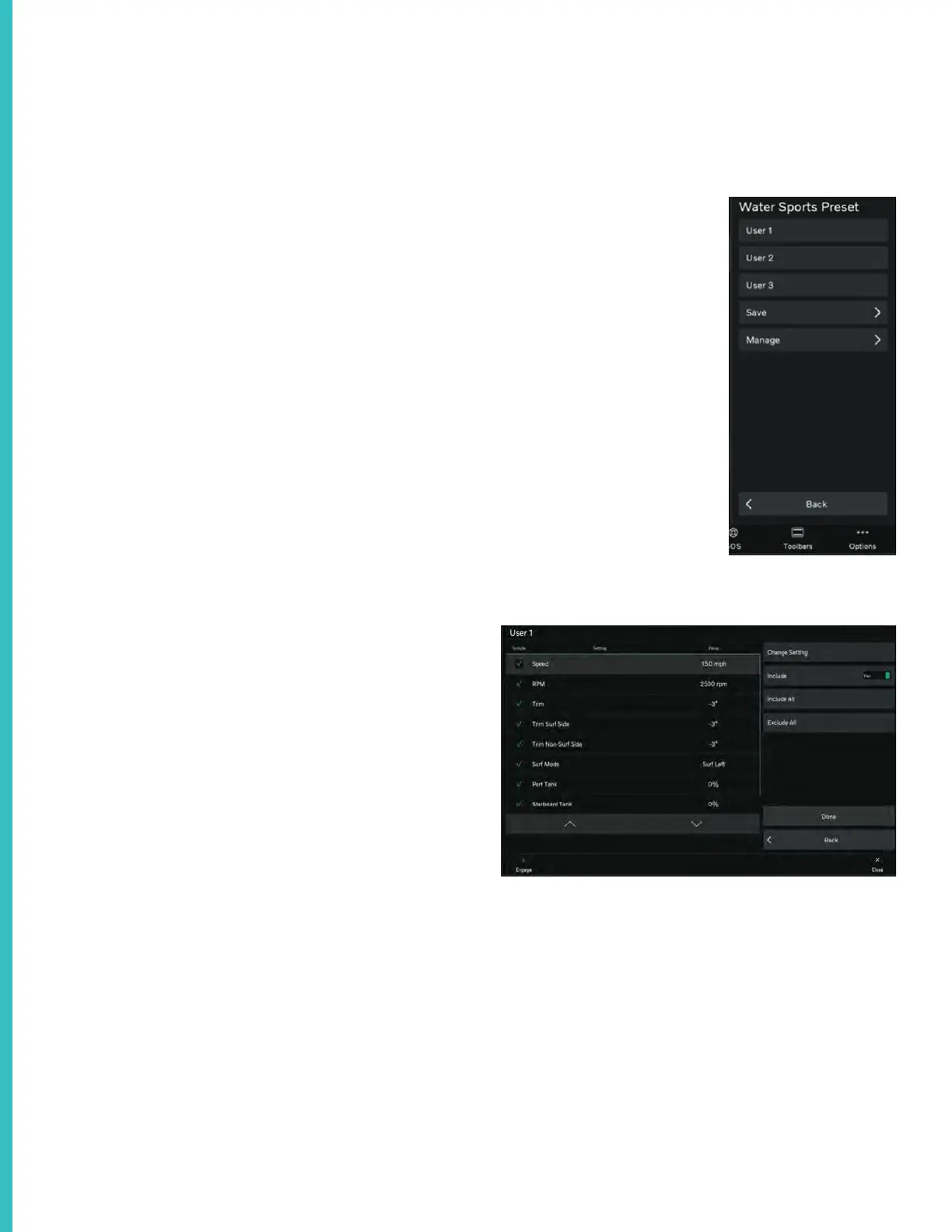
To edit a profile, tap the
“Manage” icon at the bottom
of the drop down menu.
After tapping manage, select
a “User” from the menu on
the following page.
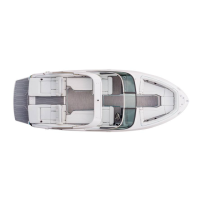
This will open the Rider
Profile page.
From this page, you can customize each rider’s
settings. First, tap on a setting in the page’s main
menu. Once selected, use the icons on the right
side of the page to include a given parameter or
not and to change the settings of any parameter.
Once your ride is dialed in, tap the “Done” icon to
save.
Layouts may vary
Surf Left and Surf Right



 To Next Page