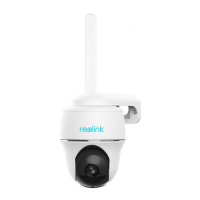
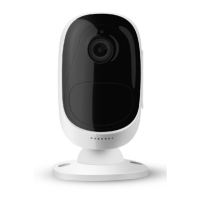
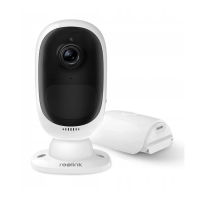
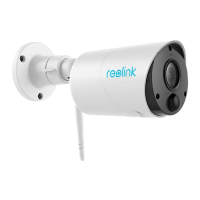
English English7 8
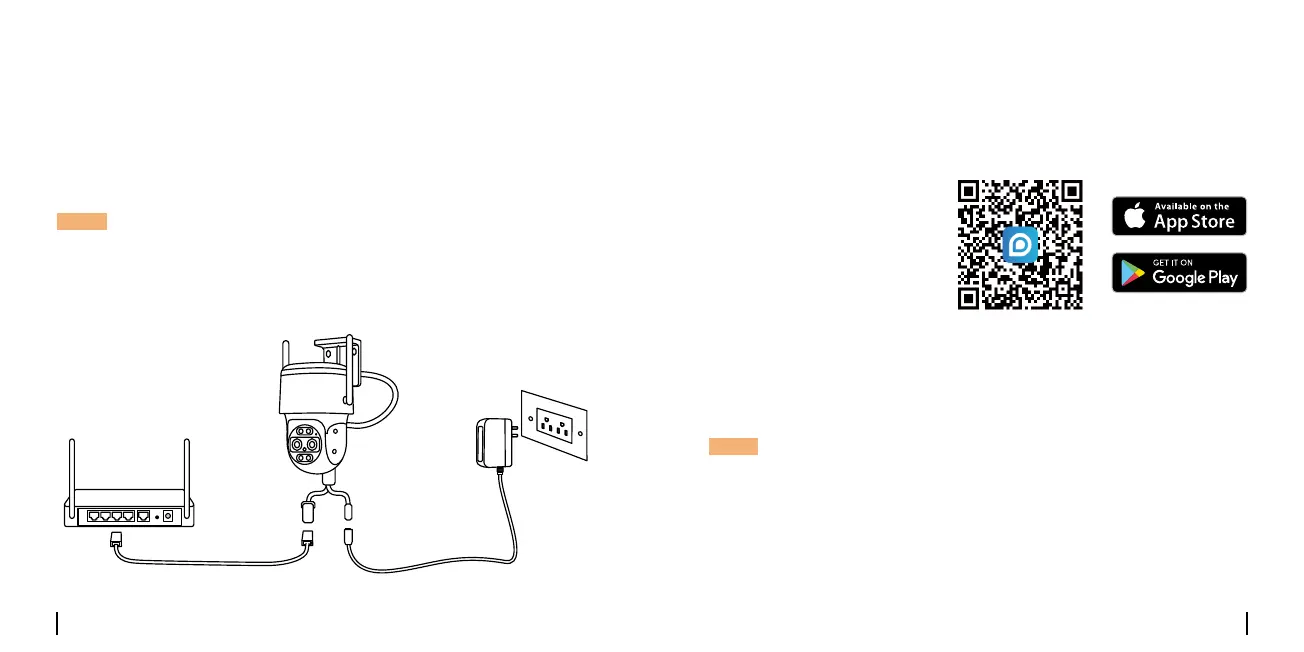
Connection Diagram
Beforeinitialsetup,followthestepsbelowtoconnectyourcamera.
1.ConnectthecameratoaLANportonyourrouterwithanEthernet
cable.
2.Usethepoweradaptertopoweronthecamera.
NOTE: The connection diagram takes the WiFi Camera as an example
andalsoapplytothePoEcamera.ForPoECamera,pleasepowerthe
camerawithaPoEswitch/injector,ReolinkPoENVRoraDC12Vpower
adapter(notincludedinthepackage).
Camera
Network Cable
Router
Power Cable
PowerAdapter
Set UP the Camera
• On Smartphone
• On PC
Scan to download
theReolinkApp.
DownloadpathoftheReolinkClient:Gotohttps://reolink.com>Support
>App&Client.
DownloadandlaunchtheReolinkApporClientsoftware,andfollowthe
onscreeninstructionstonishinitialsetup.
NOTE:
•WhensettinguptheWiFicamera,youneedtofollowtheonscreen
instructionstonishtheWiFicongurationrst.
•IfyouareconnectingthePoEcameratoaReolinkPoENVR,pleaseset
upthecameraviatheNVRinterface.


 To Next Page
 Loading...