Headsets
Note : You can also manage calls through
your phone.
If the Phone is connected with the source
unit via Bluetooth, when an incoming call,
below screen will be shown:
Receive an incoming call
Press to answer the incoming call.
Press to reject the incoming call.
Recent (Calling Record)
Check for dialed/answered/missed calls history.
Touch icon to enter calling record interface:
Phone Book
When your phone and unit are paired, the
unit can automatically reach contacts from
your phone and store them within the
unit.(selected phones only)
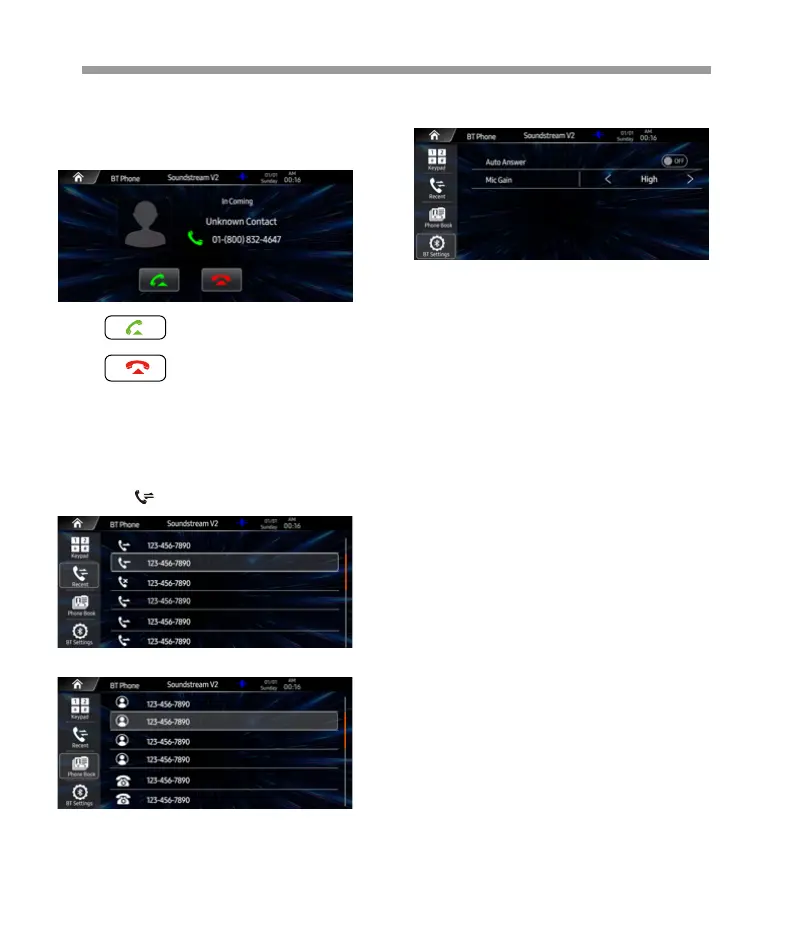
BT Settings
Auto Answer On /OFF, incoming call
auto answer.
MIC Gain, Set MIC Gain is High/Mid/Low.
Wireless Headset Integration
The wireless headset interface supports both OEM
and aftermarket headsets and headphones. You can
pair up to two headsets or headphones for both the
rider and passenger. Additionally, you have the option
to select whether you want to hear only GPS naviga-
tion commands, only music, or both simultaneously.
Before using the wireless headset with any Bluetooth
devices for the first time, you will need to pair them
together. Audio Bluetooth headsets. This pairing
operation is only required once for any Bluetooth
device. The headset remains paired with the devices
and automatically reconnects to them when they are
within range. You will hear a high tone single
beep and a voice prompt when the headset connects
to the paired device automatically.
1. Turn on wireless headset.
2. Navigate: Home > Headset.
NOTE: Place headset in pairing mode before
selecting Pair Rider Headset.
3. Put Headset into pairing mode.
a. Touchscreen will display Pairing in Process with
Headset.
NOTE:Rider's headset should be paired first followed
by the passenger.
Select: Pair Rider Headset.
26


 To Next Page
 Loading...