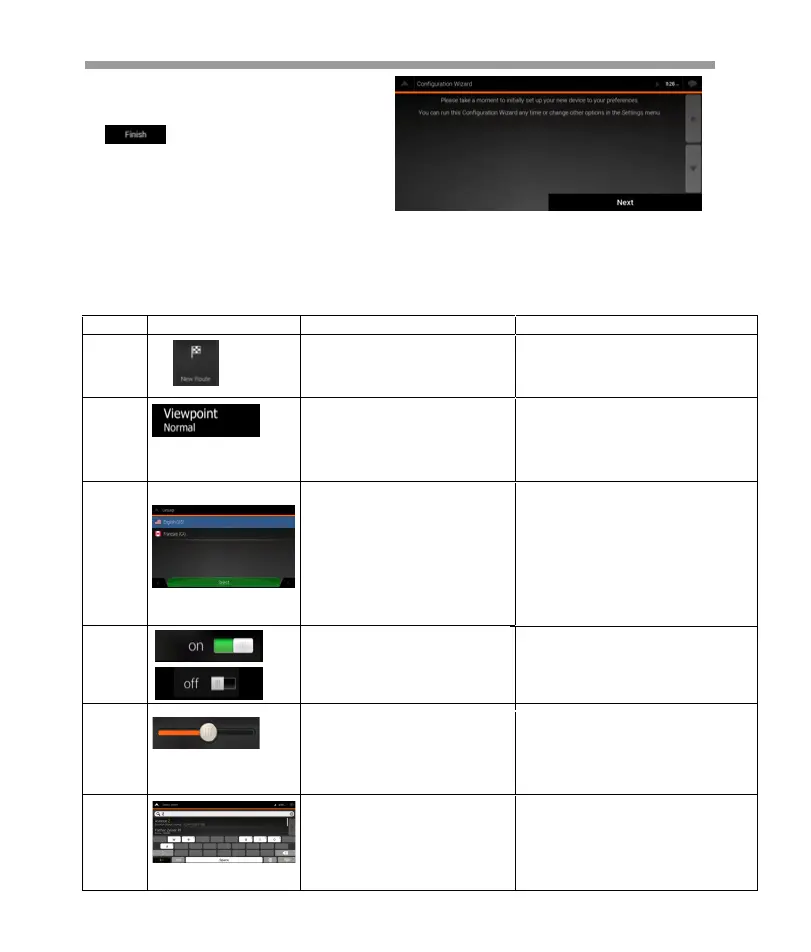
6.The initial set-up is now complete,
tap to enter the Navigation view.
iGo map Operation
The following sections describe the functionality and use of buttons, sliders, and other
screen controls in Soundstream V2.
Grab the list anywhere and slide
your finger up or down. Depend-
ing on the speed of sliding, the list
scrolls fast or slow, only a bit or till
the end.Alternatively, move
between items in a list with the
arrows and tap the value that you
want to select.
Drag the handle to move the
slider to its new position.Tap the
slider where you want the handle
to appear.
When a feature can be set to
different values in a range,
Epsilon Linux device shows an
indicator on a gauge that
displays and sets the value.
Displays the current value of a
field or setting where the value
can be changed. After the
change, the new value is shown
on the button.
2.2 Screen controls
2.2.1 Using the buttons and other controls
To operate Soundstream V2, tap the buttons on the touch screen.
Type Example
Description
Function
Button
Opens a new screen where
Tap it once.
Tap it once.
you can set a parameter.
Button
with value
List
Shows multiple options.
Switch
Shows whether a feature is
enabled when there are only
two choices.
Tap it to turn the switch on or off.
Slider
Virtual
keyboard
Used to enter text and
numbers.
Each key is a touch screen button.
29


 To Next Page
 Loading...