iGo map Operation
You need to confirm selections or changes only if
the application needs to be restarted, if it needs to
perform a major reconfiguration, or if you are
about to lose some of your data or settings.
Otherwise, V2 saves your selections and applies
the new settings without confirmation as soon as
you use the controls.
Switching to another
keyboard layout, for
example from an
English keyboard to a
Greek keyboard
Correcting your entry
on the keyboard
Entering a space, for
example between a
first name and a family
name or in multiword
street names.
Entering upper and
lower case letters.
Entering numbers and
symbols
Finalizingthe keyboard
entry
Hiding the keyboard
Tap then select the new
keyboard layout from the list.
Tap to remove the
unnecessary character(s).
Tap and hold the button to
delete several characters or the
entire input string.
Tap to button at the
bottom centerof the screen.
Tap to switch to a
keyboard offering numbers
and symbols.
Tap
Tap
By default, when entering a
text, the first character appears
in upper case while the rest of
the text is in lower case.
Tap to enter an upper case
letter or tap it twice to turn on
Caps Lock. Tap again to use
lower case letters.
When a map location is selected, the cursor
( ) appears at the selected point on the
map.The location of the cursor can be used as the
destination of the route or a new Alert Point. You
can also search for Places around it or add this
location to your saved locations.You can also select
some of the objects on the map. If you tap the map
at the icon of a Place or traffic event, the object is
selected, and you can get information about this
object or use it as a route point.
You can type with your fingertips on the screen
keyboards and you can switch between various
keyboard layouts, for example English, Greek or
numerical. Only those keyboard buttons are active
that can be used to type a name that is available on
the map. The other keys are grayed out.
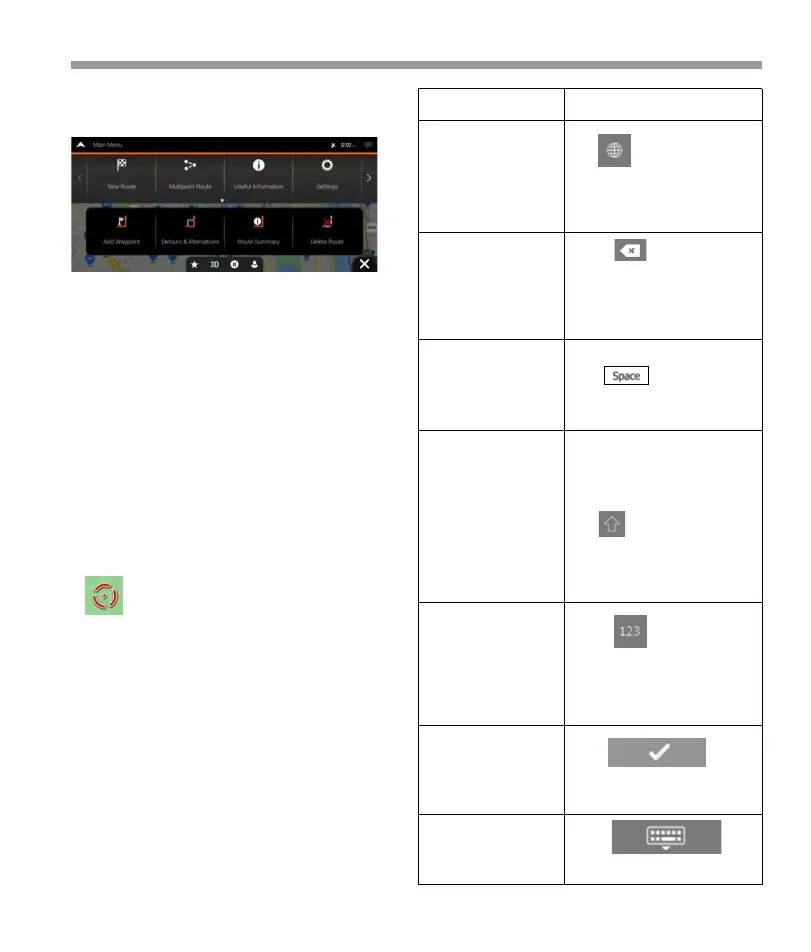
The Navigation menu may contain several menu
items on one or more pages.
2.2.2 Using the cursor
Action
You can select a map location in the following
ways:
By tapping the map when navigating
By tapping the map when you are asked to
confirm the destination at the end of a search.
2.2.3 Using the keyboard
Function
30


 To Next Page
 Loading...