iGo map Operation
You usually need to tap the screen only once.
However, some useful features can be accessed
with other gestures. See the table below.
Checking
location
information
Moving the map
by dragging
family name or
in multiword
street names.
Zooming in
and out
The top section of the Navigation
view shows information about the
selected point (the
cursor )
To restore the map view with your
position shown in the
middle, (the tap )
Move the map in any direction: tap
and hold the map and move your
finger towards the direction you
want to move the map.
Change how much of the map is
displayed on the screen. Epsilon Linux
device uses maps that let you examine
the locations at various zoom levels,
always with optimized content. It
always displays street names and other
text with the same font size, never
upside-down, and you only see the
streets and objects that you need. Map
scaling has a limit in 3D map view
mode. If you zoom out further, the
map switches to 2D view mode. Tap
once to modify the view in a large step,
or tap and hold the button to modify it
continuously and smoothly.
Action
/Buttons
Function
Tapping and
holding the
screen
Dragging
Hiding the
keyboard
Use pinch zoom on the
Navigation view to zoom in
and out by moving two
fingers in a pinch gesture.
Tap and keep pressing the
following buttons to reach
extra functions:
Tap and hold the following
button on list and menu
screens to show the
Navigation view:
Tap and hold any of the
following buttons on the
Navigation view to rotate,
tilt, or scale the map
continuously:
Tap and hold the following
button on keyboard screens
to quickly delete several
characters:
Tap and hold the following
buttons in long lists to scroll
pages continuously:
Drag the screen in the
following cases:
To move the handle on a slider.
To scroll a list: grab the list
anywhere and slide your finger
up or down.
Depending on the speed of the
sliding, the list scrolls faster or
slower, only a bit or till the end.
To move the map in map
browsing mode: grab the map,
and move it in the desired
direction.
Action
Function
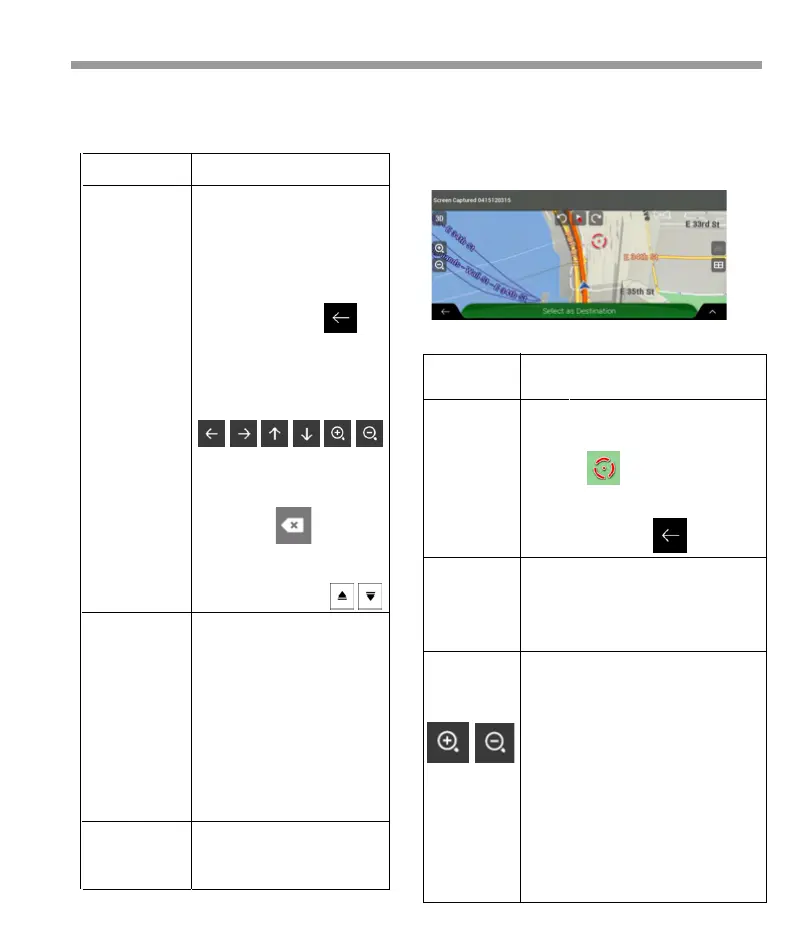
2.2.4 Using touch gestures
If you tap the map anywhere during navigation, the
map stops following the current position (the blue
arrow is not locked in a fix position on the screen
anymore) and control buttons appear to help you
modify the map view.
You can perform the following actions on the map:
2.2.5 Manipulating the map
31


 To Next Page
 Loading...