iGo map Operation
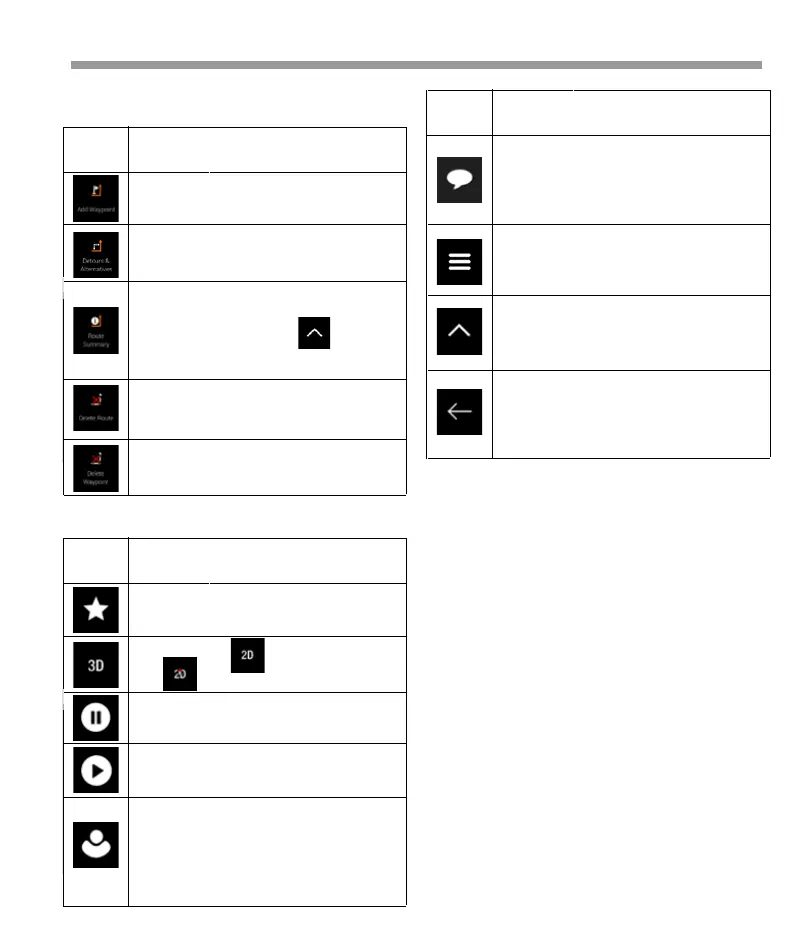
Add an intermediate destination to your
route.
See route alternatives to avoid parts of the
route, or to avoid a specific road from your
planned route.
View the route in its full length on the
map and check route parameters and r
oute alternatives. Tap to access
additional options, like Simulation or
Route Preferences.
Delete your route.
Delete the next waypoint or the whole
route. It is displayed if there is a multipoint
route.
Button Function
3 Using the navigation
By default, V2 device calculates routes using the road
network of the maps provided with the product. You
can select the destination and start navigating to it
right away (normal navigation) if you need a route for
immediate navigation. You can also plan a route
independently of your current GPS position even
without GPS reception. To achieve this, you need to
set a new starting point in the Multipoint Route
menu. It also suspends guidance so that the route is
not recalculated when a new position is received. See
page 50. You can plan routes with multiple destina-
tions by selecting a first and a second destination and
adding it to your route. You can add as many destina-
tions to your route as you like. You can also use
Epsilon Linux device for off-road navigation.
With a planned route, the following menu options are
also available:
Open the Saved Locations screen where
you can save a location as a favorite
destination or edit a saved location.
Switch to 2D ( ), 2D North
up ( ) view or back to 3D mode.
Suspend navigation.
Resume navigation.
Access the User profiles menu where you
can create new profiles or edit the
existing ones. If several drivers are using
the navigation system, they can create
their own profiles with their own settings.
Button Function
In the navigation menu, you have the following
additional options:
Check those notifications that contain
important information but do not require
immediate action from the users. If there
are no notifications, this icon is not
displayed.
The Menu button appears when the
Navigation view is displayed. Tap it to
open the Navigation menu. .
The More button appears on the screen
to display additional features. Tap it to
open the list of additional features on
certain screens.
Tap the Back button to return to the
previous screen. You can also press and
hold this button to quickly return to the
Navigation view from any other screen.
Button Function
37


 To Next Page
 Loading...