iGo map Operation
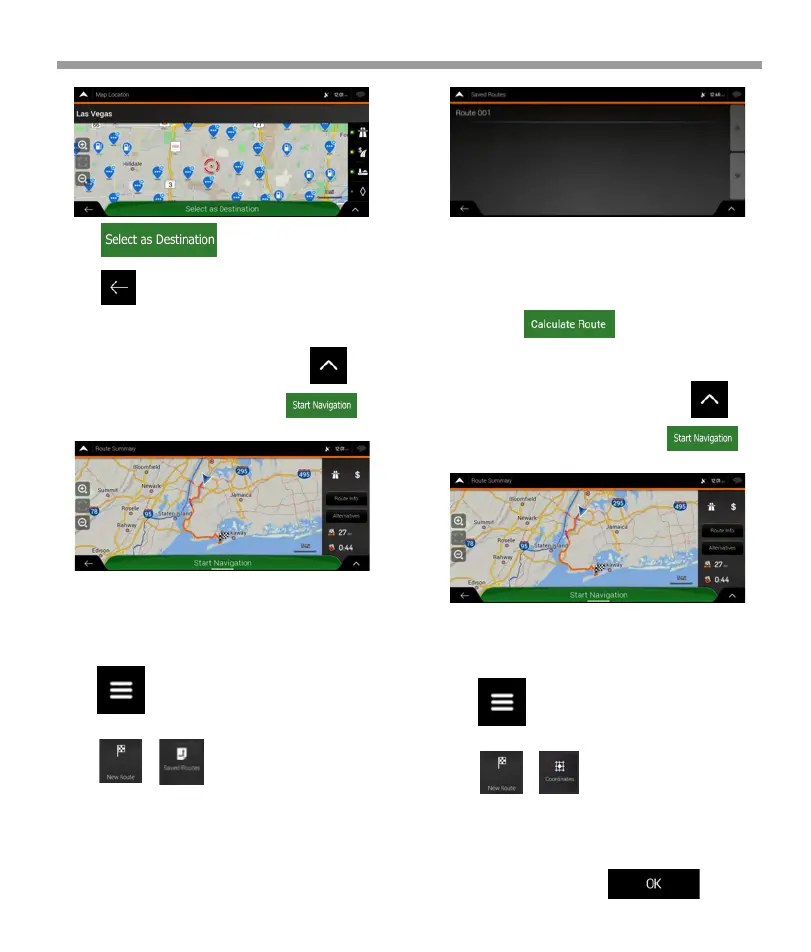
7. Tap to confirm the destination.
You can also select a nearby point on the map
or tap to select a different destination.
3. The list of saved routes appears. If necessary, scroll
the list to see earlier routes.
4. Select a route and the Multipoint Route screen
appears. If necessary, modify the saved route.
Otherwise, tap .
8. The route is calculated and the map appears
showing the entire route, where you can check route
information and route alternatives. Tap to
modify the route parameters, or tap to
start your journey.
3.1.6 Selecting a saved route
The routes that you have saved earlier appear in a list.
To select a previous route, perform the following
steps:
3.1.7 Entering coordinates
To select a destination by entering its coordinates,
perform the following steps:
1. Tap on the Navigation view to access
the Navigation menu.
2. Tap . .
1. Tap on the Navigation view to access
the Navigation menu.
2. Tap . .
3. You can enter the latitude and longitude values in
any of the following formats: decimal degrees,
degrees and decimal minutes, or degrees, minute
and decimal seconds. Tap
5. The route is calculated and the map appears
showing the entire route, where you can check route
information and route alternatives. Tap to
modify the route parameters, or tap to
start your journey.
51


 To Next Page
 Loading...