Emergency Planning
Emergencies happen, so have a plan.
Emergency Planning Tips
• Periodically discuss and rehearse emergency plans.
• Understand how to use your security system.
• Know the normal states of doors and windows: open, closed, or locked.
• Escape fast! (Do not stop to pack.)
• Use a different escape route if closed doors feel hot to the touch.
• Smoke is toxic. Stay low and breath strategically when escaping a burning
building.
• Designate a nearby landmark as a safe family re-grouping location.
• Emphasize that no one should return to the premises if there is a re.
• Call 911 as soon as possible but do it in a safe location.
• Do not enter the premises if you arrive and hear sirens. Call for emergency
assistance from a safe location.
Using Helix
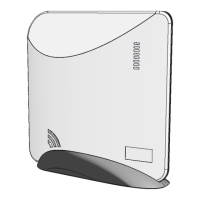
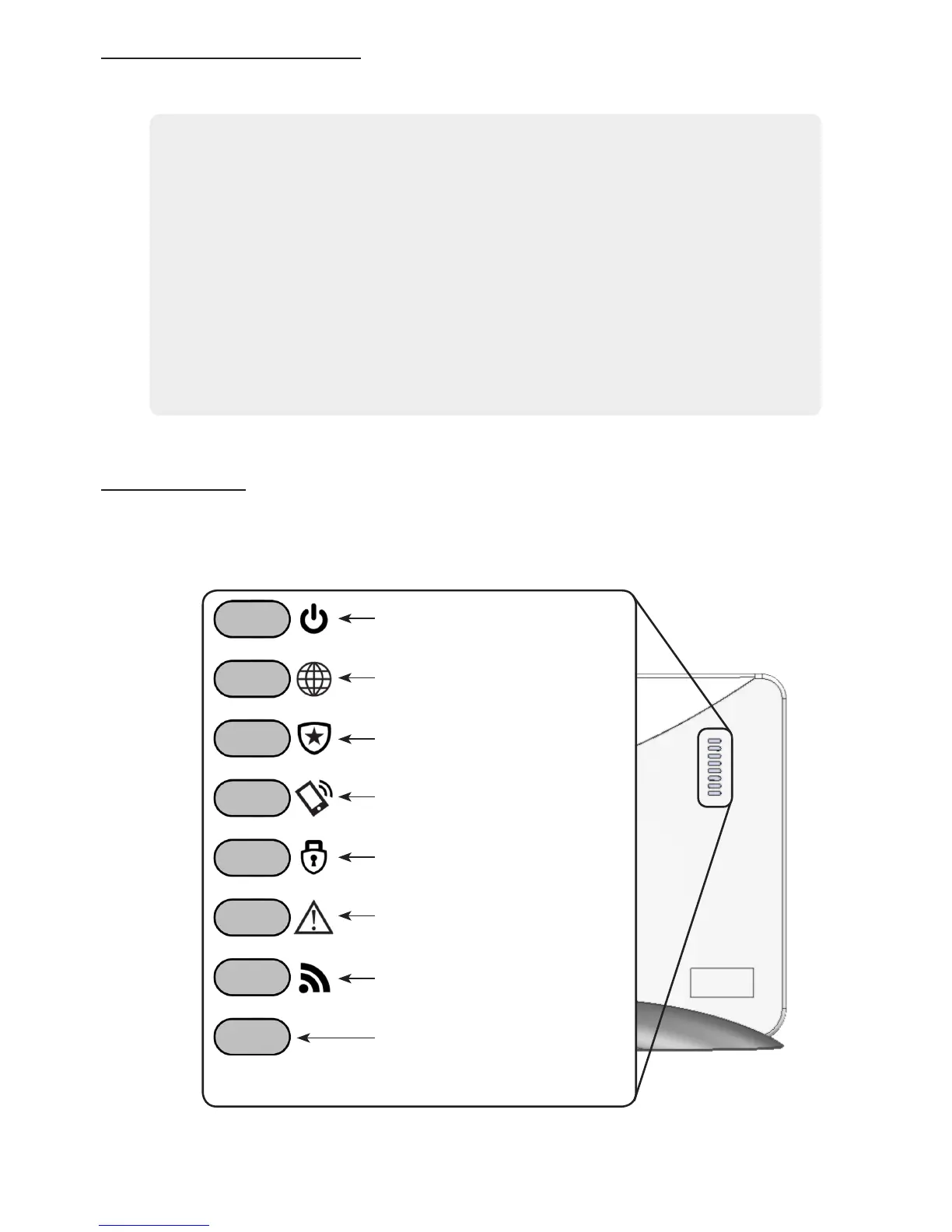
System Status Indication is provided via eight LEDs on the front of Helix. These
LEDs may all be forced OFF to conserve battery power during an AC power failure.
Power
Pulsing - AC power is connected
Off - AC power is removed
Network Connectivity
On - Connected
Off - No Connection
Central Station Connectivity
On - Connected
Off - No Connection
Interactive Connectivity
On - Connected
Off - No Connection
Arming Status*
Green -
Disarmed (Blinks if zones open)
Red - Armed (Blinks during alarms)
Trouble
On - System trouble detected
Off - No system trouble
RF Activity
Flickering - Receiving sensor data
System Firmware Update LED
On - No update needed
Blinking - Update in progress
Off - No connection to update server
* This LED will toggle between green and red while wireless enrollment mode is active.


 To Next Page
 Loading...