10
English
Internet Setup
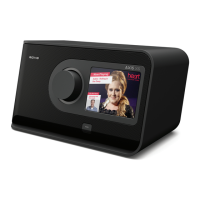
AXiS X3 makes connecting to the
internet via your local wireless or wired
network very straightforward.
The easiest way to get started is
simply to enter Internet Radio mode,
where AXiS X3 will lead you through
the process of connecting to your
network and getting online.
The main steps are illustrated below:
Saved Network Profi les: If you move
your AXiS X3 to a different location, when
you enter one of the internet modes it will
automatically re-scan for available networks.
Only networks within range will be
listed but don’t worry, your old settings
are saved safely and will automatically
fi nd your network again if you move
your AXiS X3 back to that location.
Select your region... Wireless networks within range will be listed.
Select your preferred network.
Enter your network password and click “Confi rm”.
00:00
USA
Canada
Most of Europe
France
Settings
Select WLAN Region
00:00
My Network
<Rescan>
<Wired Network>
Manual Settings
Settings
Network Wizard
Settings
|
Network key:
Q W E R T Y U I O
A S D F G H J K L
Z X C V
123
Confirm
B N M .
P
Connecting...
After following the steps above you
should be able to access the Internet
Radio mode. You’ve also taken the fi rst
step towards streaming audio wirelessly
from computers on your network.
All your network settings will be
saved to AXiS X3’s memory until you
choose to manually update them.
Scanning...
• Select your WLAN region from the list.
• AXiS X3 automatically scans for networks.
As in the example shown, any
neworks within range of your AXiS
X3 will be listed by name.
• Select your preferred network from the list.
• If your network is not password protected,
AXiS X3 will now connect to it. If you do
use password protection, you will be
prompted to enter your access code as
shown. Type your password using the
on-screen keyboard, then press “Confi rm”.
• AXiS X3 will now connect to your
network. Your password is saved to
AXiS X3’s memory so you don’t need
to enter it every time you reconnect.
If you want to manually check or
change your network settings at any
time, you can do so via the “Settings”
section. Go to “Network Settings”
then select “Network Wizard”.
If you have advanced settings you
wish to confi gure yourself, select
the “Manual settings” option. For
more information, see page 30.


 To Next Page