EasyManua.ls Logo

Ricoh SP C440dn - User Manual

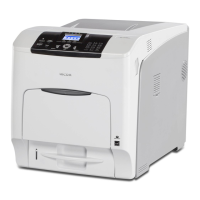
Ricoh SP C440dn
100 pages
Print Icon
To Next Page IconTo Next Page
Loading...
For safe and correct use, be sure to read the Safety Information in
Read This First before using the machine.
Troubleshooting
Loading Paper
Getting Started
User Guide

Table of Contents

Other manuals for Ricoh SP C440dn

Questions and Answers

  • D
    Donna HuangSep 6, 2025
    Why are images cut off when printing from my Ricoh Printer?
    • H
      hayley84Sep 6, 2025
      If the images are cut off or excess is printed by your Ricoh Printer, it might be because you are using paper smaller than the size selected in the application. Use the same size paper as selected in the application. If you cannot load paper of the correct size, use the reduction function to reduce the image, and then print.
  • S
    Scott BallAug 22, 2025
    What to do if the Ricoh SP C440dn Printer toner has run out?
    • T
      Timothy GarzaAug 22, 2025
      If your Ricoh Printer indicates that the toner has run out, you should replace the print cartridge.
  • A
    alexandragibsonSep 3, 2025
    What to do if Ricoh SP C440dn Printer waste toner bottle is full?
    • A
      Andrew DaltonSep 4, 2025
      If your Ricoh Printer displays a message indicating that the waste toner bottle is full, you should replace the waste toner bottle.
  • R
    robertsonmatthewSep 2, 2025
    What to do if Ricoh SP C440dn Printer cartridge is almost empty?
    • T
      Tina HillSep 2, 2025
      If your Ricoh Printer displays a message that the print cartridge is almost empty, replace the print cartridge.
  • J
    Jared WilliamsonAug 31, 2025
    Why is the printed image smudged on my Ricoh SP C440dn?
    • L
      Lisa WrightSep 1, 2025
      If the printed image from your Ricoh Printer is smudged, especially when using thick paper in the bypass tray, it might be because the settings for thick paper haven't been configured correctly. For PCL 5c: On the printer driver's [Paper] tab, select [Bypass Tray] in the "Input Tray:" list, then select the appropriate paper type in the "Type:" list. For PCL 6/PostScript 3: On the printer driver's [Detailed Settings] tab, click [Paper] in "Menu:", then select [Bypass Tray] in the "Input Tray:" list, and choose the correct paper type in the "Paper Type:" list.
  • M
    Mia MartinezAug 30, 2025
    How to fix Ricoh Printer not automatically recognized?
    • D
      Darius CamachoAug 30, 2025
      If the Ricoh Printer is not automatically recognized, it might be due to an improperly connected USB cable. Try disconnecting the USB cable, turning the printer off and then on again. After the printer fully boots up, reconnect the USB cable.
  • L
    Lauren PriceAug 29, 2025
    What to do if Ricoh Printer cannot detect the wireless LAN interface board?
    • E
      Ethan VargasAug 29, 2025
      If your Ricoh Printer cannot detect the wireless LAN interface board, check that the board is supported or installed correctly.
  • W
    William StoutAug 27, 2025
    Why does my Ricoh SP C440dn take so long to resume printing?
    • E
      Elizabeth GreenAug 27, 2025
      If your Ricoh Printer takes too long to resume printing, it is because the printer was in Energy Saver mode or Sleep mode. The printer must warm up, and this takes time until printing starts.
  • C
    Christine MurphyAug 27, 2025
    Why does my Ricoh SP C440dn Printer take so long to print?
    • T
      Tracy SmithAug 27, 2025
      If it takes a long time to complete the print job on your Ricoh Printer, it may be because photographs and other data-intensive pages take a long time for the printer to process. Simply wait when printing such data.
  • M
    Maria BrownAug 25, 2025
    Why is my Ricoh SP C440dn Printer printing faded images?
    • A
      Adam ArnoldAug 25, 2025
      If the printed image from your Ricoh Printer is faded across the entire page, it could be because the paper is unsuitable. Printing on coarse or treated paper might result in a faint print image. Use recommended paper.

Summary

Getting Started Guide

Before You Start

Information on how to read manuals, understand symbols, and identify region-specific details for printer setup.

How to Read the Manuals

Explains symbols, key sequences, and region indicators used in the manual for user guidance.

Model-Specific Information

Details how to identify your printer's region based on label information for correct usage.

List of Printer Options

Provides a comprehensive list of available printer options and their commonly used names.

Printer Components Overview

Describes the printer's exterior and interior components, detailing their names and functions.

Loading Paper Instructions

Paper Loading Procedure

Outlines the essential steps for loading paper, including checking trays and setting paper size/type.

Paper Size Specifications

Details the available paper sizes for each tray, including dimensions and compatibility.

Paper Type Specifications

Lists supported paper types and their compatibility across different printer trays.

Paper Handling Precautions

Provides essential guidelines and warnings for handling and loading paper to prevent misfeeds and damage.

Troubleshooting Common Issues

Panel Tone Beep Patterns

Explains various beep patterns, their meanings, and potential causes for alerts.

Control Panel Indicators and Messages

Describes the meaning of indicator lamps, status icons, and control panel messages.

USB Connection Failure Solutions

Offers troubleshooting steps and solutions for common problems encountered with USB connections.

Interpreting Printer Messages

Lists common status and alert messages with their causes and recommended solutions.

Ricoh SP C440dn Specifications

General IconGeneral
ColorYes
Print technologyLaser
Maximum resolution1200 x 1200 DPI
Duplex printing modeAuto
Time to first page (black, normal)10 s
Time to first page (color, normal)15 s
Print speed (black, normal quality, A4/US Letter)40 ppm
Printing colorsBlack, Cyan, Magenta, Yellow
Maximum duty cycle150000 pages per month
Number of print cartridges-
Page description languagesPCL 5Ce, PCL 5c, PCL 6, PCL 6C, PDF 1.3, PDF 1.4, PDF 1.5, PDF 1.6, PDF 1.7, PDF 1.7+, PostScript 3
CertificationEPEAT status: Gold rated
Product colorWhite
Current rating12 A
AC input voltage120 V
AC input frequency60 Hz
Power consumption (max)1650 W
Power consumption (standby)0.53 W
Power consumption (printing)765 W
Energy Star Typical Electricity Consumption (TEC)4.3 kWh/week
Sustainability certificatesENERGY STAR
Paper input typePaper tray
Total input capacity550 sheets
Total output capacity500 sheets
Maximum input capacity2300 sheets
Internal memory1000 MB
Processor modelRM7035
Processor frequency533 MHz
Compatible memory cardsSD
Mac operating systems supportedMac OS X 10.10 Yosemite
Server operating systems supportedWindows Server 2003, Windows Server 2003 R2, Windows Server 2008, Windows Server 2008 R2, Windows Server 2012, Windows Server 2012 R2
Windows operating systems supportedWindows 7 Home Basic, Windows 7 Home Premium, Windows 7 Professional, Windows 8, Windows 8 Pro, Windows 8.1, Windows 8.1 Pro
Maximum print size210 x 297 mm
Paper tray media typesCoated paper, Envelopes, Glossy paper, Labels, Lightweight paper, Plain paper, Pre-Printed, Recycled paper, Thicker paper, Thin paper, Transparencies
Non-ISO print media sizesExecutive (184 x 267mm), Folio (media size), Letter (media size), Legal (media size)
ISO A-series sizes (A0...A9)A4, A5, A6
ISO B-series sizes (B0...B9)B5, B6
Duplex media weight (imperial)16 - 44 lbs
Maximum ISO A-series paper sizeA4
Paper tray media weight (imperial)14 - 59 lbs
Wi-FiNo
Security algorithmsWEP, WPA2, WPA2-PSK
Standard interfacesEthernet, USB 2.0
Optional connectivityParallel, Wireless LAN
USB 2.0 ports quantity1
Weight and Dimensions IconWeight and Dimensions
Depth658 mm
Width444 mm
Height490 mm
Weight57000 g

Related product manuals