Open an Existing Document
1. To open a document, click ‘Open’ of the ‘File’ menu
option, or click once in the toolbar, shortcut key
‘Ctrl + O’ can also be used.
2. Click ‘Open’, browse for the file you wish to open.
3. Click the file you want to open with the left button of
the mouse, then click “Open” button. After opening the
document, you can modify or print the document.
Edit a Function Diagram Program
Place Function Block
When you set up a new document, you can write your
control program in the new program interface area.
The method for placing a function block is as
follows:
1. Choose a function group Co, GF, SF, AP or MQ from
the list on the left-hand side of the workspace window
or use the window tree to expand each topic to see the
choices available. Details of what each block does can be
found in the preceding chapter of this manual.
2. Click the block you need with the left button of the
mouse.
3. Move the mouse to a place in the program interface
area where you wish to place the block and click with left
button to complete the placement.
4. Continue the above steps until you have placed all the
blocks you need. You can always add/delete blocks later
should you need to.
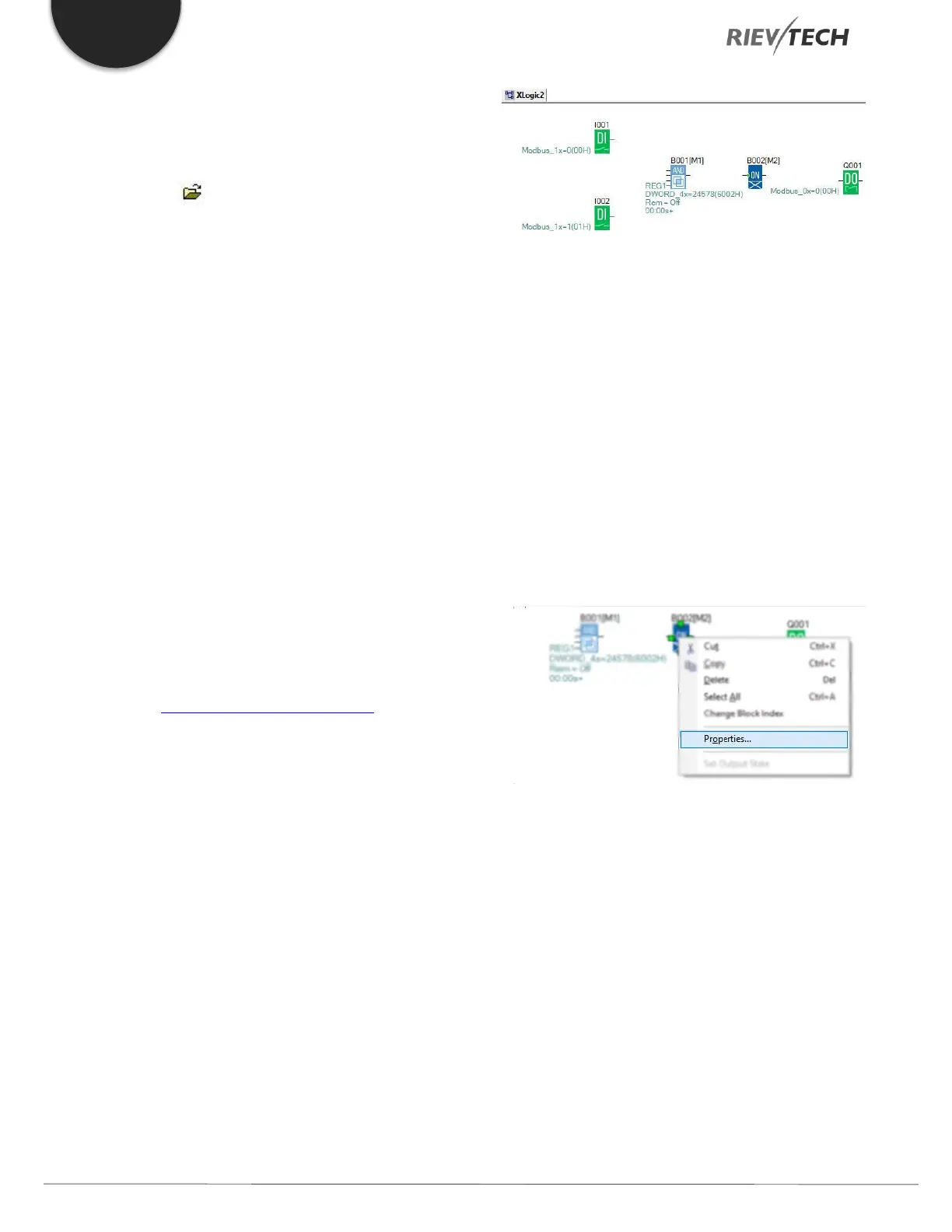
The program area should look similar to the one below:
Edit Property of a Function Block
After putting all the function blocks in your work area, it’s
necessary to set up the properties of each function block.
This is the most important step in writing a function block
program.
Operation Method:
1. In the function block Program interface, click a block
twice with the left button of the mouse, or select a block
with a single click and press the right button of the
mouse and click “Properties…” from the pop-up menu. As
shown below:
2. You also can click the menu Edit-> Properties, if you
have selected a single block or Edit-> Properties (All
Blocks) to change the settings of the block/s.


 To Next Page
 Loading...


