EasyManua.ls Logo

ripples Ripple Maker II - User Manual

ripples Ripple Maker II
17 pages
Print Icon
To Next Page IconTo Next Page
Loading...
P/N: DOC00100 Rev A02
Ripple Maker II
User Guide
Question and Answer IconNeed help?

Do you have a question about the ripples Ripple Maker II and is the answer not in the manual?

Summary

Box Contents

Ripple Maker II Set-Up

Placement in Your Facility

Guidelines for selecting a suitable location for the Ripple Maker II.

Power & Internet Connection

Instructions for connecting the Ripple Maker II to power and the internet.

Pod Installation

Steps for installing and replacing the Ripples Pod.

Beverage Preparation

Dos & Donts for Cocktails

Recommended practices for preparing beverages for ripple printing.

Your First Print

Managing Your Content

Ripples Maintenance

Daily Maintenance Procedures

Routine tasks for maintaining the Ripple Maker II.

Content Synchronization

How to ensure content is synced to the Ripple Maker II.

Connectivity Troubleshooting

Resolving issues with Wi-Fi and Ethernet connections.

Pod Care Instructions

Important tips for storing and handling the Ripples Pod.

Print Quality Troubleshooting

Steps to resolve poor print quality issues.

Customer Support

Safety Warnings

General Warning & Cautions

Important safety instructions to avoid injury and damage.

General Product Safety Guidelines

Essential safety precautions for product operation and handling.

Specific Cautions for Use

Precautions related to usage, ESD, and grounding.

Technical Specifications

Detailed technical specifications of the Ripple Maker II.

Overview

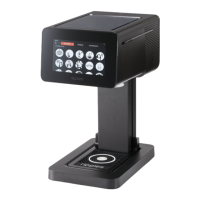
The Ripple Maker II is an innovative device designed to print custom designs on foam-topped beverages and food surfaces, enhancing the customer experience with personalized creations. It is primarily used in hospitality settings such as cafes, bars, and restaurants to add a unique touch to drinks like lattes, cappuccinos, and cocktails.

Function Description

The core function of the Ripple Maker II is to create intricate designs on the foam of beverages. It operates by using a specialized "Ripples Pod" that contains edible ink. Users can select designs from an onscreen gallery, or connect to the Ripples Web App or "Drink Ripples" mobile app to access a wider range of options or upload their own custom content. The device then precisely prints the chosen design onto the beverage's foam, transforming a simple drink into a personalized work of art. The Ripple Maker II is designed to be user-friendly, with on-screen wizards guiding users through setup, pod installation, and maintenance. It requires an internet connection for full functionality, either via LAN cable or its embedded Wi-Fi.

Usage Features

The Ripple Maker II offers several features to ensure ease of use and optimal design quality:

  • Design Selection: Users can choose from a built-in onscreen gallery or connect to the Ripples Web App (via QR code scan) or the "Drink Ripples" mobile app (available on Google Play and App Store) to select designs.
  • Custom Content Management: The device integrates with the Ripples Cloud ("my.drinkripples.com"), allowing users to manage and upload their own content. This includes searching, adding, and deleting designs from mobile devices or PCs. Advanced content management via PC allows for the creation of "channels" to organize custom content and assign them to specific devices or the Ripples App.
  • Design Customization: Users can long-tap a design on the screen to change default settings such as size, add to favorites, or apply tags.
  • Beverage Preparation Guidelines: The manual provides clear instructions for preparing beverages to ensure optimal printing results. This includes pouring foam directly up to the cup rim, tapping out bubbles for a smooth canvas, and avoiding pouring foam above or below the rim to prevent design distortion. For cocktails, it recommends pouring close to the drink, submerging the strainer, filling the glass to the rim, and double straining to create a silky surface with microbubbles.
  • Pod Installation: The device features an easy-to-follow on-screen wizard for pod replacement. Pods are gently slid into position without force and wiggled gently to remove.
  • Connectivity Options: The Ripple Maker II can connect to the internet via a LAN cable or its embedded Wi-Fi, ensuring access to the full range of features and content updates.
  • Power Button and On-screen Steps: The device is turned on using a power button, and on-screen steps guide the user through initial setup and operation.

Maintenance Features

Maintaining the Ripple Maker II is crucial for its longevity and consistent performance. The manual outlines daily maintenance tasks and troubleshooting tips:

  • Daily Maintenance:
    • Clean the drip tray twice a day.
    • Rinse the drip tray with water.
    • Clean the drink tray once a day.
    • Wipe down the surface areas to keep the device looking good.
    • Ensure a good internet connection.
    • Keep the Ripple Maker II switched on at all times.
  • Content Sync: The device allows users to manually sync content by navigating to Menu > Settings > Content and clicking "Sync," ensuring that the latest designs are available.
  • Connectivity Troubleshooting: The manual provides visual indicators for Wi-Fi and Ethernet connection status (connected, connected without internet, no connection) to help users diagnose network issues.
  • Pod Care:
    • Keep pods away from heat sources.
    • Store pods in a cool, dark place (drawer or cupboard).
    • Do not touch pod nozzles.
    • Use pods within one month of opening.
    • To maximize pod utilization, keep the pod in the Ripple Maker II and the device powered on.
    • Gently wiggle the pod in and out of the holder when replacing.
    • Remove the pod and clean the drip tray before transporting the device.
    • Use printer paper for the print quality wizard.
  • Print Quality Troubleshooting: If print quality is poor, users are advised to:
    • Tap Menu > Maintenance > Print Quality and follow the on-screen wizard.
    • Soak the tip of the nozzle in hot water for 30 seconds as part of the wizard steps.
    • Dry the pod off.
    • Reinsert the pod and continue the on-screen wizard.
  • Safety Guidelines: The manual emphasizes several safety precautions, including not placing the device in water, not handling the cord with wet hands, using only the approved power source, keeping the device away from extreme temperatures, avoiding placing body parts near printing areas, unplugging before cleaning, and contacting customer support for damaged cords or malfunctions. It also specifies using only genuine Ripples accessories and supplies and ensuring the wall electrical socket has a grounding pin to avoid ESD effects.

ripples Ripple Maker II Specifications

General IconGeneral
Compatible DrinksCoffee, Beer, Cocktails
Power Supply110-240V AC
Supported File FormatsJPEG, PNG
Weight10 kg
Print Resolution600 dpi
ConnectivityWi-Fi
Print Speed10 seconds per print
Image TransferVia Wi-Fi from mobile app or web interface
Content ManagementCloud-based
Material CompatibilityEdible Ink
Operating System CompatibilityiOS, Android