Owner’s manual | Aviada adjustable bed14
Special functions
Connecting your bed to a smart device
If you are connecting your bed to the mobile app for the first time, enable the
mobile device pairing mode on your bed’s control box.
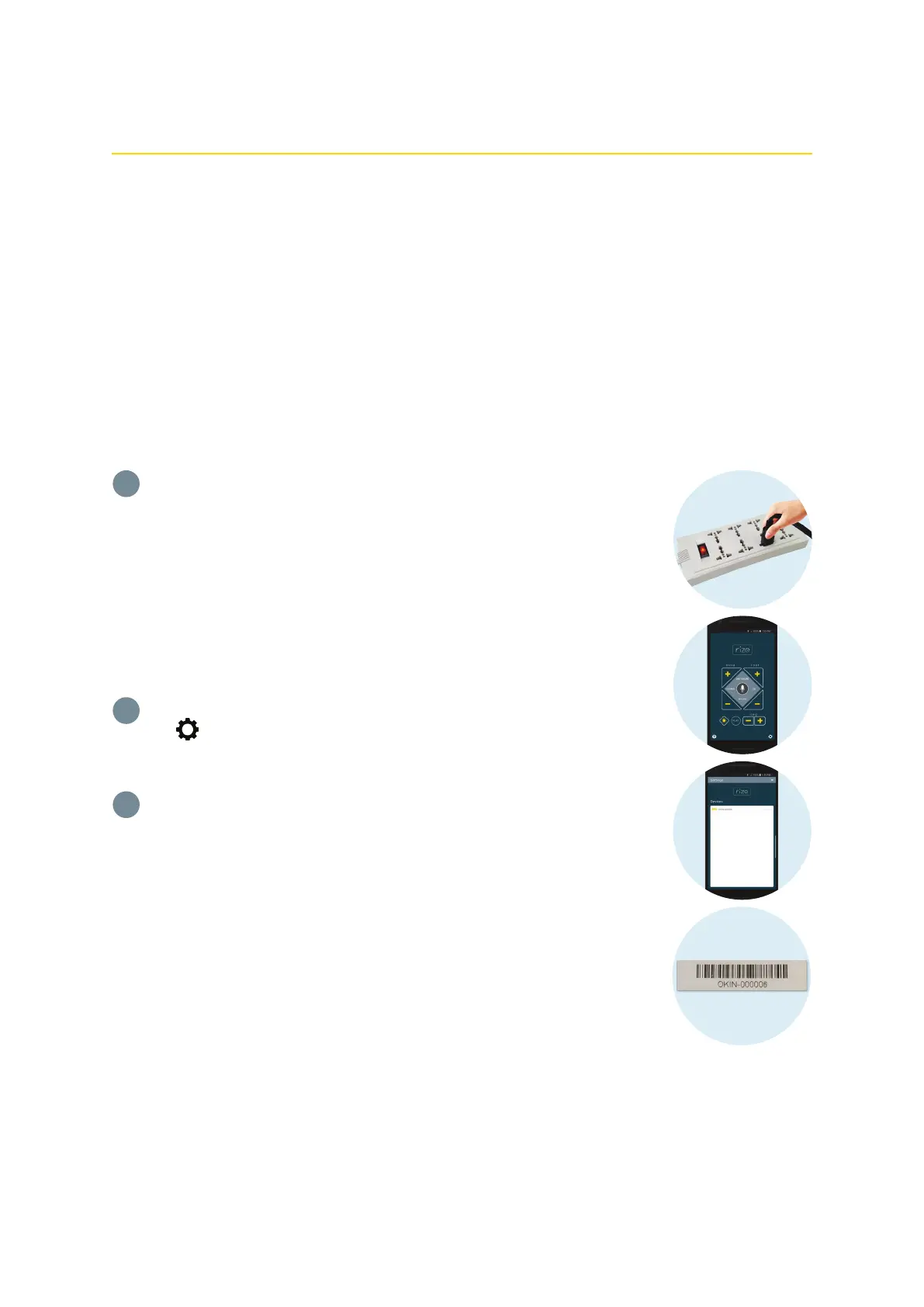
Unplug the power cord from the outlet and then plug it back in. The LED light
on the control box turns blue. After 20 seconds or after being operated by a
paired remote control, the LED light turns green and the control box enters
mobile device pairing mode.
NOTE: The control box stays in mobile device pairing mode for 60 seconds
and the name of your bed is now visible on the app.
From your mobile device, launch the app, and then tap the
gear icon to go to the Settings screen.
From the Devices list, select the name of your adjustable bed. The name of
your adjustable bed is on the sticker on the front cover of the Owner’s Manual
and on the bed’s control box.
NOTES:
• If your bed is not on the Devices list, make sure your bed is in mobile
device pairing mode. See step 1 for options to enable the mobile device
pairing mode on your bed’s control box.
• You can only connect one smart device to one adjustable bed at a time.
• The bed is automatically disconnected from the app when you close
the app (not running in the background) or move out of range of the
connection. Pair the bed to the app again next time you use the app.
• For more information on using the mobile app to control your adjustable
bed, see the Rize Aviada-O App Guide.
1
2
Your adjustable bed can be controlled using your iOS or Android smart device through the
Rize Aviada-O mobile application.
3
Sample sticker with the name
of your adjustable bed
Before connecting your bed to the mobile app, do the following:
• Make sure your adjustable bed is plugged into a working electrical outlet and the
control box is on.
• Download and install the Rize Aviada-O mobile app from the App Store
®
or the
Google Play
TM
Store.
• For iOS users, turn on your device's Bluetooth
®
. For Android users, turn on your
device's Bluetooth
®
and Location settings.


 To Next Page