1009
Disc Function Operation
Touch [Disc] icon in the main interface to enter into the Disc interface.
Play/eject disc
Insert the disc into the disc slot with the printing surface up, system will detect the disc and
automatically take it in to read and play.
Click button on the panel to eject the disc.
If a disc has not been took away 15 seconds after it is ejected, system will automatically
take in the disc but not play.
Note: 1. Click on the main interface [Disc] icon to enter the CD / DVD disc media player
such as document interface, similar to the SD / USB storage device interface features,
please see “U Disc/SD Card function operation" section.
2. Do not insert two or more than two discs.
3. When using incorrect or improper operation of the disc, the disc is stuck, please press
the disc movement key 3s host panel will automatically reset the dish and return to normal.
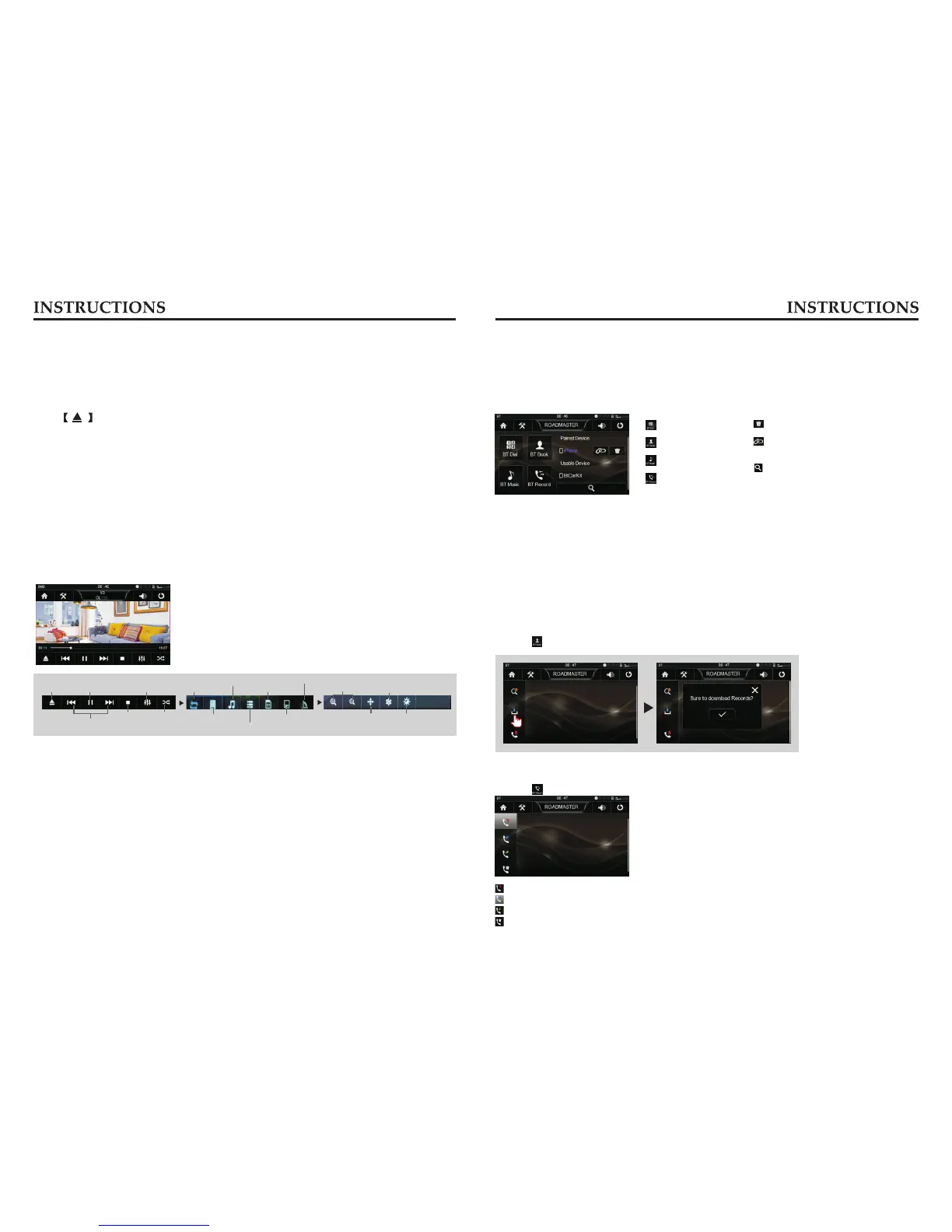
Playback Menu
During playback of disc, touch the middle lower area of the screen to pop up the touch
menu, operate the touch menu to perform various playback controls.
Eject disc
Repeat play
Audio (dialogue)
Video angle
Selections play
Long press Forward/Backward play
Short press previous/next song
Sound settingsPlay/pause
Random play
Stop
Back to list directories
Title menu
Language Selection
Zoom in/out
Scaling
Setup(Password 1234)
BT Function Operation
In the main interface touch [BT] icon to enter the BT interface.
The system provides BT hands free communication function, if your cellphone supports BT
function, you can establish a point-to-point connection between your cellphone and the
system. The system can also achieve the dialing, answering function, A2DP, the function
of phonebook on the screen.
: Dial
: Phonebook
: Music playback
: Call records
: this icon to search mobile
BT device.
Click
:Click this icon to connect BT device.
Pair/link
The first time you pair your cellphone with the unit, the procedures below should be followed:
① Turn the BT function of your cellphone on.
② The cell phone searches for BT device and connect.
③ A prompt is displayed on the screen of the phone, to accept pair, enter the same
numeric code on the phone (0000) and press [OK] button.
Phonebook
After the cellphone gets connected to the unit, you can read records in the phonebook of
your cellphone and store information in the phonebook of the unit. ( Note: Some phones
may not support the phone book.)
Touch [ ] icon to enter the Phonebook interface.
: Touch the button to delete a selected record.
: Touch this button to check all the dialed phone numbers.
: Touch this button to check all the phone numbers of received calls.
: Touch this button to check all the phone numbers of missed calls.
Call records
Recent dialed calls, received calls and missed calls can be saved in call records.
Touch [ ] icon to enter the Call records interface.
Note: , and function are based on the
support of video files.
Audio (dialogue) Language Selection Video angle
核对界面对不对?
:Delete
Video color aberration
adjustment



 To Next Page