10 English English 11
Press .
The is displayed on-screen to indicate the selected file is
locked.
Use Emergency Recording
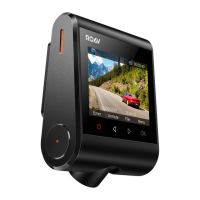
The DashCam Duo allows users to manually record videos during
emergencies.
Press the to start emergency recording.
The is displayed on-screen to indicate emergency recording
is active.
When emergency recording is activated, wait for a duration
of 30 seconds to exit emergency recording. The recorded
videos will be stamped with
and saved under Playlist >
Emergency Files.
View and Play Videos
DashCam Duo stops recording when you are viewing
videos or settings.
To view and play video on DashCam Duo
Click repeatedly to go to the Playlist.
Go to Normal Video / Emergency File to view all saved videos.
Select a video to play.
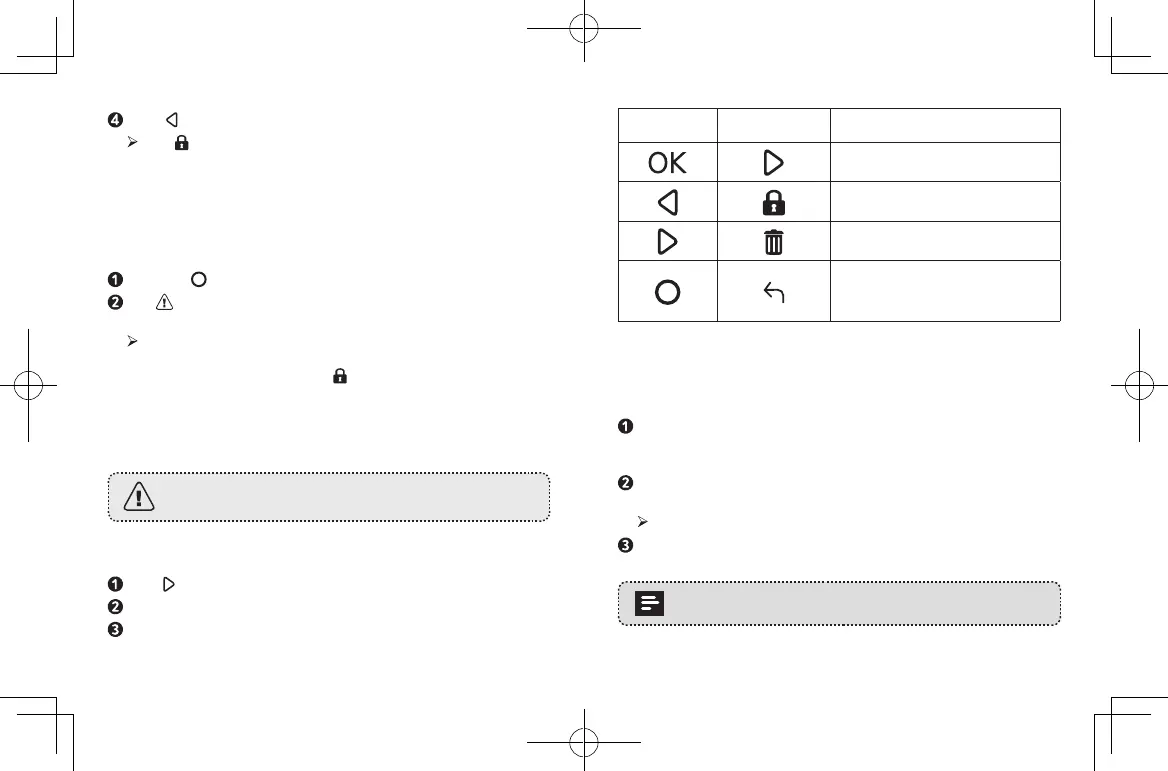
Button Virtual Button Function
Play / Pause
Lock Current / Unlock Current
Delete Current / Delete All
• Hold for 3 seconds to power
on / o
• Return to previous menu
To view and play video with the DashCam Viewer
The saved videos can be viewed and played with the DashCam
Viewer (not provided).
Download the Anker Roav DashCam Viewer video player
from: https://www.dropbox.com/sh/4v5nmnl5hu5m4fi/
AABDuOxwkiIaohwOpQJ9DrFXa?dl=0
Remove the microSD card from DashCam Duo and insert it into
your device’s microSD card slot.
All the saved files will be displayed.
Follow the instructions on DashCam Viewer’s manual to play
videos.
DashCam Viewer runs on Windows and Mac-based
computers.


 To Next Page