16
Recording using a computer cont.
systemorswitchitoff,sincethetwopreampliersintheturntableand
the audio system will result in distorted sound from the audio system.
In this case you would set the switch back to Off after recording.
10. Lower the tone-arm to allow the record to play and then click on the
Record icon in Audacity.
11. Allow the record to play. You should see that Audacity is receiving
audio from the turntable and scrolls the corresponding data across
the screen. Lower the recording level if the waveform shows clipping.
12. At the end of the record, click the Stop icon.
13. To save the complete recording to your computer, select Export Audio
from the File menu. Chose the format in which you wish the audio to
beexported(FLAC,MP3,etc.)andsavethele.
14.Togeneratealeforeachtrackoftherecord,wesuggestthefollowing
process.
a. Use the audio zoom and selection tools in Audacity to select the
audio for the track to be saved.
b. FromtheFilemenu,exportthecurrentselectionintherequired
format.
c. Repeattheabovetwostepsuntilallrequiredtrackshavebeen
saved.
15.IfnecessaryyoucanusetheltereffectoptionswithinAudacityto
remove any pops and clicks from the recording.
For more detail on the use of Audacity, there is comprehensive
documentation on the Audacity site at
http://www.audacityteam.org/help/documentation/
Even if your vinyl collection is old, please respect the copyright of the
original artists and publishers.
Basic controls in Audacity
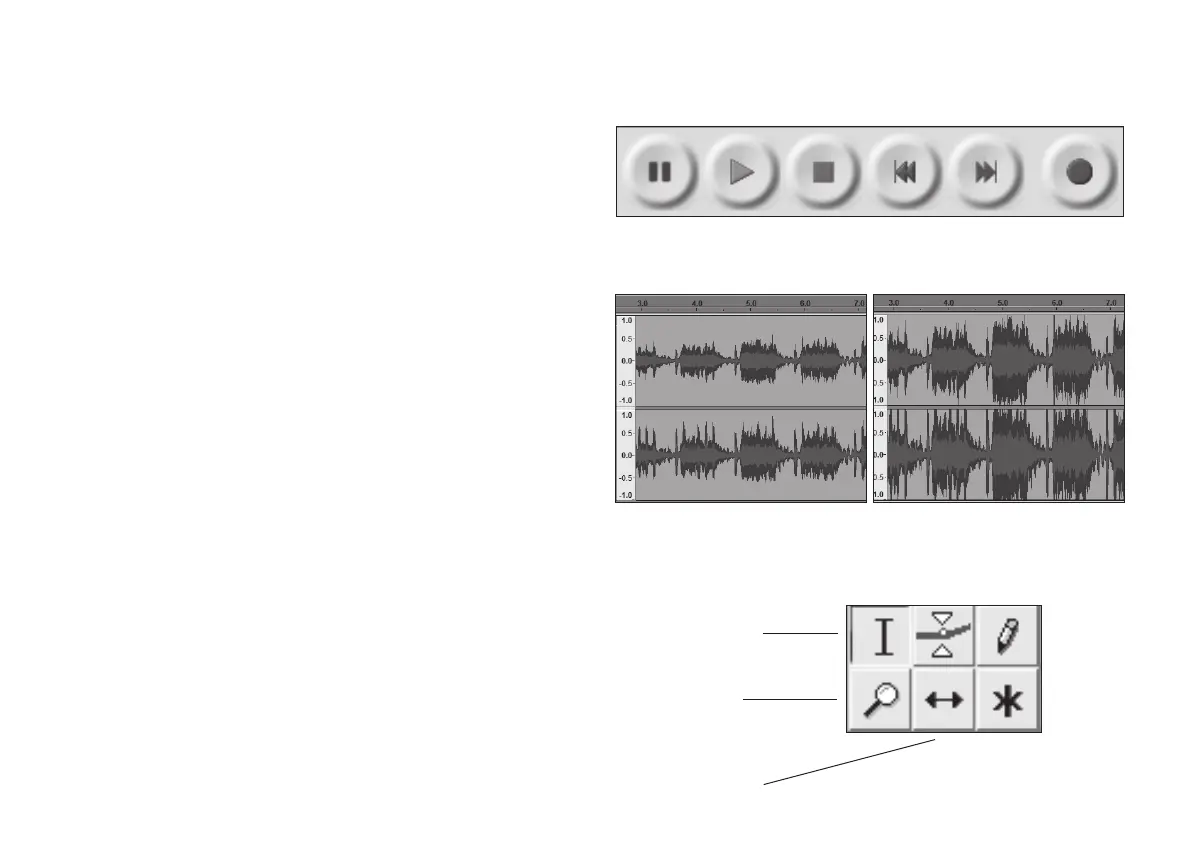
Pause Play Stop Rewind Forward Record
Recording level is correct Recording level is too high
Check the recording level
Audio zoom and selection controls in Audacity
Selection tool
Zoom tool
Left click = zoom in
Right click = zoom out
Time shift tool


 To Next Page