44
Spotify Connect
Artist:
Edgar Froese
Spotify
12:34
Magic Lantern
Spotify
Connect
&RQWUROOLQJ6SRWLI\RQ\RXUUDGLR
The music can be controlled using the controls on your radio as well as by any Spotify
enabled device.
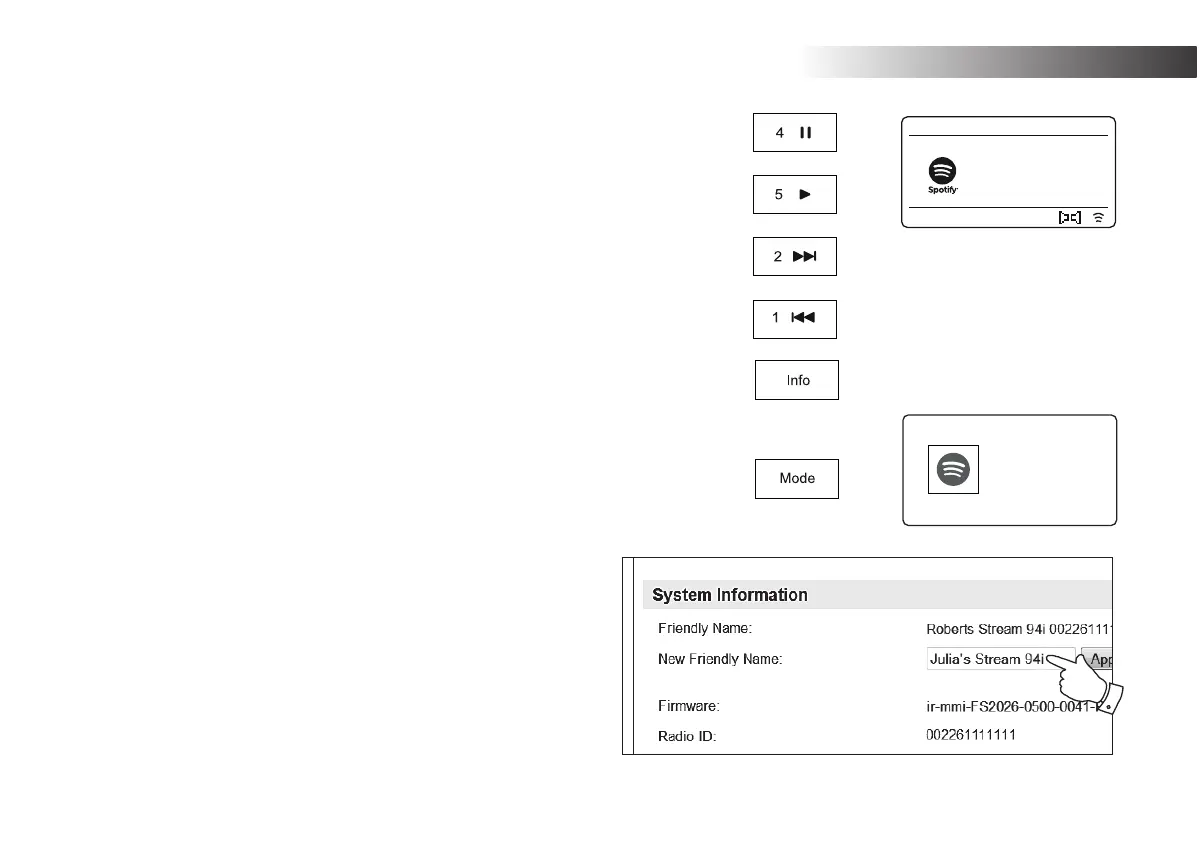
1. Press the Pause button to pause playback of the current track.
2. Press the Play button, playback will resume from the point where it was paused.
3. Press the Forward button to start playback of the next track in the current Spotify
playlist.
4. Press the Rewind button to start playback of the previous track in the current Spotify
playlist.
5. Rotate the Volume control to set the required volume level. The volume may also be
controlled from within the current Spotify app.
6. Press the Info button to step through the available display options.
8VLQJWKH0RGHEXWWRQWRVHOHFW6SRWLI\
If you have previously connected using the Spotify Connect app you may select Spotify
using the mode button on your radio.
1. Press the Mode button to select the Spotify mode.
Please note if the power is removed you will need to re-connect Spotify with your radio
using the app once again.
Friendly name - Spotify Connect
<RXU UDGLR LVLGHQWL¿HG ZLWKLQ WKH 6SRWLI\DSS XVLQJ LWV )ULHQGO\ 1DPH
By default, your radio's name will be shown as "Stream 94i" followed by
a 12 digit alphanumeric code which is the network MAC address that is
unique to your radio.
If you would like to change this name to something more personalised you
may follow the instructions on page 65 of this instruction book.


 To Next Page