8
FILES PRINTER UTILITIES
No File Loaded
Extruder 1
189.1°C
Bed
56.9°C
FILES
Robo Controls Wizards Network
System
Options
Update
PRINTER UTILITIES
Filament Change
Filament Loading Z Offset Wizard
Firmware Update Slicer Wizard
Wizards
Moving Z Axis to minimum position. The wizard will
go to the next step once this is complete.
Z Offset 1/4
°
°
Z Offset 2/4
Move the Z Axis up until a piece of paper can just barely
pass between the bed and the extruder
0.1mm Z- Z+ Done
Z Offset Wizard
Use the Z Offset Wizard to properly set the home
position for the Z value of your printer.
Start
Z Offset 2/4
Move the Z Axis up until a piece of paper can just barely
pass between the bed and the extruder
Z- Z+ Done0.1mm
Z- Z+
FILES PRINTER UTILITIES
No File Loaded
Extruder 1
189.1°C
Bed
56.9°C
FILES
Robo Controls Wizards Network
System
Options
Update
PRINTER UTILITIES
Filament Change
Filament Loading Z Offset Wizard
Firmware Update Slicer Wizard
Wizards
Moving Z Axis to minimum position. The wizard will
go to the next step once this is complete.
Z Offset 1/4
°
°
Z Offset 2/4
Move the Z Axis up until a piece of paper can just barely
pass between the bed and the extruder
0.1mm Z- Z+ Done
Z Offset Wizard
Use the Z Offset Wizard to properly set the home
position for the Z value of your printer.
Start
Z Offset 2/4
Move the Z Axis up until a piece of paper can just barely
pass between the bed and the extruder
Z- Z+ Done0.1mm
Z- Z+
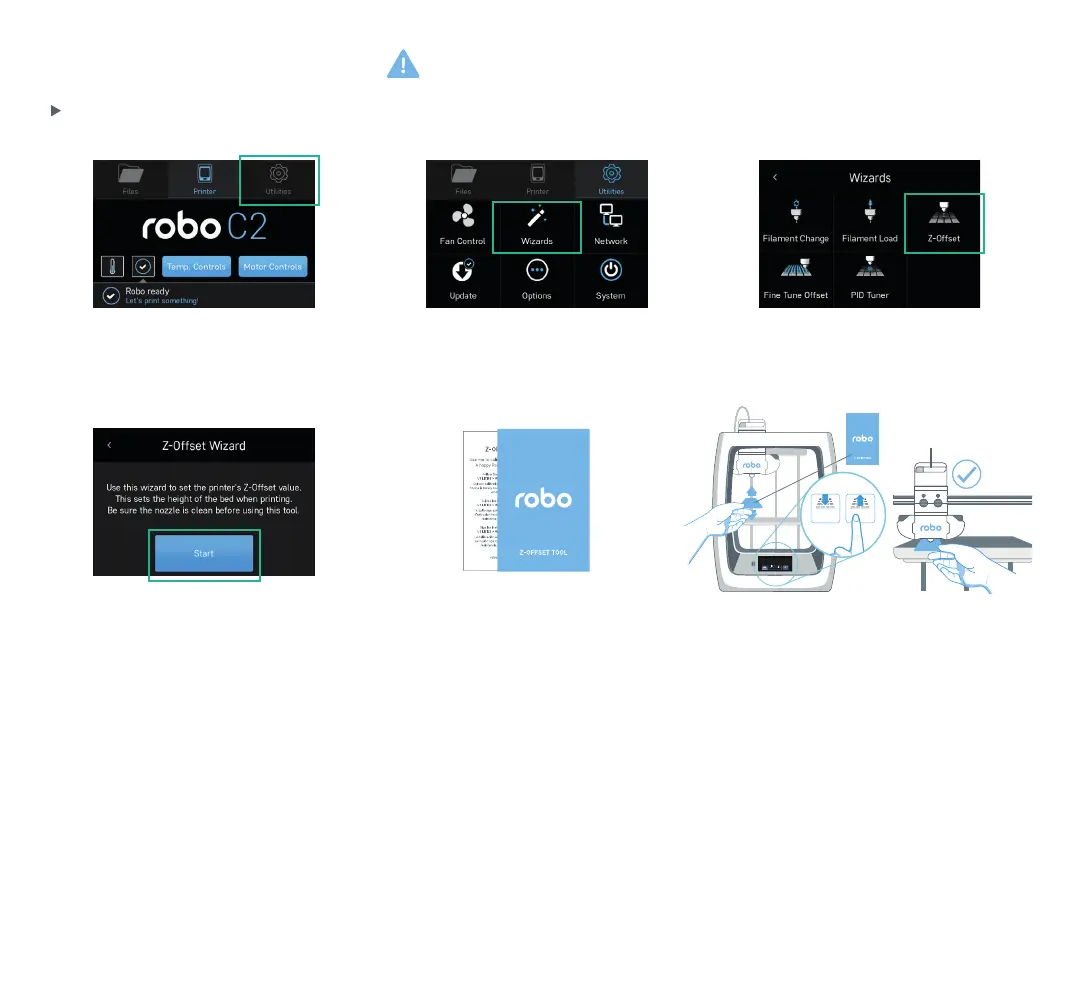
Step 5 Calibration
1. Select UTILITIES.
4. ZOFFSET wizard sets the print bed
height when printing. Follow the steps to
complete the wizard.
2. Select WIZARDS. 3. Select Z-OFFSET.
Use the included Z-Offset Tool to set
your print bed height. A standard sheet
of paper will also work.
Slide the Z-Offset Tool back and forth
between the Extruder Nozzle and Print
Bed. Tap the Z+ and/or Z- until Extruder
Nozzle lightly touches the top of the
Z-Offset Tool.
Ensure Extruder Nozzle is clean
prior to starting calibration.
Note: If it feels like the Extruder Nozzle is
digging into the Z-Offset Tool, Print Bed is too
high, so press the Z- down arrow until you feel
only slight resistance when sliding the Z-Offset
Tool under the Extruder Nozzle.
Calibrate your Z-Offset before you start printing.


 To Next Page
 Loading...