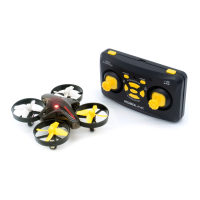
Getting to Know Your Controller
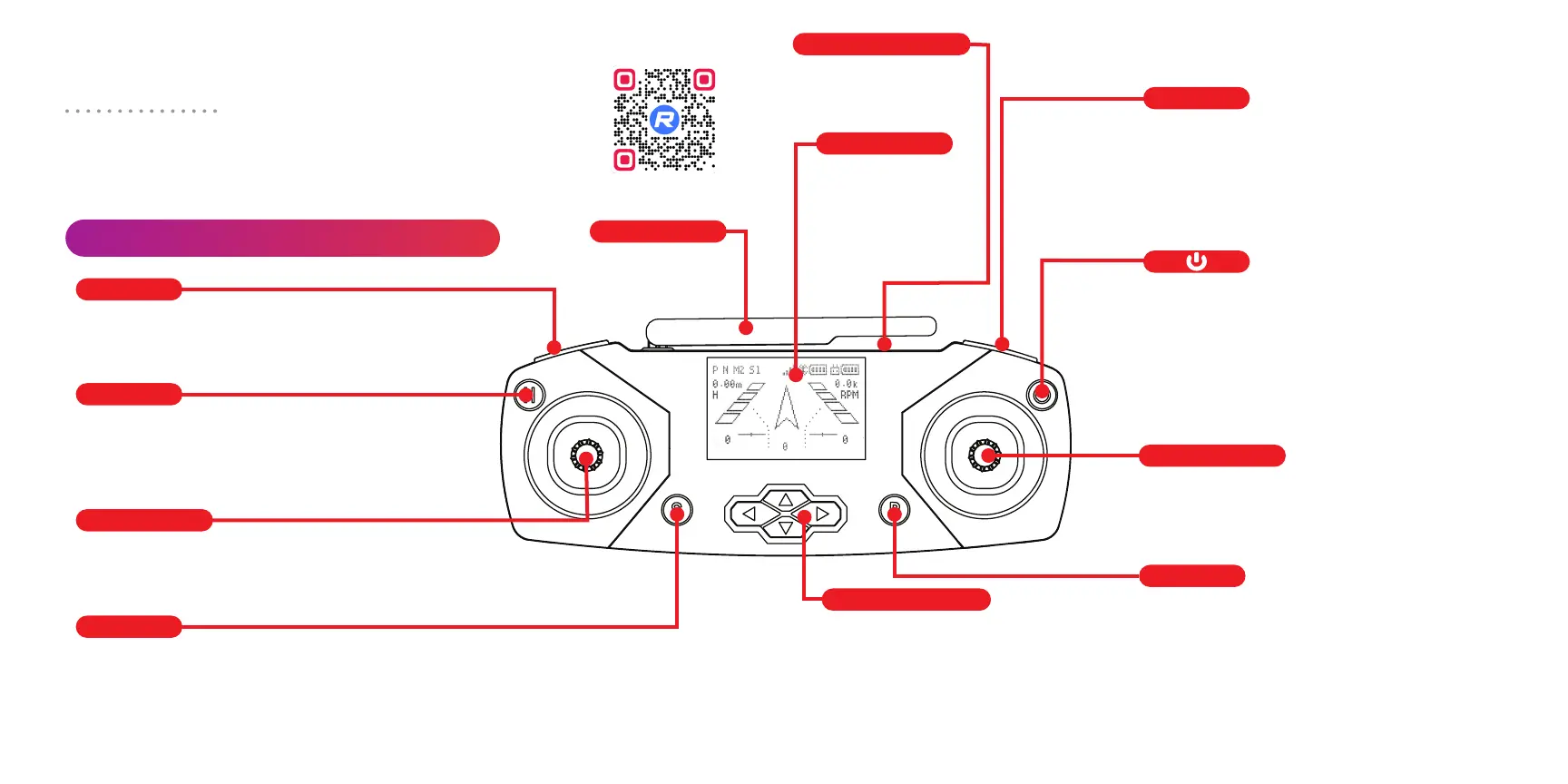
L1
LCD screen
Micro USB port
Antenna
H
S
Left joystick
Right joystick
Direction pad
P
R1
Press: Change flight speed (30%, 70%, 100%).
Press and hold: Take o / Land.
Press: Turn LCD screen backlight on / o.
Press and hold: Return home during flight.
Left and right: Yaw (rotate left and right).
Up and down: Throttle (move up and down).
Left and right: Roll (move left and right).
Up and down: Pitch (move forward and
backward).
Press: Go to previous display mode screen.
Press and hold: Go to the Settings menu.
If the drone begins to drift while
flying, use the direction pad to
trim (stabilize) it.
(See page 17 for how to trim.)
Displays drone
information and
settings. Can also
be programmed
with code.
Used for coding and
controller firmware
updates.
Extend and point
at drone for best
connectivity.
Press: Go to next display mode screen.
Press and hold: Pair.
(See page 14 for how to pair.)
Press: Change LED color on drone and
controller.
Press and hold: Prepare drone to flip
during flight. Then, push the right joystick
in the direction you want to flip.
Press: When connected to a computer
by USB cable, this button switches
between the remote control and LINK
state, which is used for coding.
Press and hold 3 seconds: Power on / o
when using AA batteries.
Using your controller, you can pilot your drone or connect
your controller to your computer for coding. These are the
controls for the controller while in the remote control state.
For a complete video guide to the controller, visit:
robolink.com/codrone-edu-controller-guide
10 11



 To Next Page
 Loading...