23
4. U
sing the Electric Wheelchair
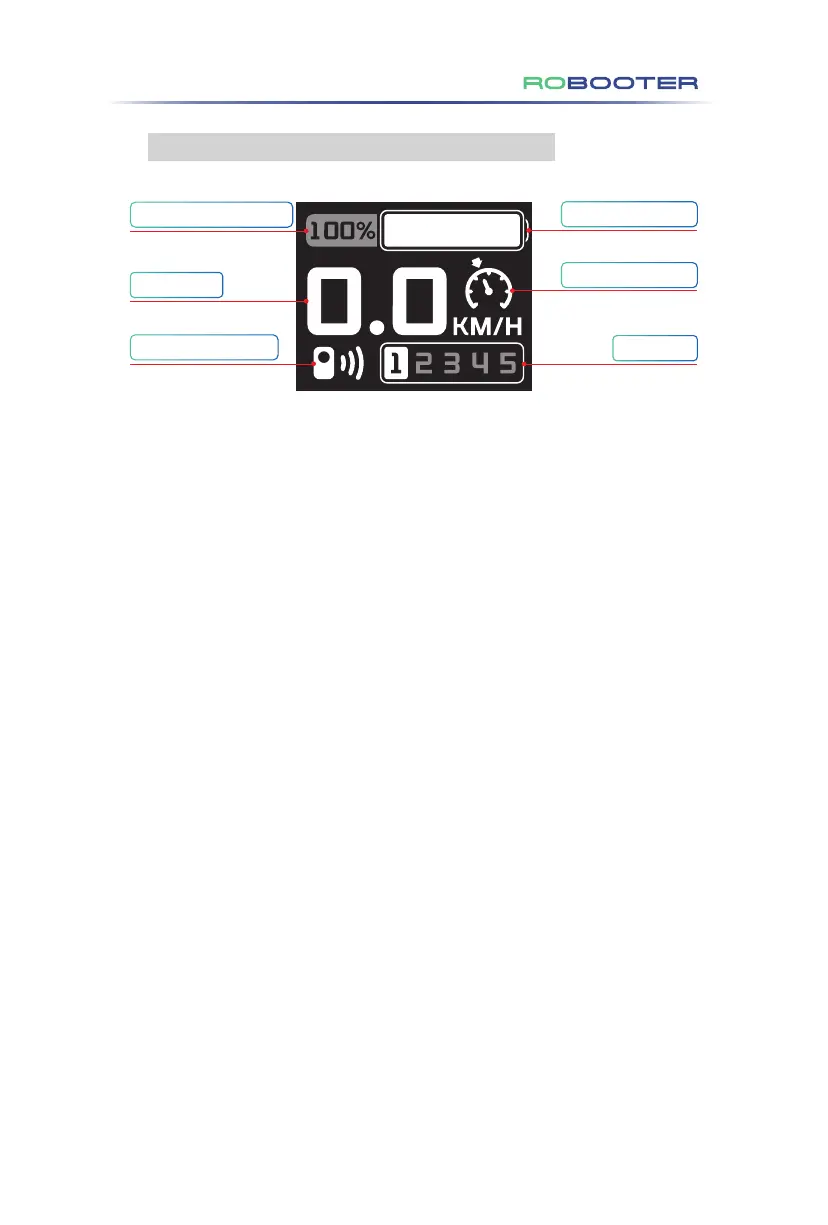
(1) Battery Percentage Display: Refer to Figure 4.3.3.1
• The electric wheelchair's upper controller screen displays the battery
percentage.
(2) Speed Display: Refer to Figure 4.3.3.1
• The upper controller screen shows the electric wheelchair's driving speed in
km/h.
• The displayed speed accuracy is ±5%.
(3) Bluetooth Status Display: Refer to Figure 4.3.3.1
• When there's no Bluetooth connection, the Bluetooth icon is absent from the
screen.
• When connected via Bluetooth, the Bluetooth icon appears on the screen.
(4) Battery Power Display: Refer to Figure 4.3.3.1
• The upper controller provides real-time power status.
(5) Cruise Control Display: Refer to Figure 4.3.3.1
• To activate cruise control, press and hold the "Speed ︿" button for over 3
seconds. Upon activation, the upper controller screen will display the cruise
control icon, accompanied by two voice prompts. Pushing the rocker forward
commences cruise control.
• To exit cruise control, either press the lock key or shift the rocker backward,
regardless of the driving state.
•
Note: Cruise control is only available when the wheelchair is
unlocked and cannot be initiated in locked mode.
• "︿" and "﹀" can be used to adjust the gears during the cruise control
process.
• Use the rocker to adjust steering during cruise control.
• If the cruise control mode isn't activated within 5 seconds after selection, it
will auto-exit. The voice prompt will notify, "Due to wait timeout, the cruise
control mode has been automatically exited."
Figure 4.3.3.1
4.3.3 Display Screen Menu Description
Battery percentage display
Speed display
Bluetooth status display
Battery power display
Cruise control display
Gear display


 To Next Page
 Loading...