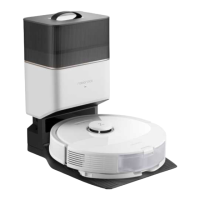
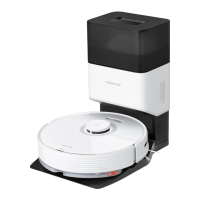
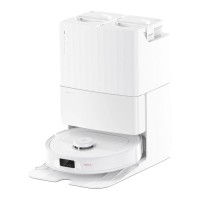
07
A5
Dustbin (Disposable Dust
Bag Pre-Installed)
A6
Dustbin Cover
A7
Disposable Dust Bag
A12
Screwdriver
A13
Main Brush Cleaning Tool
A14
Power Cable
A8
Base
A8-1—Air Duct Cover Screws (10)
A8-2—Air Duct Cover
A8-3—Screwdriver
A8-4—Base Fastening Screws (6)
A11
Power Cable Storage
A11-1—Power Cable Storage Slot
A11-2—Cable Outlet
A11-3—Power Port
A10
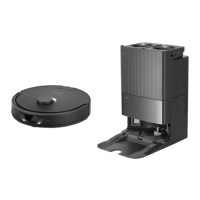
Auto-Empty Dock (Cover
Removed)
A10-1—Dust Bag Slot
A10-2—Filter
A9
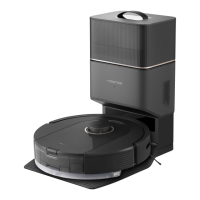
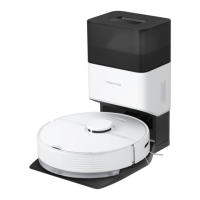
Auto-Empty Dock
A9-1—Dustbin Cover
A2
Robot (Bottom View)
A2-1—Wall Sensor
A2-2—Cli Sensors
A2-3—Omni-Directional Wheel
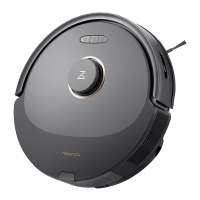
A1-1—Bumper
A1-2—LiDAR Sensor
A1-3—Vertical Bumper
A1-4—Dustbin
A1-5—Dock Locator
Product Overview
A
A1
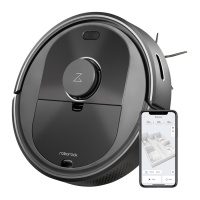
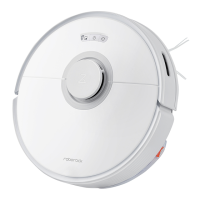
Robot (Top View)
•
Press and hold to turn the robot on or o
•
Press to start cleaning
—Power/Clean
•
White: Battery level
≥
20%
•
Red: Battery level < 20%
•
Pulsing: Charging or starting up
•
Flashing red: Error
—Power Indicator
Note: Press any button to stop the robot during cleaning or docking.
Note: Power cable can be pulled out at both sides.
A2-4—Charging Contacts
A2-5—Side Brush
A2-6—Main Wheel
A2-7—Main Brush
A2-8—Main Brush Cover Latches
A3
Robot (Dustbin Removed)
A3-1—Air Inlets
A3-2—Reset Button
A4
Dustbin
A4-1—Air Inlets
A4-2—Dustbin Latches
A4-3—Washable Filter
A4-4—Filter Latch
•
Flashing blue slowly: Waiting for
connection
•
Flashing blue quickly: Connecting
•
Steady blue for ve seconds: WiFi
connected
•
Press to return to dock
•
Press and hold to start spot cleaning
—WiFi Indicator Light
—Dock/Spot Clean
A9-2—Dustbin
A9-3—Base
A9-4—Status Indicator Light
•
Steady white: Standby
•
Flashing white: Emptying
•
Steady red: Malfunction
•
Light o: Charging Robot/Not
Powered On
A9-5—Dock Location Beacon
A9-6—Charging Contacts
A9-7—Suction Inlet
A9-8—Electrode Brushes


 To Next Page