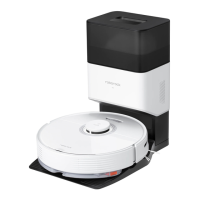
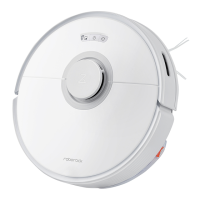
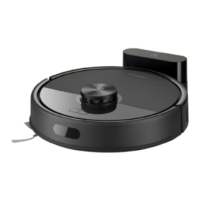
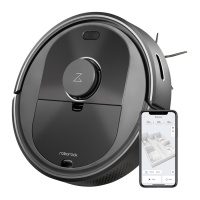
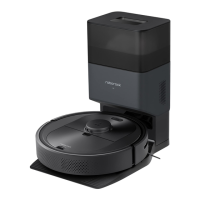
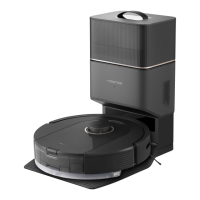
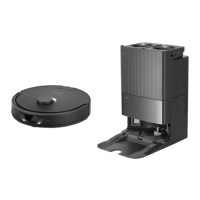
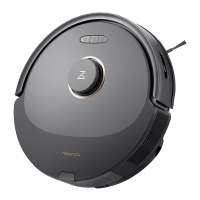
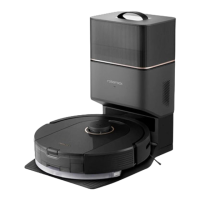
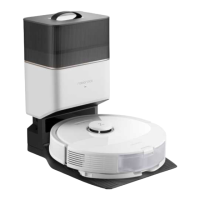
This document is a user manual for the Roborock Q7 Robot Vacuum and Mop.
Function Description
The Roborock Q7 is a robotic vacuum cleaner and mop designed for automated floor cleaning. It features both vacuuming and mopping capabilities, allowing it to clean various floor types efficiently. The robot can be controlled via a mobile application, offering advanced features like multi-map management, real-time cleaning routes, map zoning, and custom cleaning modes. It is equipped with a charging dock for automatic recharging and can be paired with an auto-empty dock (AED03LRR) for enhanced convenience.
Important Technical Specifications
Robot (Model: Q400RR)
- Battery: 14.4V/5200mAh lithium-ion battery
- Weight: Approximately 3.2kg (7.05 lbs.)
- Rated Input: 20V ⎓ 1.2A
- Charging Time: < 6 hours
Charging Dock (Model: CDZ12RR)
- Rated Power: 28W
- Rated Input: 100-240V~
- Rated Output: 20V ⎓ 1.2A
- Rated Frequency: 50-60Hz
- Charging Battery: 14.4V/5200mAh lithium-ion battery
Connectivity:
- Supports 2.4 GHz WiFi.
- Compatible with Roborock and Mi Home apps.
Sensors:
- Bumper
- LiDAR Sensor
- Dock Locator
- Wall Sensor
- Cliff Sensors
- Omni-Directional Wheel
- Charging Contacts
Usage Features
Powering On & Charging:
- Press and hold the Power/Clean button to turn the robot on or off.
- The robot is equipped with a high-performance lithium-ion rechargeable battery.
- For optimal battery performance, keep the robot charged during normal use.
- If the battery is low, the robot may not turn on and needs to be placed on the dock to charge.
- The power indicator shows battery status: White (≥ 20%), Red (< 20%), Pulsing (charging or starting up), Flashing red (Error).
Cleaning Modes:
- Starting Cleaning: Press the Power/Clean button to begin. The robot plans its route by scanning the room, splitting it into zones, drawing edges, and then cleaning in a zigzag pattern.
- Pause: Press any button to stop the robot during operation. Press Power/Clean to resume, or Docking/Spot Cleaning to send it back to the dock and end the current cleanup.
- Spot Cleaning: Press and hold the Docking/Spot Cleaning button to initiate spot cleaning. The robot cleans a 1.5m x 1.5m square area centered on itself. After spot cleaning, it returns to the starting point and enters Standby mode.
- Sleep Mode: If paused for over 10 minutes, the robot enters sleep mode, indicated by a slowly flashing power indicator. Press any button to wake it up. It will not sleep while charging and will shut down automatically if left in sleep mode for more than 12 hours.
- Do Not Disturb (DND) Mode: Default period is 22:00 to 08:00. Can be disabled or modified via the app. In DND mode, the robot will not automatically resume cleanup, the power indicator dims, and voice prompts are lowered.
Mopping Module:
- Adjust Water Flow: Slide the switch down to increase water flow, and up to decrease it.
- Fill Water Tank: Remove the stopper, fill with water, and close.
- Install Mop: Dampen the mop, wring it, insert it into the attachment slot, and stick it firmly. Slide the mopping module along the back of the robot until it clicks into place.
- Remove Mop: Press latches on both sides and slide the module backward.
- Notes for Mopping: Vacuum floors at least three times before mopping for first-time use. Avoid carpets by drawing No-Go Zones or Invisible Walls. Do not use cleaning fluid or disinfectant to prevent corrosion. Clean the mop after 60 minutes of use.
App Features:
- Cleaning Map: Multi-map management, real-time vacuum and mop route display, map zoning, map editing.
- Custom Cleaning Modes: Scheduled cleaning, selective room cleaning, zone cleaning, No-go zones & invisible wall, custom modes, carpet boost.
- Cleaning Mode Switch: 4-level suction power.
- Robot Information: Cleaning history, battery level, care & maintenance.
- More Features: Firmware upgrade, volume adjustment, DND mode, voice assistance support.
WiFi Connection:
- Reset WiFi: Open the top cover, find the WiFi indicator, press and hold the Power/Clean and Docking/Spot Cleaning buttons until "Resetting WiFi" voice alert is heard. The indicator will flash slowly, indicating it's waiting for connection.
- Add Device: Open Roborock or Mi Home app, tap "Search for device" or "+" and follow in-app instructions.
- Note: Only 2.4 GHz WiFi is supported. WiFi automatically disables if no connection within 1 hour.
Maintenance Features
Routine Maintenance:
-
Main Brush (Clean every 2 weeks, replace every 6-12 months):
- Turn over the robot, press latches to remove the main brush cover.
- Pull out the main brush and remove the main brush bearing.
- Rotate main brush caps in the unlock direction to remove them.
- Remove tangled hair or dirt from both ends of the main brush.
- Reinstall, press the main brush cover to lock it. Ensure all four tabs are hidden.
- Wipe with a wet cloth and air dry away from direct sunlight. Do not use corrosive cleaning fluid.
-
Side Brush (Clean every month, replace every 3-6 months):
- Unscrew the side brush screw.
- Remove and clean the side brush.
- Reinstall and tighten the screw.
-
Omni-Directional Wheel (Clean as needed):
- Use a tool (e.g., small screwdriver) to pry out the axle and remove the wheel.
- Rinse the wheel and axle with water to remove hair and dirt.
- Air-dry, reinstall, and press back into place. The bracket cannot be removed.
-
Dustbin and Washable Filter (Clean every week, filter replace every 6-12 months):
- Open the upper cover, take out the dustbin.
- Remove the washable filter and empty the dustbin.
- Fill dustbin with clean water, shake gently, and pour out dirty water. Use only clean water, no cleaning liquid.
- Rinse the filter repeatedly and tap to remove dirt. Do not touch the filter surface with hands, brush, or hard objects.
- Leave dustbin and filter to dry, then reinstall.
-
Robot Sensors (Clean every month):
- Use a soft, dry cloth to wipe all sensors: Dock locator, Wall sensor, Four cliff sensors.
-
Mop Cloth (Clean after each use, replace every 3-6 months):
- Remove from mopping module. Wash and air dry.
- Always remove the mop cloth after cleaning to prevent dirty water from leaching into the clean water tank.
- A dirty mop compromises washing performance.
-
Filter Components (Replace every 1-3 months):
- Move finger along the notch to remove each filter.
- Insert new filter components, ensuring proper installation.
-
Charging Contact Areas (Clean every month):
- Clean the charging contacts of the dock and the robot with a soft, dry cloth.
Battery Maintenance:
- To maintain battery performance, keep the robot charged during normal use.
- If storing for a long period, charge fully, turn off, and store in a cool, dry place. Recharge at least every three months to prevent over-discharge.
Removing the Battery (for disposal only):
- Operate the robot without connecting to the dock until the battery runs out.
- Turn off the robot.
- Unscrew and remove the battery cover.
- Press the latch to pull out the battery connector and remove the battery.
- Ensure the battery is fully drained before removal. Do not attempt removal if connected to the dock.
- Remove the entire battery pack, avoiding damage to prevent short-circuits or leakage.
- In case of accidental contact with battery fluid, rinse with water and seek medical care. Hand to a professional recycling facility for centralized disposal.
Troubleshooting (Errors and FAQs):
- The manual provides a detailed table of common errors, their causes, and solutions (e.g., LiDAR blocked, bumper stuck, wheels suspended, cliff sensor error, main brush jammed, low battery, charging error, etc.).
- It also addresses frequently asked questions regarding scheduled cleaning, power consumption while docked, initial charging, water flow issues, cleaning not resuming after recharge, and connectivity problems.
- For persistent issues, contact Roborock support.

 Need help?
 General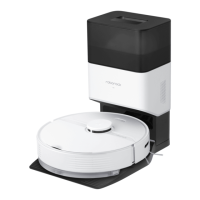

 To Next Page