Need help?
Do you have a question about the RoboteQ AX2550 and is the answer not in the manual?
High power device; review manual for precautions before applying full power to prevent damage.
Use rechargeable batteries; keep controller connected to battery, not power supply alone.
Avoid connecting RC radio with battery attached to prevent voltage injection into electronics.
Beware of wiring errors in closed loop mode causing uncontrolled motor movement.
Lists essential components for minimal installation, including controller and battery.
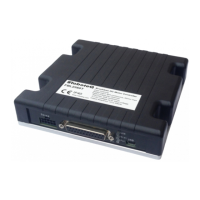
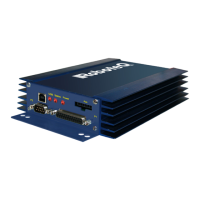
Familiarize yourself with front and rear controller layouts, buttons, connectors, and wiring.
Detailed guide for wiring the controller to batteries and motors, respecting polarity.
Explains the function and signal assignment of each pin on the 15-pin D-Sub connector.
Instructions for connecting the R/C radio for motor control, speed, and steering.
How to power on the controller and the operational roles of Set, Program, and Reset buttons.
Overview of factory default settings and methods for changing them via buttons or PC.
Benefits and procedure for connecting the controller to a PC using the Roborun utility.
Methods to obtain the controller's software version number via PC or controller buttons.
References to advanced features and topics covered in the full user manual.
 General
| Max Current per Channel | 50A |
|---|---|
| Channels | 2 |
| Control Modes | Open Loop, Closed Loop Speed, Closed Loop Position, Closed Loop Torque |
| Encoder Inputs | 2 |
| Operating Temperature | -40°C to +85°C |
| Type | Motor Controller |
| Communication Interface | RS232, USB, CAN |
| Feedback | Analog |

 To Next Page