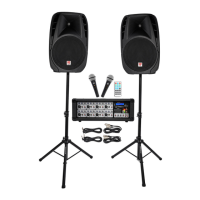
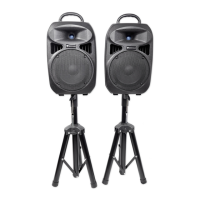
The Rockville BPA15 is a 15-inch active DJ/PA speaker with Bluetooth, designed for professional sound reinforcement in various settings, from intimate gatherings to larger venues. This speaker system is engineered to deliver a full spectrum of sound, with its woofer handling lower frequencies and a tweeter horn providing more directional high frequencies.
For optimal sound dispersion, especially for clear vocal reproduction, it is recommended to mount the BPA15 on speaker stands, such as the Rockville RVSS-2 (not included). This ensures that the tweeter horn is positioned at ear level to the audience and is not obstructed by furniture, allowing its sound to radiate effectively above the listening crowd. The woofer's sound, by nature, can travel through various paths even when blocked, making its aiming less critical.
To prevent irritating feedback during microphone presentations, proper microphone placement is crucial. Always position the microphone behind the speaker, never in front of it. When making adjustments to the speaker, approach it from the rear to avoid walking directly towards the front, which can induce feedback.
Setting the level controls correctly is essential for optimal performance and to prevent distortion. Begin by unplugging all inputs except the one you intend to set the gain for. For line-level devices like smartphones or MP3 players connected via RCA jacks, set the device's volume to 60%. Then, slowly increase the LINE INPUT volume control on the speaker until the clip indicator LED illuminates or distortion is heard, then reduce it by one or two notches. When connecting a mixer via the XLR line-in port, set the BPA's LINE INPUT volume to 50% and the mixer's master volume to 50%, making fine adjustments on the mixer's channel level control. If the signal remains weak, the BPA's LINE INPUT control can be further boosted. For microphone input, speak into the microphone while adjusting the MIC INPUT volume control, as this adjustment is relative to the music volume rather than a clipping issue.
The BPA15 offers versatile input options. It features balanced microphone inputs via XLR or ¼-inch TRS jacks. When connecting a microphone, ensure the speaker is off, plug the microphone into either the ¼-inch TRS or XLR jack (never both simultaneously), then switch the speaker on and follow the level setting instructions. For line input, an XLR input is available for connecting a mixer, while RCA and 3.5mm AUX inputs accommodate additional stereo signal sources like smartphones, tablets, MP3 players, or CD players. Only one input should be used at a time.
For larger public address or concert setups, the BPA15 can be integrated with a passive mixing console. Connect the left main output of the mixer to the LINE INPUT XLR port of the left BPA unit, and similarly for the right channel. This setup allows for mixing multiple inputs from singers, speakers, effects devices, and musicians, and facilitates the use of multiple speakers.
Bluetooth pairing is straightforward. Activate Bluetooth on your device and ensure it is discoverable. Turn on the BPA15 and press the MODE button until "bt" appears on the LCD display. Search for "BPA15" in your device's Bluetooth list and select it to connect.
The speaker also includes USB/SD input for digital MP3 music playback. Simply insert an SD card or USB flash drive, and the unit will automatically begin playback. This mode overrides other input modes; to return to USB/SD mode from another mode, press the MODE button until the USB/SD LED is illuminated. An FM radio function is also built-in, accessible by pressing the MODE button until frequency digits are shown on the LCD. Press and hold the play/pause button to scan and save available FM stations, then use the previous/next track buttons to select stations.
The BPA15 features an XLR line output port, allowing the amplifier signal to be sent to a powered subwoofer, another powered speaker, or an external amplifier. This is achieved by connecting the output device to the LINE OUT XLR port using an XLR to XLR or XLR to ¼-inch TRS cable. The XLR inputs and outputs are fully balanced to maximize interference compensation, and balanced connections are recommended whenever possible. For unbalanced use with XLR connectors, pin 1 and pin 3 should be bridged.
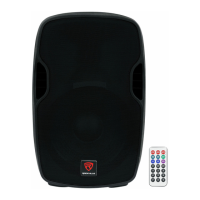
The speaker includes a remote control for convenient operation. Functions include switching between modes (USB/SD/BT/FM), stopping playback, muting, skipping tracks (previous/next), fast-forwarding/rewinding, playing/pausing, adjusting volume, and cycling through preset EQs (Normal, Rock, Pop, Classic, Jazz, Country). A number pad allows direct selection of track numbers in USB/SD mode and preset stations in FM mode, with dedicated buttons for selecting tracks in the hundreds (100+, 200+).
On the rear panel, the BPA15 provides individual volume controls for MIC INPUT, LINE INPUT, and MP3 VOLUME. It also features treble and bass controls for equalization, power and clip LED indicators, and an IEC AC power socket. The unit is 110/220 Volt switchable, with an external user-serviceable fuse compartment. Fuse replacement involves using a screwdriver to release the fuse holder, removing the old fuse, inserting a new one, and re-inserting the holder. The voltage switch allows the unit to operate with either 110V or 220V power supplies.


 To Next Page
 General