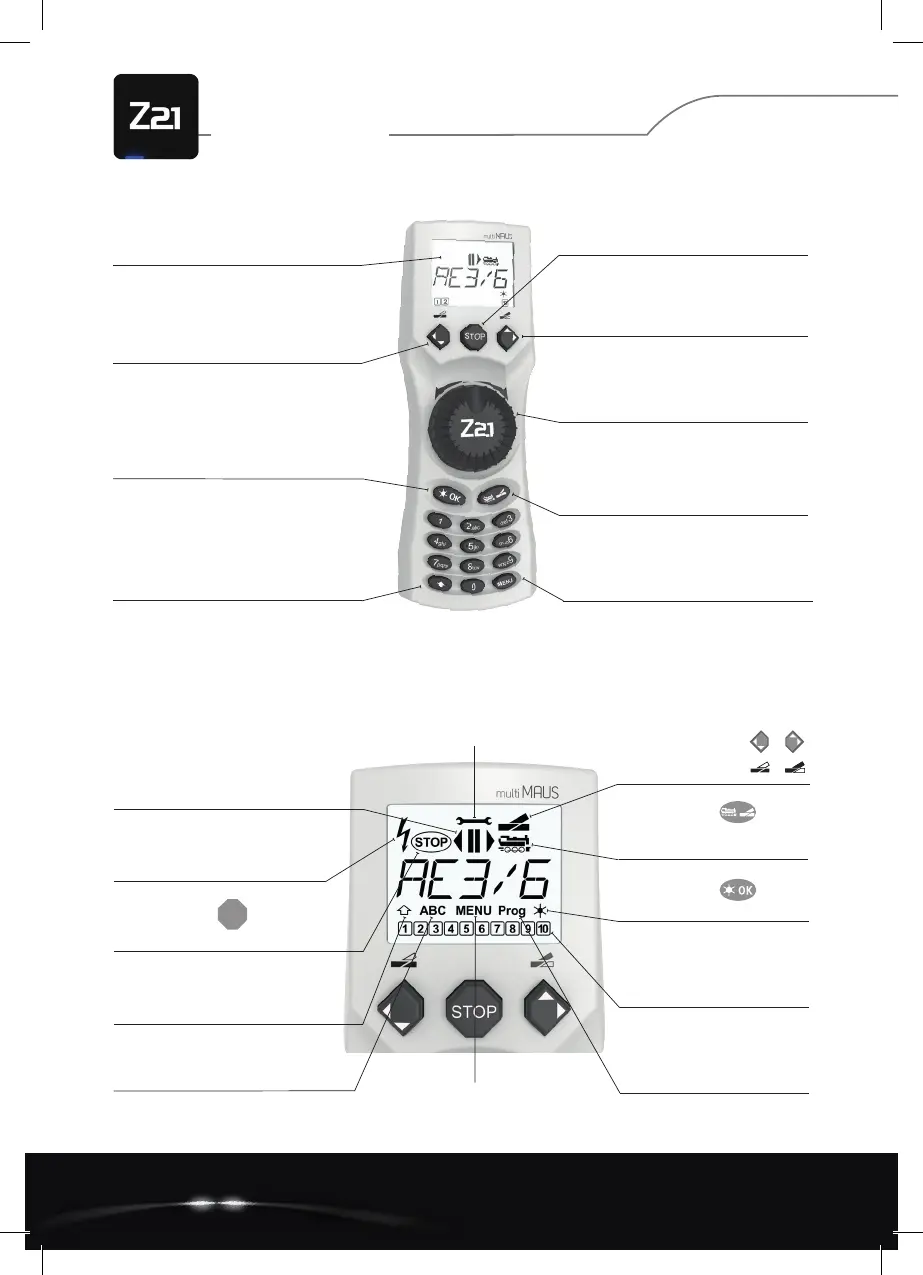
Left arrow key for scrolling through
entries and settings (backwards)
Light/OK key forconrmingentries
and switching on the train lighting
Stop key for activating and
deactivating an emergency stop
Right arrow key for scrolling
through entries and settings (forward)
Control knob for setting
the direction and speed of travel
Thank you very much for choosing one of our
EXPLANATION OF DISPLAY SYMBOLS
Short-circuit symbolashesin
case of short circuit or overload
Shift symbol indicates key actuation
Tournout symbols
• Tournout mode:
Switch turnout
Loco symbol
• Drive or turnout mode
• Menu level: Loco menu
Light symbol
• Switch on loco light
Stop symbol ashesincase
of emergency stop and short circuit
STOP
Function icons (1-10)
• Show the activated special
loco functions
• Menu level: subordinate levels
Driving symbols
• Arrows indicate direction of travel of
the selected locomotive
• Pause indicates standstill of the loco-
motive (by controller or selective
emergency stop)
Wrench
Menu level: Settings menu
ABC lights up during text input
MENU
the multiMAUS is in the menu level
Prog
• Lights up as confirmation during
programming
Menu level: Programming menu
KEYBOARD EXPLANATION
Shift key for activating
further multiMAUS functions
(key combinations)*
LC display for indication
Loco/Turnout key for switching
between locomotive and turnout control
Menu key for selecting
conguration variables (CV)*
Model Railway Control
A5_MultiMaus_Kurzanleitung_02.02.2022_ENG.indd 3A5_MultiMaus_Kurzanleitung_02.02.2022_ENG.indd 3 15.02.22 16:1115.02.22 16:11


 To Next Page
 Loading...