How do I allow or block a screen mirroring request?
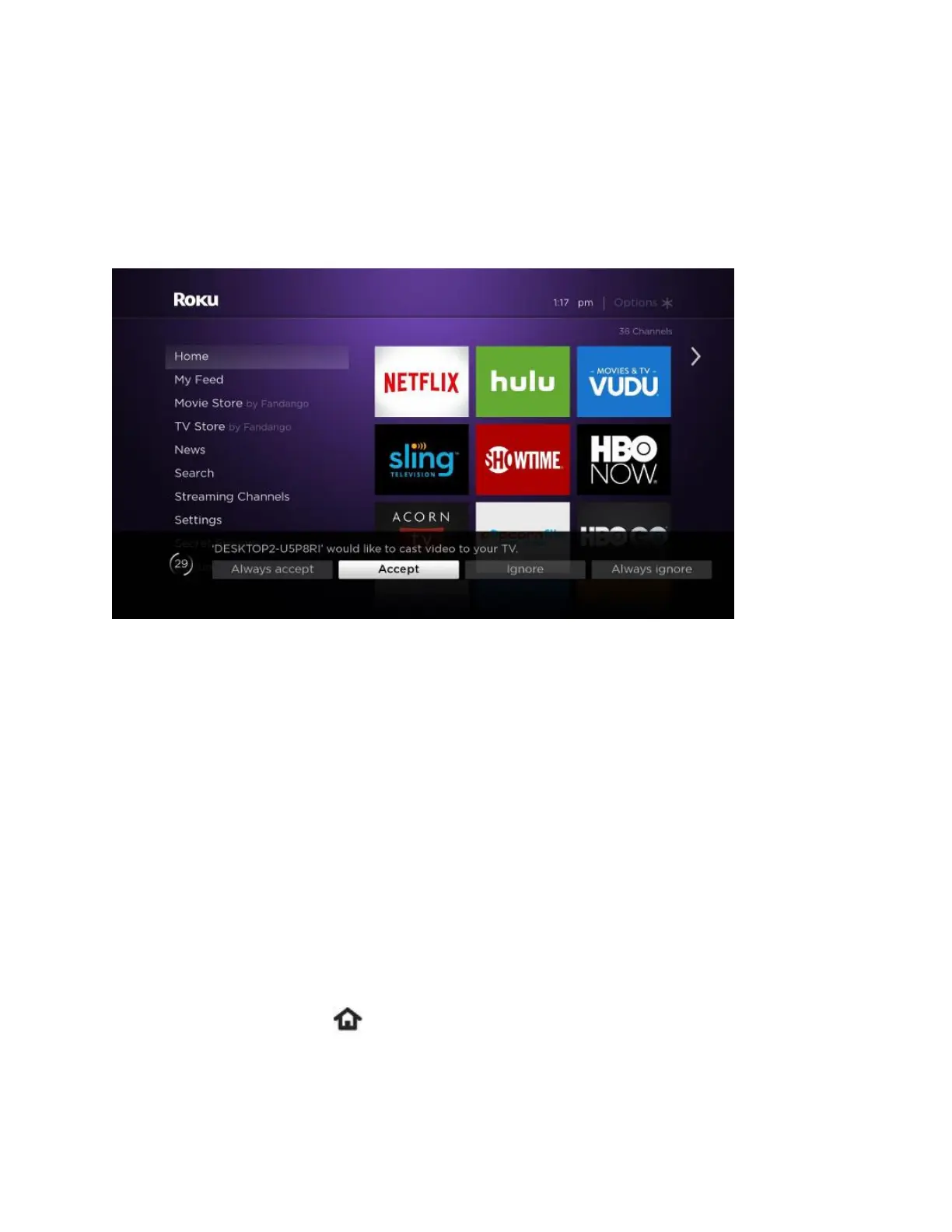
When a screen mirroring request is made from your Android or Windows device, your Roku
device displays an on-screen prompt across the bottom of your TV screen.
From the prompt, you can choose from the following options to allow or block the request.
Always accept – Always allow content from the device to be screen mirrored to your Roku
device without displaying the on-screen prompt for each future attempt. This action adds the
device to a list of ‘Allowed devices’.
Accept – Allow content from the device to be screen mirrored on your Roku device for this one
attempt.
Ignore – Block the current attempt and do not allow the device to connect to your Roku device.
Always ignore – Always block an attempt from the device, and do not display an on-screen
prompt for future attempts. This action adds the device to a list of ‘Blocked devices’.
Can I adjust screen mirroring settings?
You can define how an incoming screen mirroring request is handled by changing the screen
mirroring mode on your Roku device. You can also remove a device that was added to the list of
‘Allowed devices’ or ‘Blocked devices’.
1. Press the Home button on your Roku remote.
2. Select Settings and then select System.
3. Select Screen mirroring.
4. After you open the screen mirroring settings, choose a setting to adjust.


 To Next Page