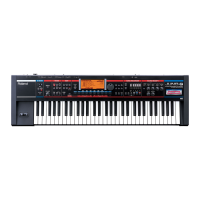
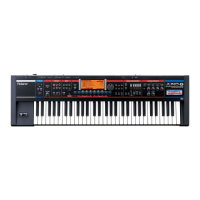
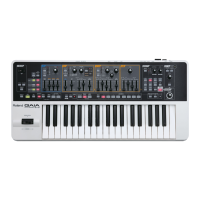
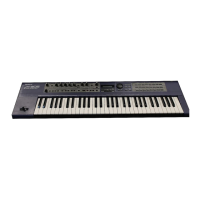
The Roland GO:KEYS is a series of portable keyboards designed for music creation and performance. This manual focuses on using additional content such as Sound Packs, Style Packs, and Wave Expansions with the GO:KEYS 3 and GO:KEYS 5 models, and also details the functionality of Roland Cloud Connect.
Function Description:
The Roland GO:KEYS series allows users to expand their musical capabilities by integrating additional content from the Roland Cloud. This content includes:
- Sound Packs (.sdz): Collections of tones and drum kits that enrich the instrument's sonic palette.
- Style Packs (.sdz): Pre-programmed accompaniment styles that provide a backing band for various musical genres.
- Wave Expansions (.exz): Advanced sound data that adds new instrument sounds and textures, primarily for the GO:KEYS 5.
Users can manage and import this content through two primary methods:
- Roland Cloud Manager: A computer-based application used to download content files from the Roland Cloud website. These files are then transferred to the GO:KEYS via a USB flash drive. This method requires purchasing a Lifetime Key for paid content.
- Roland Cloud Connect (WC-1, sold separately): A wireless adapter that allows direct import of content data from a smartphone app (Roland Cloud Connect app) to the GO:KEYS. This method offers content on a membership basis.
The GO:KEYS instruments support various operations related to content management:
- Installation: Wave Expansions are installed directly onto the GO:KEYS' internal memory. Sound Packs and Style Packs are imported into user banks.
- Uninstallation: Wave Expansions can be removed from the GO:KEYS 5 to free up storage space.
- Direct Selection (Style Packs): Style Packs saved on a USB flash drive can be directly selected and used without prior import, provided a user license is installed.
- User License Management: The GO:KEYS links additional content to a user license. If content associated with a different license needs to be used, the existing user license must be initialized (removed).
Important Technical Specifications:
- Supported Models: GO:KEYS 3 and GO:KEYS 5. Wave Expansions are exclusive to GO:KEYS 5.
- Storage Media: USB flash drive for content transfer.
- File Formats:
- Wave Expansions:
.exz
- Sound Packs:
.sdz
- Style Packs:
.sdz
- Connectivity (Roland Cloud Connect):
- WC-1 Wireless Adapter: Connects to the USB memory port (GO:KEYS 3) or Wi-Fi adaptor port (GO:KEYS 5).
- Bluetooth®: Required for initial setup and communication with the Roland Cloud Connect app on a mobile device.
- Wi-Fi: WC-1 connects to a network (router) via Wi-Fi for content download and authentication.
- Roland Cloud Connect App Version: Requires version 1.5.0 or later.
- WC-1 Firmware: GO:KEYS is compatible with WC-1 version 1.02 or later. Firmware updates for the WC-1 are managed through the Roland Cloud Connect app.
Usage Features:
- Content Acquisition:
- Roland Cloud Manager: Download content from
https://roland.cm/RolandCloudManager. Purchase Lifetime Keys for permanent access.
- Roland Cloud Connect: Log in to Roland Cloud via
https://roland.cm/wc1rc. Install the Roland Cloud Connect app from https://roland.cm/wc1app (iOS/Android). Content is available on a membership basis.
- USB Flash Drive Preparation:
- Format the USB flash drive on the GO:KEYS if it's the first time using it.
- Create specific folder structures:
- Wave Expansions (.exz): Save to the root directory.
- Sound Packs (.sdz): Save to
ROLAND/SOUND folder.
- Style Packs (.sdz): Save to
ROLAND/STYLE folder.
- Importing Content (via USB):
- Navigate to
Menu -> Utility -> Wave Exp (for Wave Expansions) or Import -> Tone/Style (for Sound/Style Packs).
- Select the desired file and follow on-screen prompts for installation/import.
- A user license registration screen appears if it's the first time installing data.
- Loading Content (via Roland Cloud Connect):
- Tap a tone/drum kit name in the Sound Pack list or a style name in the Style Pack list within the app to load it into the GO:KEYS.
- "Write tone to device" or "Write style to device" functions allow saving loaded content to the GO:KEYS' User Bank.
- Real-time Content Loading: Tones and drum kits loaded from Sound Packs, or styles loaded from Style Packs, are temporary and canceled when a different scene or tone is selected. Saving to User Banks makes them permanent.
- Auto-accompaniment (Arranger): Style Packs provide auto-accompaniment features.
- Filtering and Liking Content: The Roland Cloud Connect app allows users to "Like" content and filter by liked items.
Maintenance Features:
- WC-1 Initialization (Reset Setting): If the WC-1 adapter fails to connect properly, it can be reset via
Menu -> Utility -> Wi-Fi Adapter -> RESET. This disconnects the WC-1 from the network.
- WC-1 Firmware Update: The Roland Cloud Connect app prompts for WC-1 firmware updates. Users must tap "WC-1 Update" in the app's "Connect" tab and confirm the update.
- Membership Authentication (Roland Cloud Connect):
- The GO:KEYS requires periodic authentication of the user's membership by connecting the WC-1 Wireless Adapter to the GO:KEYS regularly.
- A "Limit" parameter shows the number of power cycles remaining before content is disabled if not authenticated.
- Warnings appear if the instrument is used 20 consecutive times without authentication.
- Content is disabled if used 30 consecutive times without authentication, or if the yearly Pro membership ends/expires.
- User License Initialization (Remove License):
- To use content associated with a different user license, the existing license on the GO:KEYS must be removed.
- This is done via
Menu -> Utility -> Fact Reset. Select only "Remove License" and execute.
- Caution: This deletes all currently installed Wave Expansions and imported Style Packs.
- After initialization, the GO:KEYS power must be cycled off and on.
- Error Messages: The manual provides a list of common error messages (e.g., "USB Memory is not ready," "Expansion File Not Found!," "Incorrect File!," "Incorrect License! Remove License," "Expansion Memory Full!") and their corresponding actions/troubleshooting steps. For instance, "Expansion Memory Full!" indicates insufficient space for Wave Expansions, requiring deletion of existing ones. "Incorrect License! Remove License" suggests a mismatch in user licenses, prompting initialization of the user license.
- Deleting Contents: If internal storage space is insufficient for importing new data, users can delete unnecessary contents using the "Delete Contents" function (refer to the GO:KEYS "Reference Manual" for details).

 Need help?
 General

 To Next Page