EasyManua.ls Logo

Rongta Technology RP310 - Printer Test; Print Self-Test Page; Print with the Window Driver

Rongta Technology RP310
16 pages
Print Icon
To Next Page IconTo Next Page
To Previous Page IconTo Previous Page
Loading...
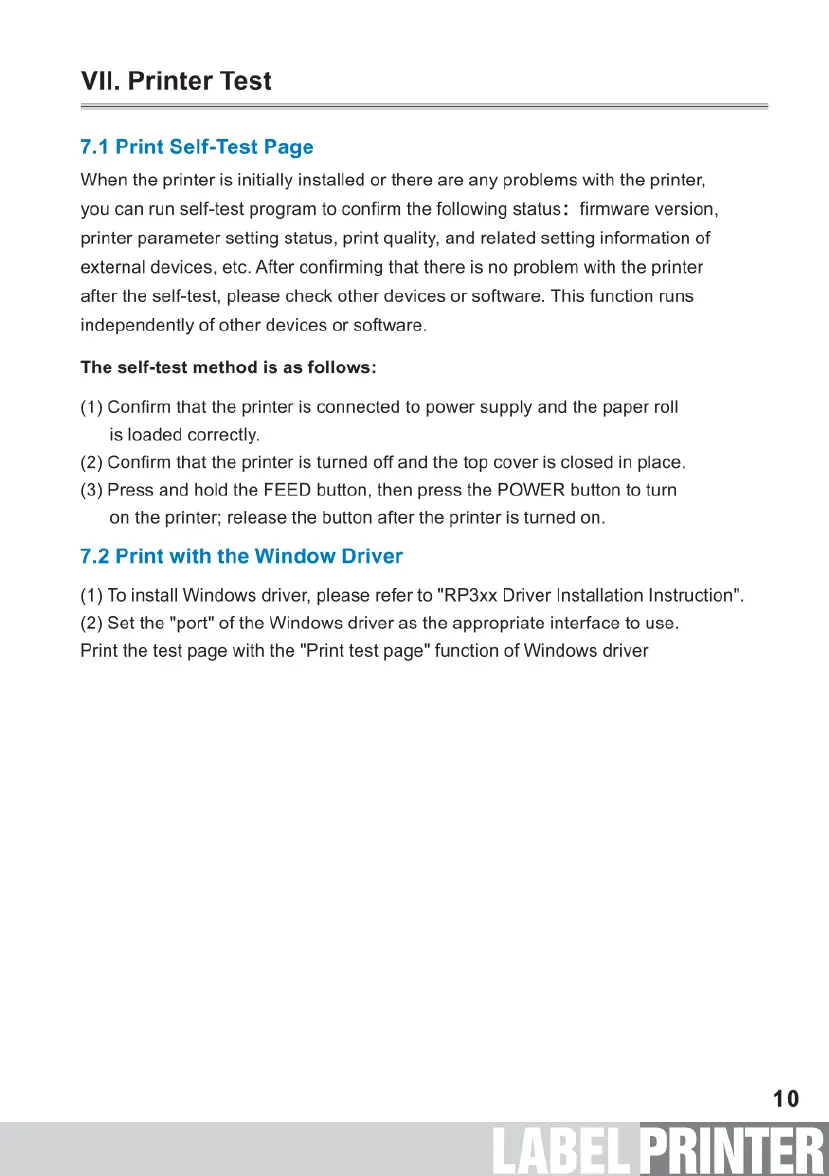
VII.
Printer
Test
7.1
Print
Self-Test
Page
When
the
printer
is
initially
installed
or
there
are
any
problems
with
the
printer,
you can
run
self-test
program
to
confirm
the
following
status:
firmware
version,
printer
parameter
setting status,
print
quality,
and
related
setting
information
of
external
devices,
etc.
After
confirming
that
there
is
no
problem
with
the
printer
after
the
self-test,
please
check
other
devices
or
software.
This
function
runs
independently
of
other
devices
or
software.
The
self-test
method
is
as
follows:
(1)
Confirm
that
the
printer
is
connected
to
power
supply
and
the
paper
roll
is
loaded
correctly.
(2)
Confirm
that
the
printer
is
turned
off
and
the top
cover
is
closed
in
place.
(3)
Press
and
hold
the
FEED
button,
then
press
the
POWER
button
to
turn
on
the
printer;
release
the
button
after
the
printer
is
turned
on.
7.2
Print
with
the
Window
Driver
(1)
To
install
Windows
driver,
please
refer
to
"RP3xx
Driver
Installation
Instruction”.
(2)
Set
the
"port"
of
the
Windows
driver
as
the
appropriate
interface
to
use.
Print the
test
page
with
the
"Print
test
page"
function
of
Windows
driver
10

Related product manuals