EasyManua.ls Logo

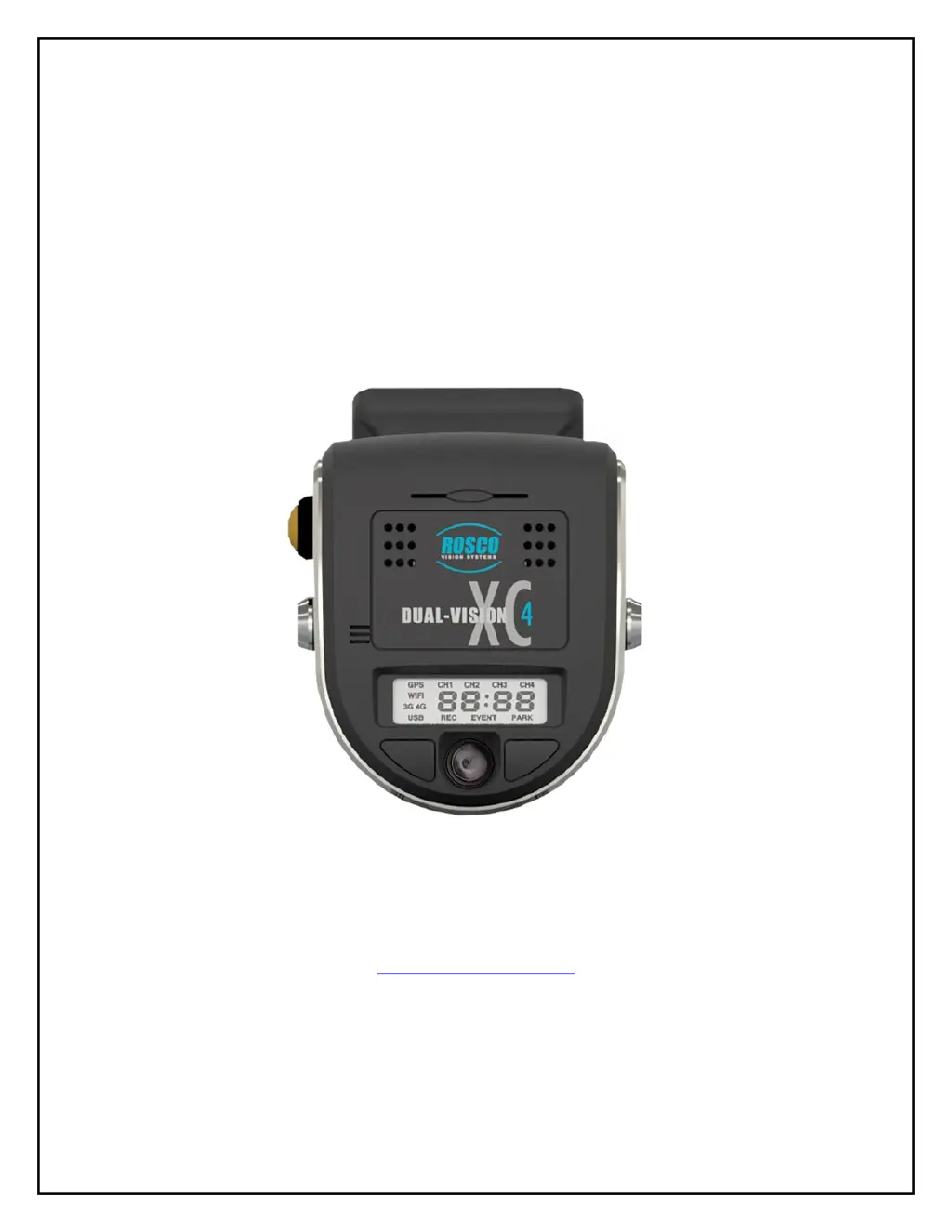
Rosco Dual-Vision XC4 - User Manual

Rosco Dual-Vision XC4
40 pages
Print Icon
To Next Page IconTo Next Page
Loading...
1
Dual-Vision™ XC4
Standard Version
Installation & Operating Instructions
19 DEC, 2017
90-21 144
th
Place, Jamaica, New York USA 11435
Phone: 800-227-2095
www.roscovision.com
Version 5.3
©2017 Rosco® Vision Systems, All Rights Reserved
Specifications and details are subject to change without prior notice.
Patent Pending

Other manuals for Rosco Dual-Vision XC4

Questions and Answers

  • G
    George PerezAug 2, 2025
    What to do if the event icon is constantly lit on my Rosco Camcorder?
    • T
      todd38Aug 2, 2025
      If the event icon on your Rosco Camcorder is constantly lit, it is likely due to constant events and chimes triggered by bumps and potholes. To resolve this, increase the G-Sensor settings based on your vehicle type and specific needs.
  • A
    Andrew JacksonAug 13, 2025
    Why is the LCD display dark and no chime heard on my Rosco Dual-Vision XC4 Camcorder?
    • W
      William BuckleyAug 13, 2025
      If the LCD display is dark and you don't hear a chime when starting your vehicle, it indicates that the Rosco Camcorder is not receiving power. Check the power cable connection and fuses to ensure they are properly connected and functional.
  • E
    Emily ButlerAug 22, 2025
    How to fix a faint LCD display on Rosco Dual-Vision XC4, but chime is heard?
    • M
      Matthew MartinezAug 22, 2025
      If the LCD display on your Rosco Camcorder is faint, but you hear the chime upon starting the vehicle, the brightness setting is likely low. Open the Configuration screen in DV- Pro5 and adjust the Backlight Day/Night Settings to increase the display brightness.

Summary

Safety Instructions

Introduction to Dual-Vision XC4

Package Contents

DVXC4 Features

Data Retrieval Options

Available methods for accessing recorded video and data.

DV-Pro5 Player Program

Video Playback and Data Management

Functionality for viewing, managing, and converting recorded video files.

Recorder Detail

Installation

Power Wiring Diagram

Visual representation of the electrical connections for the recorder system.

PDC (Power;Data Control) Module Installation

Step-by-step instructions for installing the Power/Data Control module.

Installing Mounting Bracket (DV402)

Instructions for properly installing the windshield mounting bracket for the recorder.

Mounting the Recorder Unit (DV401)

Steps to attach the DVXC4 recorder unit securely to the installed mounting bracket.

DVXC4 Operation

Drive Recording

How to initiate recording and interpret system status indicators upon vehicle start.

Continuous and Event Recording

Explanation of how the device handles continuous recording versus event-triggered recordings.

Recorder Removal & SD Card Retrieval

Procedures for safely detaching the recorder and removing the SD card from the unit.

DV-Pro5 Player Program

Introduction to DV-Pro5 (Standard Version)

Detailed overview of the standard DV-Pro5 software's features and usage.

Install DV-Pro5

DV-Pro5 Home Screen

Camera System Setup and Configuration

General Settings

How to configure basic system settings like timezone, display, and parking surveillance.

Channel Settings

How to configure recording parameters for each camera channel.

Event Settings

How to configure event flagging based on speed, G-sensor, or driver input.

Server Settings

How to configure network settings for wireless data transfer and streaming.

Remove SD Card from PC & Install into DVXC4

Video Playback Instructions

Setting Up and Analyzing G-SENSOR Data

G-SENSOR Event Examples in DV-Pro5

Backing Up Video Files to Your PC (Import)

Conversion of Video To AVI

Vehicle Location Map

Format SD Card using DV-Pro5

SD Card Maintenance

DVCV4 Hardware Technical Specifications

Engineering Drawings

Application Notes

List of available application notes for resellers and installers.

Troubleshooting

AUX Cameras (Optional)

Spare Parts

Commercial Warranty

Rosco Dual-Vision XC4 Specifications

General IconGeneral
Sensor TypeCMOS
Operating Temperature0°C to 40°C
Lens MountN/A (Fixed Lens)
Lens TypeFixed
ISO SensitivityAuto
White BalanceAuto
Exposure Compensation+/- 2.0EV
Video Resolution1920 x 1080 (Full HD)
Video OutputHDMI, USB
Audio RecordingBuilt-in microphone
Display TypeLCD
Storage MediaSD Card (up to 128GB)
Battery TypeLithium-ion
ConnectivityHDMI, USB
Power5V DC